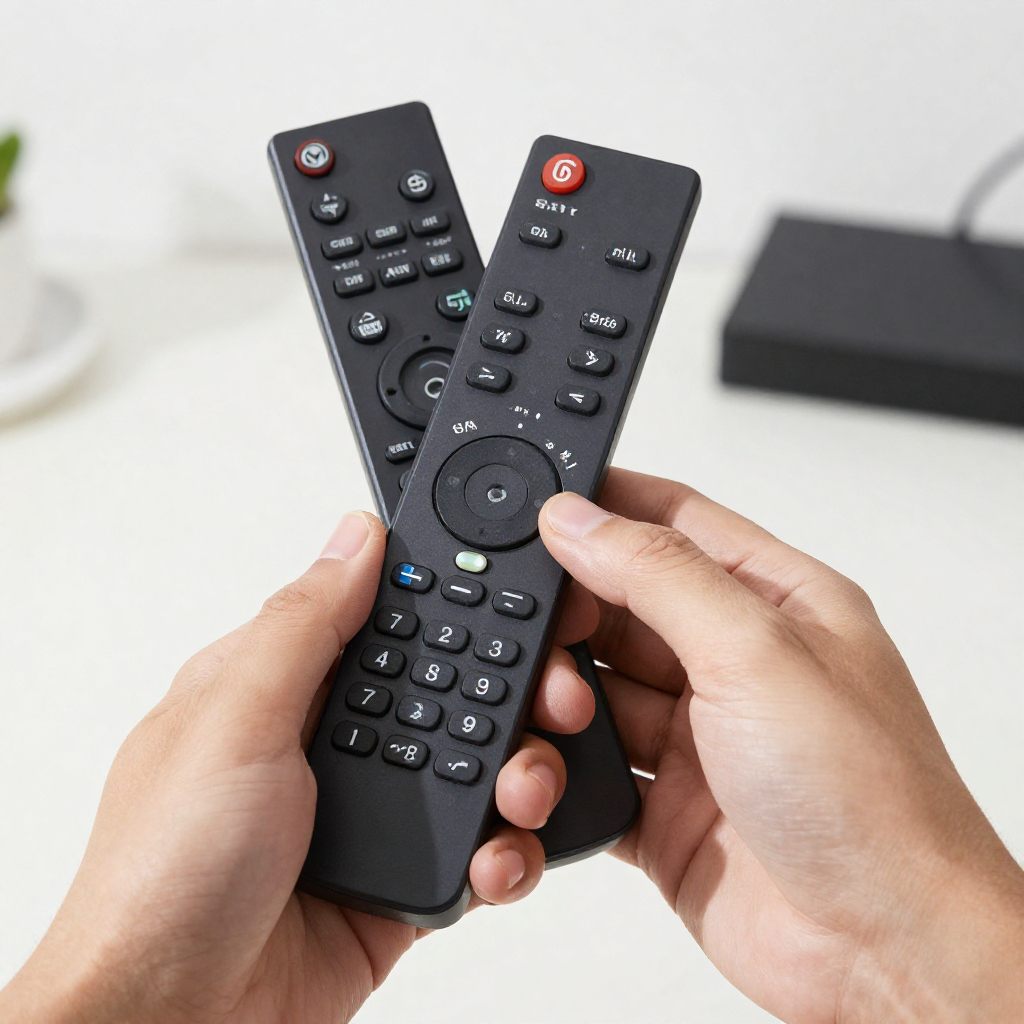
Learn how to fix use and get more from your Sony TV remote with simple tips setup to help hidden features and easy troubleshooting steps.
A Sony TV remote seems simple until the day it stops doing what you expect. One button lags. The voice feature goes quiet. The app shortcut works but volume does not. Most of us do not think much about the remote until it turns a normal movie night into a string of small annoyances.
Sony TV remote solutions await! Unlock features, learn simple fixes and maximize your entertainment setup with our expert insights.
If your remote suddenly stops responding or certain buttons are not working properly, this complete guide on Sony TV Remote Not Working explains simple fixes and troubleshooting steps.
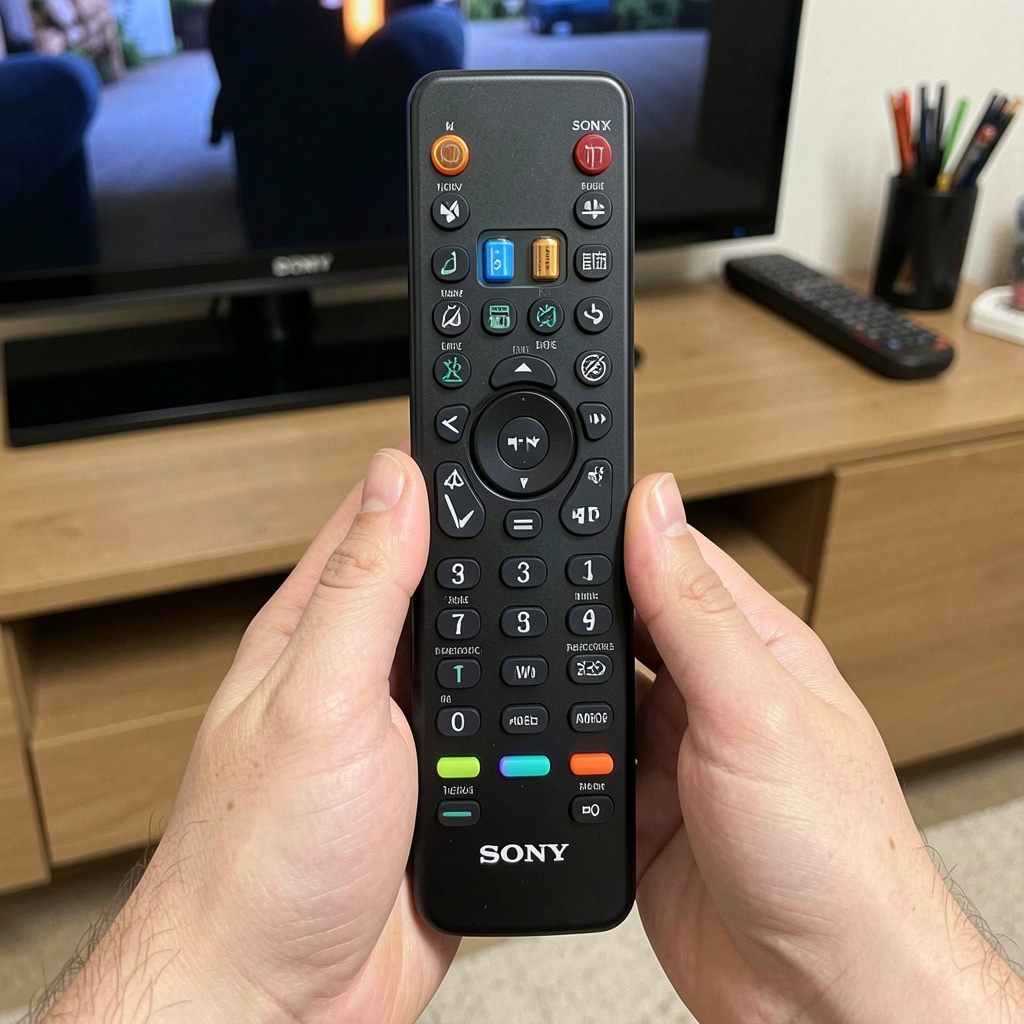
A typical Sony remote may include:
- Power and volume control
- Input switching
- App shortcut buttons
- Voice search
- Quick settings access
- Navigation for Google TV or Android TV
- Control for connected devices like soundbars
Need programming instructions or setup help? Check this easy guide for Sony TV Remote Codes to connect your remote correctly.
Unlock Hidden Features Of Your Sony TV Remote Today
If you want to control your TV using your smartphone? Learn how the Sony Remote Control App works and how to set it up in minutes.
Voice search can save real time
Many Sony remotes have a microphone button but a surprising number of people never touch it. Once you start using it it often becomes one of the most useful buttons on the remote.
You can search for things like:
- Movies
- TV shows
- YouTube videos
- App names
- Settings
- Weather
Typing with arrow buttons gets old fast. Voice search feels quicker and more natural especially if you already know what you want to watch. It is also helpful for older family members, kids or anyone who finds menu navigation annoying.
Quick settings are easier than full menus
This is one of those features people overlook because they assume all settings live deep in the menu. On many Sony TVs quick settings let you adjust common items without digging through layer after layer of screens.
That may include:
- Picture mode
- Sound mode
- Captions
- Sleep timer
- Network settings
Using an RCA universal remote with your Sony TV? These updated RCA Remote Codes for Sony TV can help you pair your remote quickly.
App buttons help more than people admit
Dedicated buttons for services like Netflix or YouTube may not seem exciting but they are useful. If you watch the same two or three apps often, one touch access saves time and makes the TV feel faster.
Common app buttons include:
- Netflix
- YouTube
- Prime Video
- Disney+
If you need a complete universal remote setup solution, this detailed Universal Sony Remote Guide covers programming methods, pairing tips, and troubleshooting.
7 Must Know Tips For Mastering Your Sony TV Remote
You do not need special technical skills to get better results from your remote. A few smart habits can prevent most common issues before they get worse.
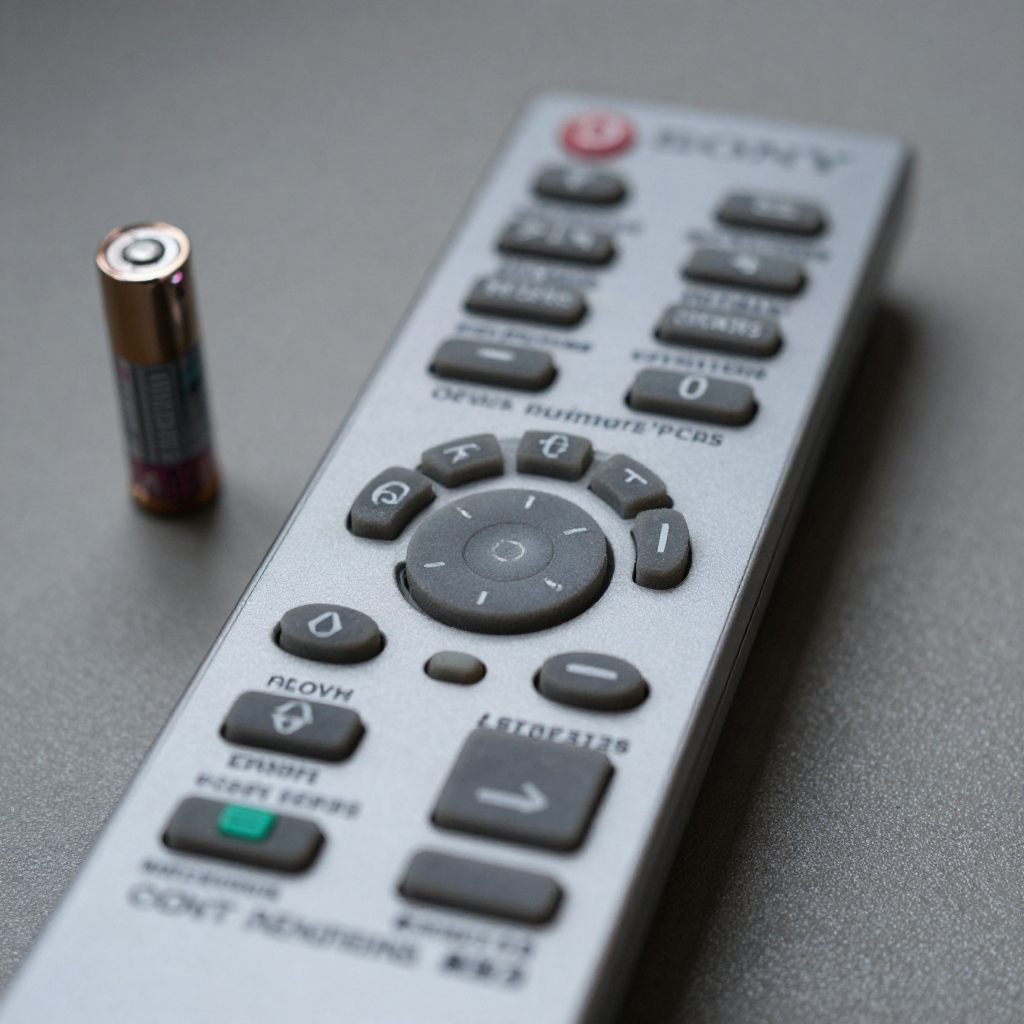
1. Change batteries early not late
A remote does not have to be completely dead to act up. Weak batteries often cause slow response, missed inputs or random behavior that feels like a bigger problem.
If the remote starts acting strange, check the batteries first.
2. Clean the remote tip and TV sensor
A little dust can make a difference. Wipe the front of the remote and the TV sensor area with a soft cloth. It takes less than a minute and sometimes fixes the issue right away.
3. Do not ignore the Input button
This button solves a lot of problems. Blank screen? Wrong device showing? Game console not appearing? Input is often the answer.
I have watched people assume their TV froze when it had simply switched to another HDMI source.
4. Use voice search when typing feels slow
If your model supports voice control use it. Searching by voice is usually much faster than clicking through letters one by one.
5. Reconnect the remote after major updates
Software updates can improve performance but they sometimes knock Bluetooth settings out of place. If something stops working after an update, pairing the remote again is worth trying.
6. Pay attention to worn out buttons
Buttons like Power Home and Volume take the most abuse. If only one button stops working, wear and tear may be the issue.
7. Check model specific support when needed
Not every Sony remote works the same way. Official guide manuals and support resources can help when general articles fall short.
Looking for DVD remote setup help? These Sony DVD Player Remote Control Codes make programming easier for different DVD player models.
Is Your Sony TV Remote Missing Something Important?
If your remote feels incomplete there may be a setting feature or connection issue behind it. Sometimes it is not that something is broken. It is that something was never fully set up.
Signs that something may be off
Here are a few common clues:
- Voice search does not respond
- The power button works but other buttons do not
- The TV only reacts when you stand very close
- App buttons open the wrong thing
- Volume changes the TV but not the soundbar
• You can also explore this complete Sony DVD Player Remote Guide for setup instructions, remote features, and troubleshooting tips.
Sony TV remote troubleshooting step by step
If your Sony TV remote is not working go through these steps in order. Do not rush past the basic checks. They solve more issues than people expect.
Step 1: Check the batteries
- Remove both batteries
- Look for dust or corrosion
- Insert a fresh set the right way
- Test the Power button
It sounds obvious but this is still the most common starting point.
Step 2: Restart the TV
- Turn off the TV
- Unplug it for 60 seconds
- Plug it back in
- Turn it on and test the remote again
A restart clears small software hiccups and can restore normal response.
Step 3: Clean the remote and the sensor
- Wipe the front tip of the remote
- Clean the TV sensor area
- Move any object blocking the signal
A soundbar decoration or even a frame in the wrong spot can interfere.
Step 4: Re pair the remote
For Bluetooth enabled models:
- Open Settings
- Go to Remotes and Accessories
- Select Pair or Reconnect
- Follow the on screen steps
This often brings back voice control and advanced functions.
Step 5: Check for software updates
- Open Settings
- Go to System or Device Preferences
- Select Software Update
- Install available updates
Software fixes can improve stability and restore missing features. Following these kinds of basic strategies is often more effective than guessing.
Step 6: Rule out hardware failure
If only one button does not work the problem may be physical wear. If the entire remote still fails after every step above, test a replacement remote or try a phone app.
That does not always mean the original unit is dead but it helps narrow the issue down fast.
FAQ about Sony TV remote
Why is my Sony TV remote not working even with new batteries?
Fresh batteries help but they do not solve every problem. The issue could be lost pairing blocked signal software trouble or worn buttons. Start with a TV restart then check Bluetooth settings if your remote uses them.
How do I pair my Sony TV remote to my TV?
Open the TV menu and look for Remote Accessories or Bluetooth settings. Choose the pairing option and follow the prompts on screen. The exact steps can vary by model so official Sony resources may help if your menu looks different.
Can I use my phone as a Sony TV remote?
Yes, many Sony smart TVs support mobile remote apps. This can be useful if the physical remote is missing, damaged or acting up.
Why is voice control not working on my Sony remote?
Voice control problems usually come from a lost Bluetooth connection unsupported hardware missing updates or network issues. Check pairing and software first before assuming the microphone is broken.
How do I reset a Sony TV remote?
The reset process depends on the model. In many cases removing the batteries holding the Power button for a few seconds and then reinstalling the batteries helps. If not check model specific Sony guides for the correct steps.
Conclusion
A Sony TV remote should make your setup feel easier, not harder. The good news is that most problems are smaller than they seem. A battery change, a quick restart, a pairing check or a simple settings fix can often solve the issue in minutes.
If you want the best results, start with the basics. Clean the remote, replace weak batteries, confirm the connection and check for software updates. After that spend a little time learning the features you may have ignored. Voice search, quick settings and input control can all make everyday use smoother.

Sidra is a skilled content writer with over 9 years of experience, creating clear and helpful articles on a wide range of topics. Sidra is also well-known for her knowledge of remote controls, codes, and setup guides, helping thousands of people with simple and reliable solutions. Her goal is to combine expert content writing with practical knowledge, making information easy to understand and useful for everyone. In her free time, she enjoys exploring new technology and sharing helpful tips with the community.
