
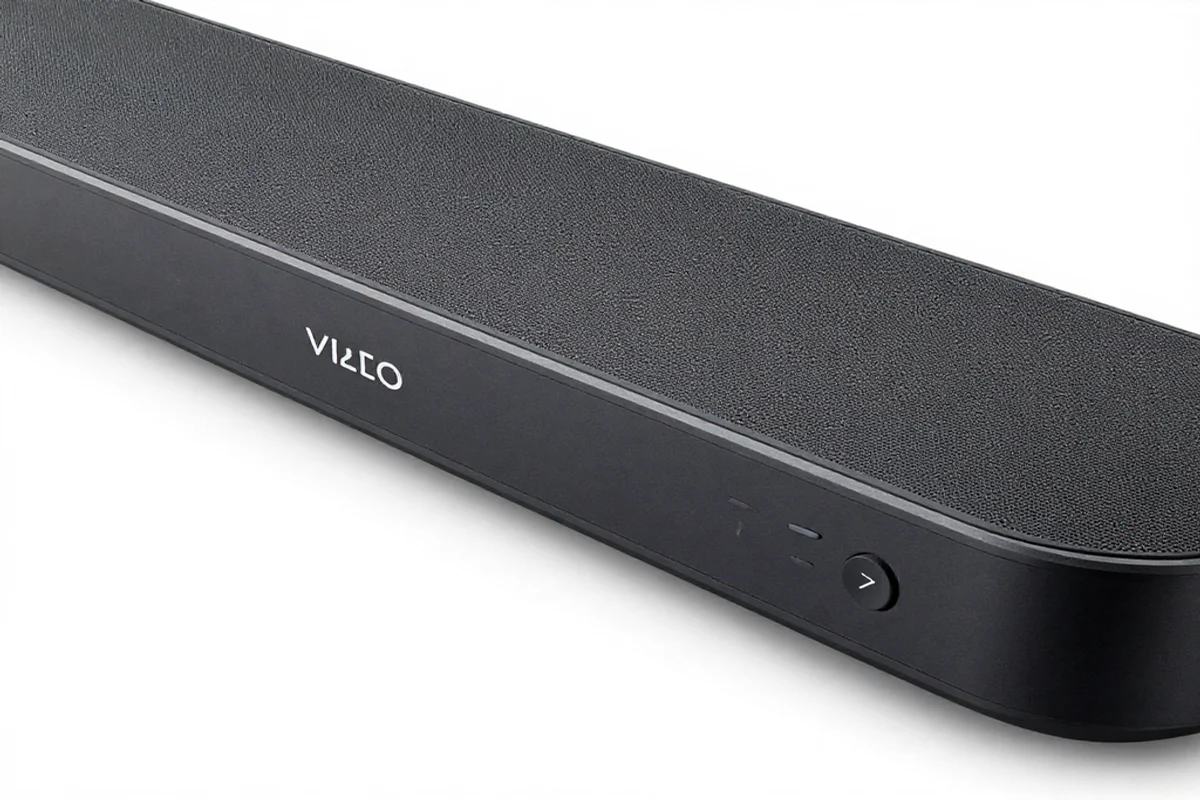
Find the perfect Vizio sound bar remote with easy setup steps, compatibility tips and top replacement options to control your sound system effortlessly.
This guide will walk you through everything you need to know. We will cover the basic buttons, advanced settings and helpful tricks. You will learn how to sync new devices and fix common errors. By the end of this post you will control your home theater audio like a true expert.
Getting Started with Your Vizio Sound Bar Remote
When you unbox your audio system the remote might look a bit intimidating. It has various buttons and icons that control different sound levels. However using your Vizio sound bar remote is quite simple once you know the basics.
Basic Buttons and Functions
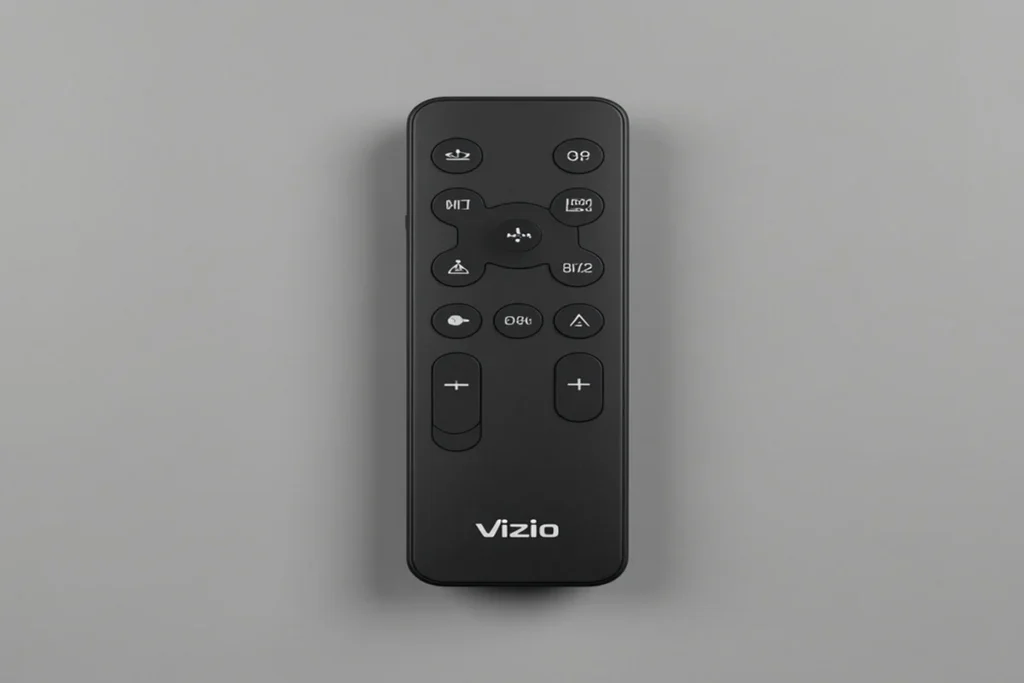
Your remote comes with several standard buttons. Here is a quick breakdown of what they do:
- Power Button: This turns your sound bar on or off.
- Input Button: Use this to switch between different audio sources. For example you can switch from your television to your gaming console.
- Volume Controls: The plus and minus buttons increase or decrease the loudness.
- Mute Button: This instantly silences the audio. Press it again to bring the sound back.
- Bluetooth Button: This activates the pairing mode so you can connect wireless devices.
Take a few minutes to press these buttons and see how the sound bar reacts. The LED indicator lights on the front of your sound bar will change as you press different buttons. These lights confirm that the speaker receives your remote commands.
How to Program a Universal Remote to Your Vizio Sound Bar
You might not want to use multiple remotes to control your entertainment center. Luckily you can program a single remote to manage both your television and your sound bar. This keeps your coffee table free from clutter.
Vizio Sound Bar Universal Remote Codes
To sync a third party controller you need specific numbers. These numbers tell your universal remote how to talk to the sound bar. Here are the most common universal remote codes for Vizio audio systems:
- 0660
- 0883
- 1517
- 31517
Step by Step Programming Guide
Programming your universal controller is a straightforward process. Follow these easy steps to get started:
- Turn on your sound bar and your television.
- Find the “Setup” or “Program” button on your universal remote.
- Press and hold this button until the light at the top of the remote flashes.
- Press the “Audio” or “Aux” device button on the remote.
- Enter one of the universal remote codes listed above using the number pad.
- Point the remote at the sound bar and press the power button.
If the sound bar turns off you have used the correct code. If it stays on, repeat the process using the next code on the list.
Using HDMI ARC Setup for Easy Control
There is another great way to limit the number of remotes you use. You can connect your devices using a specific type of cable. This method is often much easier than typing in remote codes.
What is HDMI ARC?
ARC stands for Audio Return Channel. This feature allows your television to send audio signals down the same cable that brings video in. An HDMI ARC setup lets you use your standard television remote to control your sound bar volume. It simplifies your entire home theater experience.
How to Connect via HDMI ARC
Setting up this connection requires a compatible cable and specific ports. Here is how you can set it up in your home:
- Locate the HDMI ARC port on the back of your television.
- Plug one end of a high speed HDMI cable into this port.
- Plug the other end of the cable into the HDMI OUT (ARC) port on your sound bar.
- Open the settings menu on your television.
- Navigate to the audio settings and change the digital audio output to “Bitstream” or “Dolby Digital.”
- Go to the system settings and enable the CEC (Consumer Electronics Control) function.
Once you enable CEC your television will automatically detect the sound bar. You can now use your main television remote to turn the volume up or down.
Mastering Bluetooth Pairing with Your Vizio Remote
You do not have to rely on your television for music. Your sound bar doubles as a powerful wireless speaker. You can easily stream music podcasts or audiobooks right from your mobile phone.
Connecting Your Wireless Devices
Bluetooth pairing is incredibly fast and simple. You can link your smartphone or tablet in just a few seconds. Follow these steps to pair your devices:
- Press and hold the Bluetooth button on your Vizio sound bar remote for five seconds.
- Watch the LED lights on the front of the sound bar. They will light up sequentially from bottom to top. This means the speaker is searching for a connection.
- Open the settings menu on your smartphone or tablet.
- Navigate to the Bluetooth menu and make sure it is turned on.
- Look for your sound bar model in the list of available devices. It might appear as “VIZIO SB3830” or something similar.
- Tap the name of the sound bar to connect.
The flashing lights will stop once the pairing is successful. You can now open your favorite music app and play songs directly through the sound bar. You can use your phone to control the volume or you can use the sound bar remote.
How to Teach Your Sound Bar to Learn a New Remote
Some Vizio sound bars have a special learning feature. This means the sound bar can learn to recognize commands from a completely different remote. You do not even need codes to make this work.
The Learn Remote Function
You can teach your sound bar to recognize volume and mute commands. This is highly useful if you lose your original remote. Here is how to use the learning feature:
- Press the “Menu” button on your sound bar remote.
- Use the up and down arrows to find the “Prg Remote” (Program Remote) option.
- Use the next or previous buttons to select “Learn Vol ” “Learn Vol+” or “Learn Mute.”
- Press the “Play” button to put the sound bar into learning mode. The LED lights will start flashing.
- Point your television remote at the sound bar.
- Press the corresponding button on your television remote. For example, press the volume up button.
The LED indicators on the sound bar will flash twice to confirm the action. The sound bar now understands that specific command from your television remote. Repeat this process for the volume down and mute buttons.
Understanding the Vizio Smart Cast App
Sometimes physical remotes break or get lost in the couch cushions. Vizio offers a digital solution for this exact problem. You can use your smartphone as a fully functional remote control.
Setting Up the Mobile App
The Vizio SmartCast app gives you complete control over your audio settings. You can adjust the bass treble and input sources from your screen. Here is how you get started:
- Download the Vizio SmartCast app from the Google Play Store or the Apple App Store.
- Make sure your smartphone connects to your home Wi Fi network.
- Open the app and create a free MyVIZIO account.
- Tap the “Device” option to search for your sound bar.
- Hold your smartphone close to the sound bar to complete the pairing process.
The app allows you to see all your settings clearly. You do not have to guess what the LED indicator lights mean anymore. You can customize your audio experience with just a few screen taps.
Vizio Sound Bar Remote Troubleshooting Tips
Even the best technology experiences occasional glitches. Your remote might stop working or the sound bar might stop responding. Do not panic if this happens. Most issues are very easy to fix at home.
Common Fixes for Unresponsive Remotes
Remote troubleshooting usually comes down to a few basic steps. Try these simple solutions before you buy a replacement:
- Check the Batteries: This is the most common issue. Remove the battery cover on the back of the remote. Take out the old batteries and insert two fresh AAA alkaline batteries. Make sure you align the positive and negative ends correctly.
- Clear the Line of Sight: Your remote uses an infrared signal to talk to the sound bar. Objects blocking the front of the sound bar can stop this signal. Move any decorations, books or game consoles out of the way. Point the remote directly at the center of the speaker.
- Perform a Power Cycle: Sometimes the sound bar itself freezes. Unplug the sound bar power cord from the wall outlet. Wait for about sixty seconds. Plug the power cord back in and turn the device on. Try using the remote again.
- Check the Input Source: You might not hear any sound because the speaker looks at the wrong input. Press the input button on the remote repeatedly. Stop when you hear the audio from your television or device.
Advanced Audio Settings Explained
Your remote does more than just change the volume. It holds the key to incredible surround sound features. Learning these advanced settings will drastically improve your movie nights.
Adjusting Bass and Treble
You can tailor the audio to fit your personal preferences. Press the “Bass” or “Treble” button on your remote. Then use the next and previous track buttons to change the levels.
Increasing the bass gives action movies a deep rumbling impact. Increasing the treble makes dialogue sound crisp and clear. The LED lights on the sound bar will move up or down to show your current level.
Using Night Mode
Action movies often feature loud explosions followed by quiet whispers. This massive volume change can wake up your family at night. Your remote features a helpful “Night Mode” to fix this problem.
Press the menu button and navigate to the Night Mode setting. Turn it on using the arrow buttons. This feature lowers the heavy bass frequencies. It keeps the volume consistent so you can enjoy your movie without disturbing others.
Frequently Asked Questions
How do I reset my Vizio sound bar remote?
Sometimes you need to clear all custom settings and start fresh. You can perform a factory reset directly from the sound bar. Press and hold the Bluetooth button and the Volume Down button on the sound bar at the same time. Hold them for five seconds. All twelve LED lights will flash three times. This erases all your settings and Bluetooth pairings.
Can I control my sound bar without a remote?
Yes you have multiple options if you lose your remote. You can use the physical buttons located on the top of the sound bar. You can also download the Vizio SmartCast app to use your smartphone as a remote. Finally you can use an HDMI ARC connection to control the volume with your television remote.
Why is my remote flashing but not working?
If the remote lights up but the sound bar ignores it you likely have a pairing issue or a blocked sensor. First ensure nothing blocks the front of the sound bar. Next perform a quick power cycle by unplugging the sound bar for one minute. If the issue persists, replace the batteries in the remote. Weak batteries can cause erratic behavior.
Conclusion
Taking control of your home audio setup is an empowering feeling. You no longer have to struggle with confusing buttons or tangled cords. You now understand how to use your Vizio sound bar remote effectively.
We covered the basic button layouts and universal remote programming. You learned how to simplify your setup using HDMI ARC. You also discovered how to pair your mobile phone for seamless music streaming. Remember to keep fresh batteries nearby and maintain a clear line of sight to the speaker.

Sid is a skilled content writer with over 9 years of experience, creating clear and helpful articles on a wide range of topics. Sid is also well-known for her knowledge of remote controls, codes, and setup guides, helping thousands of people with simple and reliable solutions. Her goal is to combine expert content writing with practical knowledge, making information easy to understand and useful for everyone. In her free time, she enjoys exploring new technology and sharing helpful tips with the community.
