

Vizio remote not working? Start with the phone camera test to find out if the fault is the remote or the TV, then work through batteries, sensor, Bluetooth pairing and the free Vizio app.
A Vizio remote that stops working is annoying in a particular way, because you cannot tell what is wrong just by looking at it. The remote looks fine. The TV looks fine. You press a button and nothing happens.
Most guides send you straight to changing the batteries. That is worth doing, but it is not where you should start. Start by finding out whether the problem is the remote or the TV, because that one test saves you from working through fixes that were never going to help.
This guide starts there, then works through everything else in the order that makes sense.
Step 1: Find out if it is the remote or the TV
You need thirty seconds and your phone.
Infrared light is invisible to your eyes, but your phone camera can see it. So:
- Open the camera app on your phone
- Point the front of the remote at the camera lens
- Press and hold any button on the remote
- Watch the phone screen, not the remote
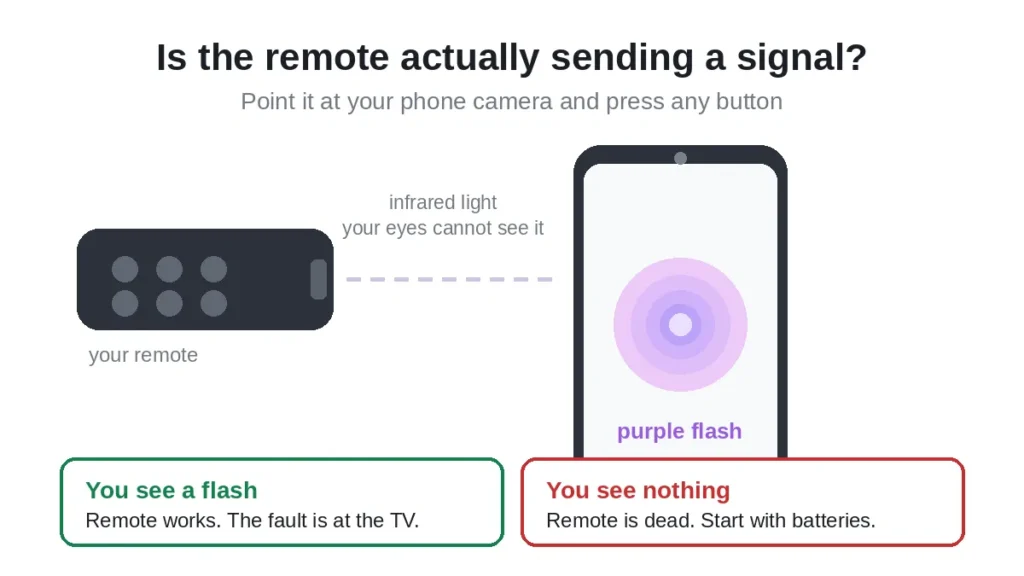

If you see a faint purple or white flash on the phone screen, the remote is sending a signal. The remote is alive. Your problem is at the TV end, so skip to the sensor and power cycle steps below.
If you see nothing at all, the remote is not transmitting. The problem is the remote itself, so work through the battery and reset steps.
One thing to know: if your phone has more than one camera, try the front facing selfie camera. Some newer phones have an infrared filter on the main rear camera that blocks exactly the light you are trying to see.
And if your remote has a microphone button on it, this test will not tell you much. That is covered next.
Step 2: Work out which type of Vizio remote you have
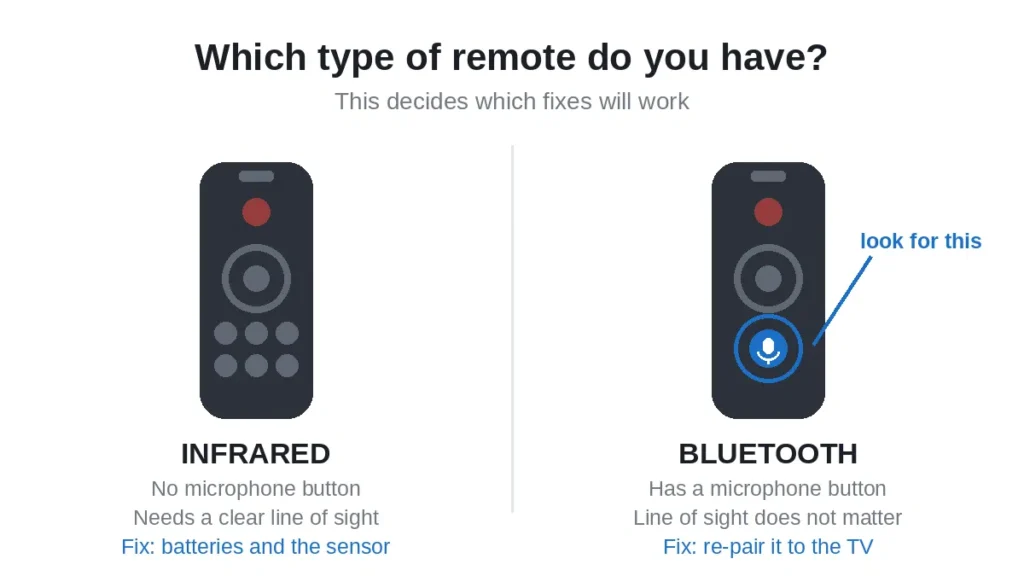
This matters more than most people realise, and it is the reason a lot of fixes fail. Vizio has used two completely different technologies.

Infrared remotes
These are the standard ones. They send a beam of infrared light to a sensor on the TV. They need a clear line of sight, and they do not need to be paired with anything. If the path is blocked, nothing works.
Models like the XRT100, XRT112 and XRT122 are infrared. If you want the full model list and the button layouts, our guide to the Vizio TV remote covers them.
Bluetooth remotes
Newer Vizio remotes, particularly the ones with a microphone button for voice search, use Bluetooth instead. These do not need line of sight at all, which means that cleaning the sensor and pointing more carefully will achieve nothing.
What they do need is a pairing with the TV, and that pairing can be lost. If you have a voice remote and it has stopped working, go straight to the re-pairing step.
How to tell which you have: look for a microphone icon or a button with a mic symbol. If it is there, you almost certainly have a Bluetooth remote. If there is no mic button, it is infrared.
Step 3: Replace the batteries properly
Replace them, do not test them. A battery can read as fine on a tester and still not deliver enough current to drive the infrared LED, which draws a short sharp burst of power every time you press a button. This is the single most common cause, and it catches people out because the remote is not completely dead, it just works intermittently or only from very close up.
- Open the battery compartment on the back of the remote
- Take both batteries out
- Put a fresh pair in from a sealed pack, not from a drawer
- Check the plus and minus ends match the markings inside
Use both batteries from the same pack. Mixing an old battery with a new one will give you the performance of the old one.
While the batteries are out, look at the metal contacts inside the compartment. If you see any white or green powder, that is corrosion from a leaked battery. Clean it off gently with a cotton bud and a little white vinegar, let it dry completely, then try again. Heavy corrosion usually means the remote is finished.
Step 4: Clear the path to the TV sensor
Only relevant for infrared remotes, but worth two minutes.
The infrared sensor on a Vizio TV sits at the bottom of the screen, usually in the bottom right or bottom left corner. It is a small dark window, easy to miss.
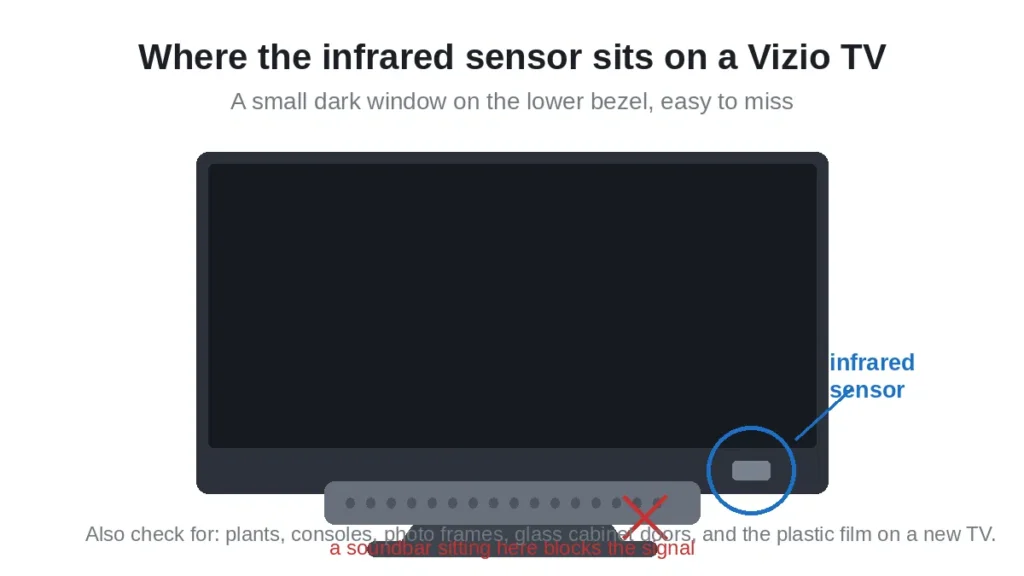

Things that block it:
- A soundbar sitting in front of the bottom edge of the screen
- A games console or box on the shelf below
- A plant, a photo frame, anything on the TV stand
- The protective plastic film, if the TV is new and you never peeled it off
- A glass cabinet door, which can weaken the signal considerably
Stand directly in front of the TV, within about three metres, point the remote at the bottom of the screen and try again. If it works from there but not from your sofa, you have found the problem.
One more thing: strong sunlight falling directly on the sensor can drown out an infrared signal. If the remote only misbehaves in the afternoon, that is probably why.
Step 5: Reset the remote
This clears any residual charge held in the remote and releases buttons that are stuck down, which is a surprisingly common cause of strange behaviour.
- Take the batteries out
- Press and hold the power button for twenty seconds
- Press every other button on the remote once, including the ones you never use
- Put the batteries back in
- Test it
Step three matters. If a button is held down even slightly, the remote is constantly transmitting that command and will ignore everything else you press. A Volume button stuck down is why some people find the volume changing by itself.
Step 6: Power cycle the TV
Not just turning it off. Vizio TVs keep power to the board even when the screen is off, so you have to pull the plug.
- Turn the TV off
- Unplug it from the wall socket, not the extension lead
- Press and hold the power button on the TV itself for ten seconds, which drains the remaining charge
- Wait sixty seconds
- Plug it back in and turn it on
The button on the TV is usually underneath the bottom edge or on the back right, depending on the model.
If the TV responds to its own button but not to the remote, that tells you the TV is working and the fault is in the remote or the signal path.
Step 7: Re-pair a Bluetooth remote
Only for remotes with a microphone button. If this is you, this is probably your fix.
Bluetooth pairings drop. It happens after a firmware update, after a long power cut, or sometimes for no visible reason at all.
To re-pair, you will need to reach the TV menu first. Use the buttons on the TV itself, or use the Vizio mobile app described in the next section, which is often easier.
Then, holding the remote close to the TV, press and hold the Back and Home buttons together until the light on the remote starts flashing. On some models it is Back and Mute. Keep holding until the flashing starts, which can take ten seconds or more.
The exact combination varies by model, so if neither works, our full guide to pairing a Vizio remote to a TV lists the combinations model by model.
Step 8: Use the Vizio app instead of the remote
This is the one most people do not know about, and it is free.
Vizio publishes a mobile app that turns your phone into a full remote control. It works over your home wifi rather than infrared, which means none of the sensor and line of sight problems apply. You can be in another room and it still works.
What you need:
- A Vizio SmartCast TV, which is most models from 2016 onwards
- Your phone and the TV on the same wifi network
- The free app from the App Store or Google Play
Install it, open it, and it should find your TV automatically. You will be asked to enter a code that appears on the TV screen, and after that your phone controls volume, input, apps, playback and the menus. We have a full walkthrough with screenshots in our Vizio TV remote app guide.
Two honest limitations. The app cannot turn the TV on from a completely powered down state on every model, because the wifi radio is asleep. And it will not help with older pre SmartCast Vizio TVs, which have no network connection to talk to. For those, a phone with an infrared blaster is the only app based option.
Even so, it is worth installing right now. If your remote is dead, this gets you back into the TV menus tonight, and you can order a replacement remote at your own pace.
Step 9: Check the button actually does what you think
Sometimes the remote is fine and the button simply does not apply.
- Channel up and down only work when you are watching through an aerial or a device plugged into the coaxial input. They do nothing in a streaming app.
- Play and pause work inside apps like Netflix and YouTube. They do nothing on live TV through a cable box.
- Volume may be going to a soundbar rather than the TV, if the TV speakers are switched off in the audio settings.
- Device buttons will not control a games console or cable box unless the remote is set up for it.
If the remote controls the TV but not a device plugged into it, the remote is working. You need the remote that came with that device.
Step 10: Try a different remote
If you can borrow another Vizio remote, even from a different model, test it. Most Vizio remotes handle the basics on most Vizio TVs: power, volume, input and navigation. The app buttons may not match, but that does not matter for this test.
If the borrowed remote works, yours needs replacing. If the borrowed remote also fails, the problem is the TV.
You can run the same test the other way round. Take your remote to a different Vizio TV. If it works there, your remote is fine and the TV sensor is the problem.
Step 11: Replacing the remote
If you have worked through everything above and the remote is still dead, it needs replacing.
Three routes:
- Warranty. If the TV is still within its warranty period, Vizio may replace the remote free. Check with Vizio support before you buy anything.
- An official replacement. It does not have to be the identical model number. Our guide to choosing a Vizio replacement remote explains which models are interchangeable.
- A universal remote. Cheaper, and it can control your other devices as well. See our picks for the best universal remote for a Vizio TV.
If you go the universal route, have the codes ready before you start. Our full list of Vizio TV remote codes covers every major universal remote brand, and how to program a Vizio remote walks through the entry process.
A quick summary
Start with the phone camera test, because it tells you whether to work on the remote or the TV. Check whether your remote is infrared or Bluetooth, because that decides which fixes apply. Fit fresh batteries. Clear the sensor. Reset the remote and power cycle the TV. Re-pair if it is Bluetooth.
And while you are working through it, install the Vizio app. It costs nothing and it gets your TV usable again straight away.
Frequently asked questions
Where is the infrared sensor on a Vizio TV?
At the bottom of the screen, usually in the bottom right or bottom left corner. It is a small dark window on the lower bezel.
Can I use a Vizio TV without a remote?
Yes. The free Vizio mobile app gives you full control over wifi. There are also physical buttons on the TV itself, usually underneath the bottom edge or on the back.
Why does my Vizio volume change on its own?
Almost always a stuck volume button on the remote. Take the batteries out, press every button several times to free them, then put fresh batteries in.
How do I know if my Vizio remote is Bluetooth or infrared?
Look for a microphone button. If it is there, the remote is Bluetooth and does not need line of sight. If there is no mic button, it is infrared.
Is the Vizio remote app free?
Yes. The Vizio app is free on both iPhone and Android. You need a SmartCast TV, which is most models from 2016 onwards, and your phone has to be on the same wifi network as the TV.
My remote works close up but not from the sofa. Why?
Weak batteries. The infrared LED needs a sharp burst of current, and tired batteries can manage it at short range but not across a room. Fit a fresh pair.
Why is my Vizio remote not working but the TV turns on fine?
If the TV responds to its own power button, the TV is working and the fault is with the remote or the signal path. Run the phone camera test first, then change the batteries.

Sidra is a skilled content writer with over 9 years of experience, creating clear and helpful articles on a wide range of topics. Sidra is also well-known for her knowledge of remote controls, codes, and setup guides, helping thousands of people with simple and reliable solutions. Her goal is to combine expert content writing with practical knowledge, making information easy to understand and useful for everyone. In her free time, she enjoys exploring new technology and sharing helpful tips with the community.
