

Find the best Vizio replacement remote with full compatibility and easy setup. Explore top options, features, and buying tips for your Vizio TV.
Getting a new remote is easy. Vizio makes it simple to replace your lost or broken controller. You have multiple options from official replacements to universal remotes. You can even use your smartphone.
This guide will walk you through everything you need to know. We will cover replacement remote setup, share essential universal remote codes and help with troubleshooting remote issues. Let us get your TV working again.
Why Your Remote Might Not Be Working
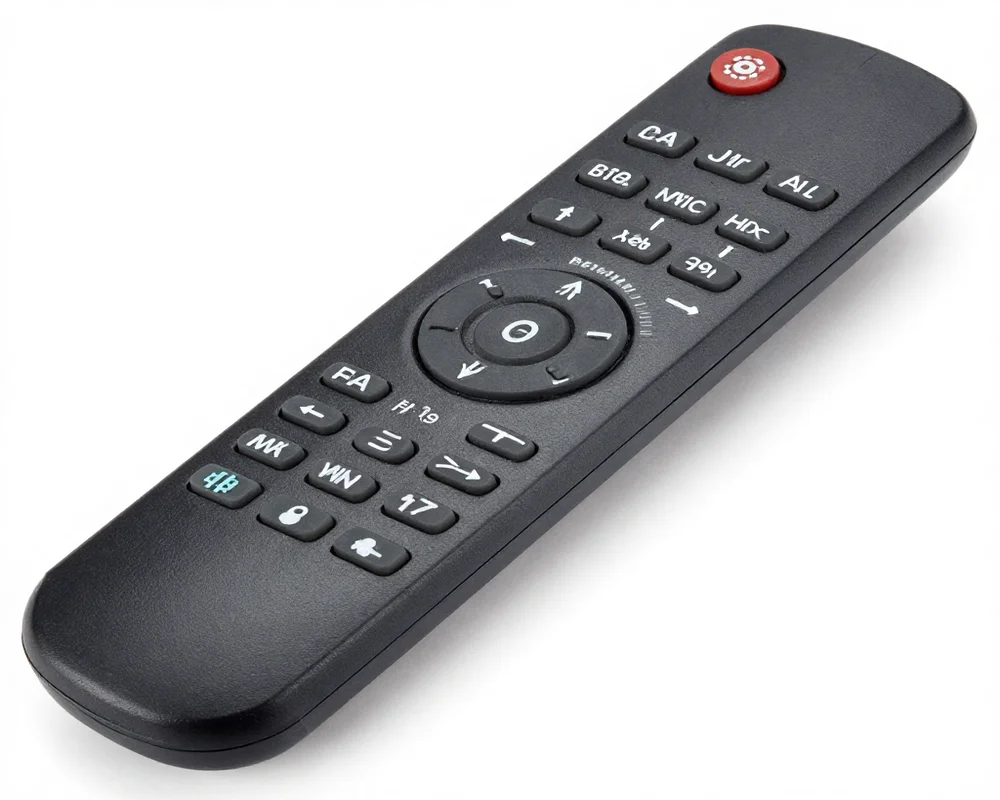
Before you buy a new device you should check your current one. Sometimes a dead remote needs a quick fix. Troubleshooting remote issues can save you time and money.
Check the Batteries
This sounds obvious but it is the most common problem. Remove the old batteries. Put in a fresh pair of high quality batteries. Make sure you match the positive and negative ends correctly.
Clear the Sensor Path
Your Vizio remote uses an infrared (IR) signal. This signal needs a clear path to the TV. Check the front of your television. Move any soundbars, picture frames or decorations blocking the bottom right corner. Point the remote directly at the TV.
Power Cycle the Remote
Sometimes the remote hardware freezes. You can reset it easily.
- Remove the batteries from the remote.
- Press and hold the power button on the remote for 15 seconds.
- Release the power button.
- Put the batteries back inside.
- Test the power button.
Power Cycle the TV
The television itself might be frozen.
- Unplug the TV power cord from the wall outlet.
- Press and hold the power button on the TV itself for 15 seconds.
- Plug the TV back into the wall.
- Turn the TV on and test the remote.
If you try these steps and nothing happens it is time for a replacement.
Best Vizio Replacement Remote Options
| Remote Type | Setup Required | Smart Features | Price Range | Best For |
|---|---|---|---|---|
| Original Vizio Remote | No | Full | Medium | Easy replacement |
| Universal Remote | Yes | Limited | Low | Multi device control |
| App-Based Remote | No | Full | Free | Backup solution |
Official Vizio Remotes
Vizio designs its TVs to use the same IR signals across all models. This is a huge benefit for you. It means almost any standard Vizio remote will work with your Vizio TV. The basic functions will work perfectly. You can turn the power on, change channels, adjust the volume and open the menu.
You can buy official remotes directly from Vizio or stores like Walmart. They require zero programming. You add batteries and point them at the screen.
Universal Remotes
A universal remote is a great choice if you want to control multiple devices. You can control your Vizio TV, your cable box and your Blu-ray player with one device. You can buy these at any electronics store. However they require a specific replacement remote setup process. You will need to enter a code to link the remote to the TV.
The Vizio SmartCast App
If you do not want to spend money, you have a free option. You can download the Vizio SmartCast app. This mobile application turns your smartphone or tablet into a touch screen remote. It controls everything an official remote can control. You can use it to turn on the TV change inputs and launch apps.
How to Use the Vizio SmartCast App
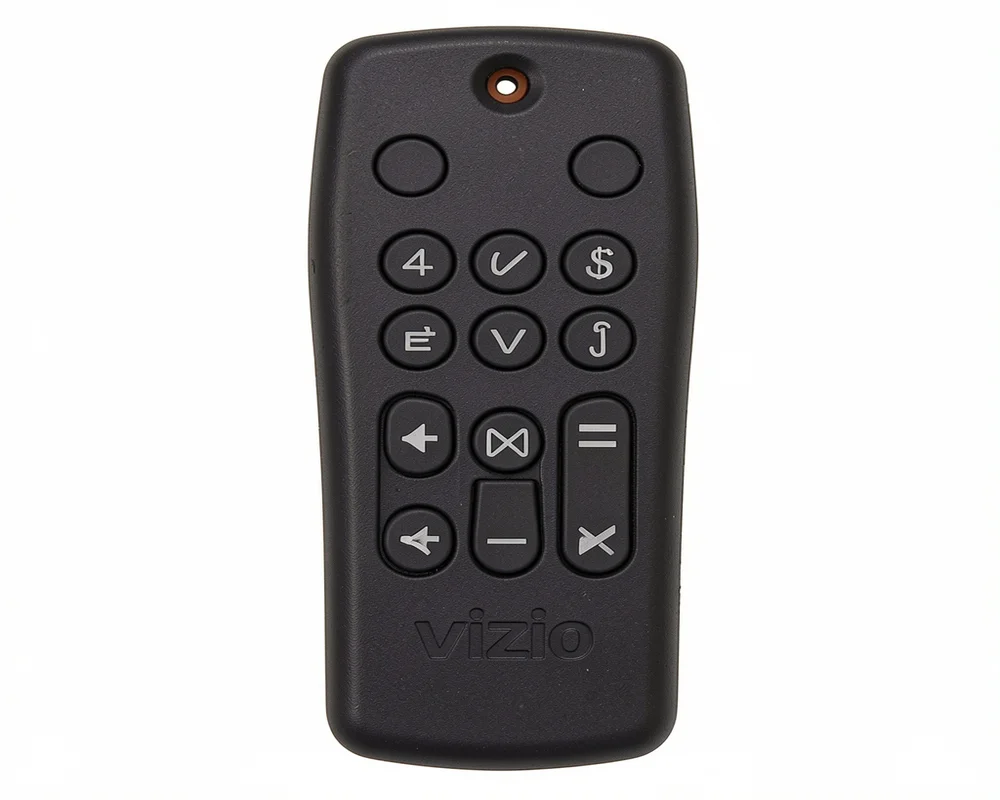
The Vizio SmartCast app is the fastest way to regain control of your TV. It is perfect while you wait for a physical remote to arrive in the mail.
Step by Step App Setup
Follow these simple steps to connect your phone to your TV.
- Open the app store on your Apple or Android device.
- Search for the Vizio SmartCast Mobile app.
- Download and install the application.
- Make sure your phone is connected to your home Wi Fi network.
- Ensure your TV is connected to the same Wi Fi network.
- Open the app and create a free account or select guest mode.
- Tap the device icon to search for your TV.
- Select your Vizio TV from the list of available devices.
- Look at your TV screen. A four digit pairing code will appear.
- Type that four digit code into your phone.
Your phone is now a fully functional Vizio replacement remote. You can browse movies, adjust settings and type passwords using your phone keyboard.
Step by Step Replacement Remote Setup
Setting up a physical remote depends on the type you bought. Let us break down the steps for both official and universal remotes.
Setting Up an Official Vizio Remote
If you bought a Vizio branded replacement you have it easy.
- Unpack the new remote.
- Insert two fresh batteries into the back compartment.
- Point the remote at your TV.
- Press the power button.
The TV should turn on immediately. Because Vizio uses universal IR signals for its own devices you do not need to program anything.
Setting Up a Universal Remote
Universal remotes require a bit more work. You have to tell the remote which language your TV speaks. You do this by entering universal remote codes.
Here is the standard method for programming a universal remote:
- Turn on your Vizio TV manually using the button on the back or bottom of the screen.
- Point your universal remote at the TV.
- Press and hold the “Setup” button on the remote until the LED light blinks twice.
- Press the “TV” button on the remote.
- Enter the correct code for Vizio using the number pad.
- The LED light should blink twice to confirm the code.
- Press the power button to test the connection.
If the TV turns off you succeed. If it stays on you need to try a different code.
Essential Universal Remote Codes for Vizio TVs
When setting up a third party remote you will need a specific code. The code length depends on the brand of the universal remote. Here is a helpful list of Vizio TV codes.
2 Digit Codes:
- 19
3 Digit Codes:
- 502
- 627
- 004
- 113
- 505
- 011
4 Digit Codes:
- 1758
- 0178
- 1756
- 0128
- 0117
- 1017
- 1078
- 0030
- 0056
- 0205
- 1292
- 1004
5 Digit Codes:
- 10178
- 10117
- 11756
- 01377
- 10885
- 10864
- 10120
Pro Tip: For newer Vizio models the 5 digit codes 11756 and 10864 are usually the most reliable.
Real Life Example: Fixing a Setup Problem
Sometimes things do not go perfectly. Let us look at a real example of troubleshooting remote issues.
A customer recently bought a Vizio V585 H11 television. They lost the original remote during a move. They went to a local store and bought a universal remote. They put in the batteries but nothing worked. The power volume and channel buttons were completely dead.
The customer tried to use the remote but a message on the TV said: “TV speakers are off.” This meant the remote was partially communicating but not fully paired.
Here is how they solved it:
- They checked the batteries.
- They pressed and held the Setup button until the light blinked twice.
- They entered the 5 digit code 11756.
- The light blinked twice again.
- They tested the power button.
The TV finally responded. If that code had failed the next step was to try code 10864. If a store bought remote fails on a newer smart TV using the Vizio SmartCast app is the best backup plan.
Frequently Asked Questions
Can any Vizio remote work with my Vizio TV?
Yes mostly. Vizio uses the same IR signals across its remote controls. If you buy a standard Vizio remote it will control the power volume and menus of almost any Vizio TV. However special buttons for specific apps like Netflix might not match your specific TV model.
How do I find my universal remote code?
You can look at the manual that came with your universal remote. It usually has a large list of brands in the back. You can also use the code list provided in this guide above.
What if my remote turns the TV on but the volume does not work?
This happens often with universal remotes. It means the code you entered is only a partial match. You need to repeat the setup process and try a different Vizio code from the list until all buttons work correctly.
Can I use my cable company remote with my Vizio TV?
Yes. Remotes from Comcast DirecTV and Dish Network can control your Vizio TV. You need to follow your cable provider’s instructions for programming the remote. They will use similar 4 digit or 5 digit codes.
Why is the SmartCast app not finding my TV?
The most common reason is the Wi-Fi connection. Your phone and your television must be connected to the same Wi Fi network. Check your phone settings to make sure you are not on cellular data.
Conclusion
Finding and setting up a Vizio replacement remote is a simple process. You do not need to be a technology expert to get your television working again. You have great options available to you right now.
You can buy an official replacement for instant easy use. You can program a universal remote to control your whole entertainment center. You can also download the free Vizio SmartCast app for immediate control from your phone.
Remember to try basic troubleshooting before you spend money. Fresh batteries fix most problems. If you do buy a universal device use our list of universal remote codes to make your replacement remote setup fast and easy.
Grab your phone, download the app or order your new remote today. You will be back to watching your favorite movies and shows in no time.

Sid is a skilled content writer with over 9 years of experience, creating clear and helpful articles on a wide range of topics. Sid is also well-known for her knowledge of remote controls, codes, and setup guides, helping thousands of people with simple and reliable solutions. Her goal is to combine expert content writing with practical knowledge, making information easy to understand and useful for everyone. In her free time, she enjoys exploring new technology and sharing helpful tips with the community.
