
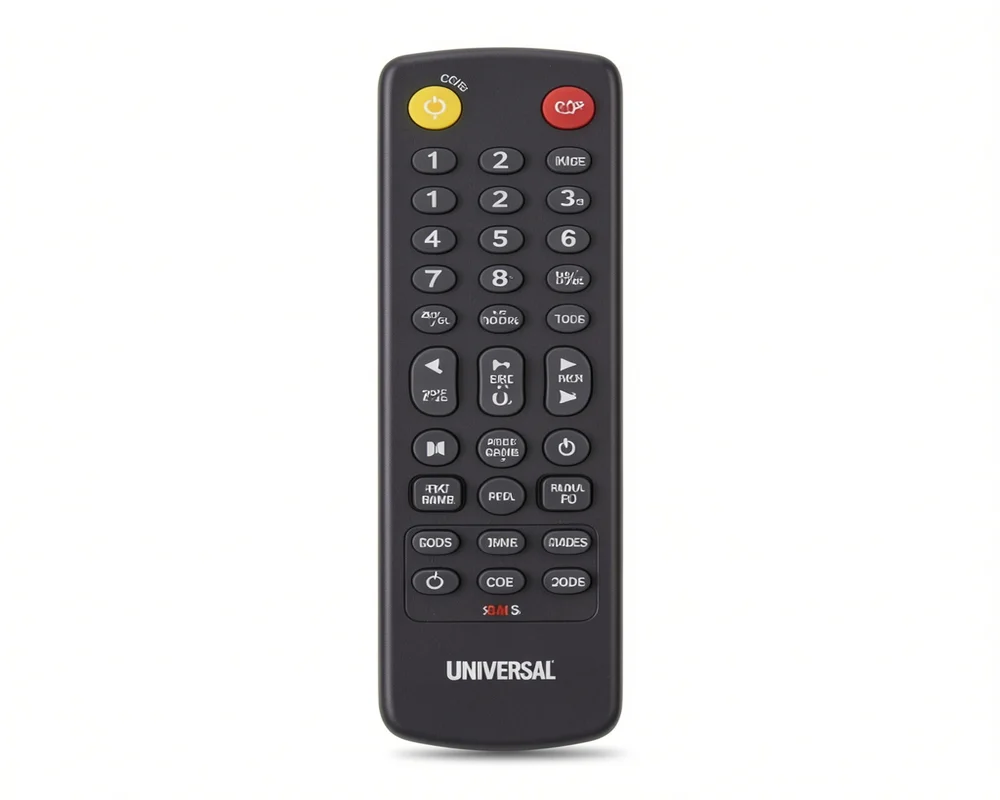
Find the latest GE universal remote codes and learn how to program your remote easily. Step-by-step setup guide for all TV brands and devices.
Finding the right codes and setting up your device can feel hard. It does not have to be. I remember buying my first universal remote. I stared at the manual feeling completely lost. Once I learned the simple steps I set up my television and DVD player in five minutes. You can do the exact same thing.
This guide will show you everything you need to know about GE Universal Remote Codes. You will learn how to find the right numbers, program your remote and fix common problems. Let us get your remote working today.
What Are GE Universal Remote Codes?
A universal remote is a single device that controls multiple electronics. Instead of keeping four different remotes on your coffee table you only need one. However the remote does not know what devices you own out of the box.
GE Universal Remote Codes are special three digit or four digit numbers. These numbers tell your remote which brand and model of device you want to control. Every brand has a different set of numbers. For example a Samsung television uses a different number than a Sony television.
When you enter the correct code the remote sends the right signal to your device. This allows you to change channels, adjust the volume and turn the power on or off.
How to Find Your GE Universal Remote Codes
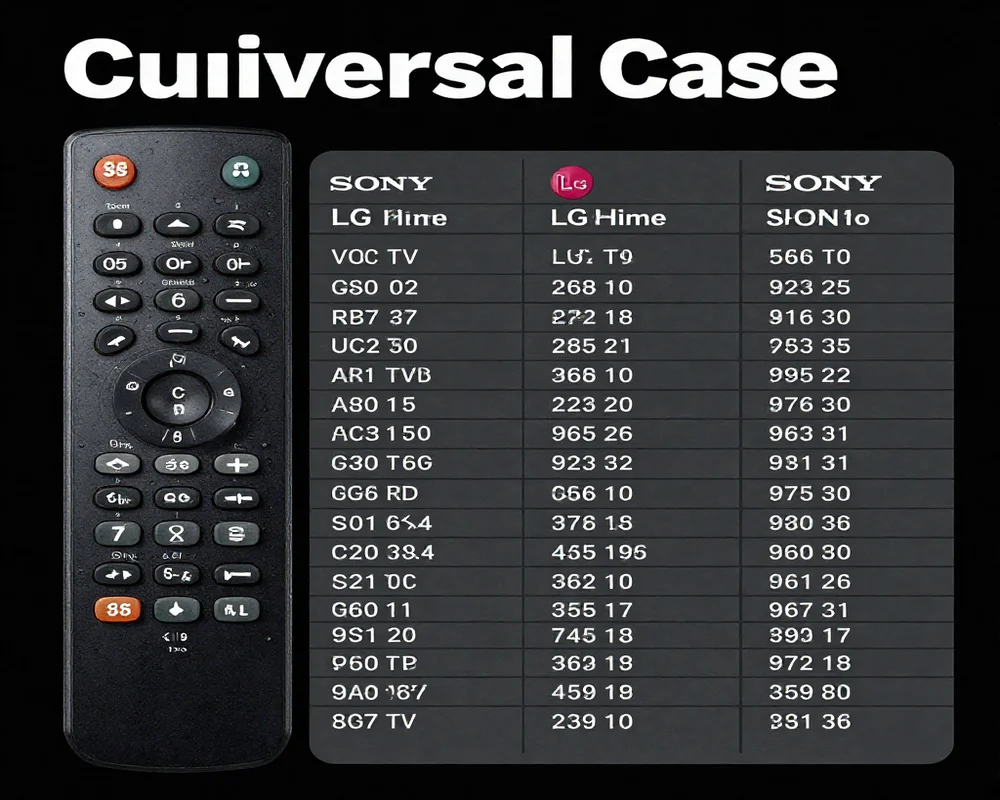
Before you can program your remote you need to find the correct code for your device. There are two easy ways to do this.
Look Inside the Battery Compartment
The easiest way to find your code version is to look at the remote itself.
- Slide the battery cover off the back of your remote.
- Remove the batteries.
- Look for a small white sticker inside the compartment.
- Find the version number. It usually says V1 V2 V3 CL3 CL4 or CL5.
Knowing your version helps you pick the right code from the master list.
Check the Manual or Online Lists
If you still have the paper manual that came with your remote keep it handy. It contains a huge list of codes sorted by brand. If you threw the manual away do not worry. You can find common codes later in this article. You can also search online using your television brand and the version number from the battery compartment.
How to Program Your Remote With a Code
Programming your remote with a code is the fastest method. Gather your remote, your television or device and your code list. Follow these simple steps.
- Turn on the device you want to control. If you want to program your television, turn the television on using its main power button.
- Press and hold the “Setup” button on your universal remote. Keep holding it until the red indicator light turns on.
- Release the “Setup” button. The red light should stay on.
- Press and release the device button on your remote. For a television press “TV”. For a DVD player press “DVD”. The red light will blink once and stay on.
- Use the number pad on the remote to type your GE Universal Remote Codes. Enter the first code from your list.
- Watch the red light. When you enter a valid code the red light will turn off.
- Point the remote at your device and press the power button. If the device turns off you use the right code.
If the device does not turn off do not panic. Simply repeat the steps using the next code on your list. Sometimes it takes three or four tries to find the perfect match.
How to Program Without a Code
Sometimes you cannot find the right code. Your device might be very new or very old. You can still set up your remote using the Auto Code Search feature. This method takes a little longer but it works very well.
- Turn on the device you want to pair with your remote.
- Point the universal remote at your device.
- Press and hold the “Setup” button. Wait for the red light to turn on then let go.
- Press the device button you want to program such as “TV”. The red light will blink one time.
- Press the power button on the remote one time. The remote will send a batch of codes to your television.
- If the television stays on, press the power button again. Repeat this step slowly until your television turns off.
- The moment your television turns off, quickly press the number 1 button on your remote. This saves the code.
After you press the number 1 button the red light will turn off. Turn your television back on and test the volume buttons. If everything works you are finished.
Common GE Universal Remote Codes List
Here is a list of common codes for popular brands. Try these numbers first when programming your device.
Codes for Popular Television Brands
- Samsung: 0105 0077 0942 5791 5801 3301
- LG: 0156 0178 0005 6021 5511 3001
- Sony: 0128 0011 0002 1071 5811 5321
- Panasonic: 6231 5821 5201 5531 1571
- Vizio: 0864 1756 0885
- Sharp: 5341 6001 6011 3191 5941
- Toshiba: 1311 5531 1121 2691 0211
Codes for Streaming Devices and DVD Players
- Roku Boxes: 2014 4395 6171
- Apple TV: 2615
- Sony DVD: 6006 6049 6095 6099
- Samsung DVD: 6001 6012 6032 6055
- Philips DVD: 6002 6008 6019 6022
Write down the codes for your specific brand before you start the setup process. This makes the job much easier.
Troubleshooting Common Remote Problems
Even with the best instructions you might run into a snag. Here are a few ways to fix common issues.
- The remote does not turn on. Check your batteries. Always use fresh batteries when setting up a new remote. Make sure they are facing the right direction.
- The volume buttons do not work. You might have found a partial code match. This means the code turns the power on but does not control other features. Try the next code on your list until everything works.
- The red light flashes fast. This usually means you entered an invalid code. Start the setup process from the beginning and type the numbers slowly.
- The remote forgot the code. If you drop the remote or leave the batteries out for a long time it might reset. You will need to program it again. Keep your code written down on a piece of paper and tape it to the back of the remote.
Frequently Asked Questions
What is the 4 digit code for the GE universal remote?
There is no single 4 digit code for every device. The code depends entirely on the brand of the television or device you want to control. For example a Samsung television will use a different 4 digit code than a LG television. Check our code list above or look in your remote manual to find the specific numbers for your brand.
How to reset the GE universal remote?
You can reset your remote back to its factory settings in just a few steps. Press and hold the “Setup” button until the red indicator light stays on. Release the button. Next press the “Mute” button. Finally press the “0” button. The red light will blink twice. This means your remote is completely reset and ready for new programming.
How do I pair a universal remote to a television without a code?
You can pair your remote without a code by using the Auto Code Search method. You put the remote into setup mode, select the television button and press the power button repeatedly. The remote scans through its entire database. When the television turns off you quickly lock in the code. This is a great trick if you lost your code list.
Can I control a cable box and a television with one remote?
Yes. That is the main purpose of a universal remote. You can program the “TV” button for your television and the “CBL” or “SAT” button for your cable box. Once set up you just press the specific device button before you want to control it.
Do GE universal remotes work with smart televisions?
Yes they work with most modern smart televisions. You can control the power volume and channels. However some special smart television features might still require the original remote. For basic viewing the universal remote works perfectly.
Final Thoughts
Setting up a new remote does not require a technical degree. By finding the right GE Universal Remote Codes you take control of your living room. You can banish remote clutter forever.
Remember to start by checking your battery compartment for the version number. Use the direct code entry method first as it is the fastest choice. If that fails the auto search method will always save the day. Keep your codes written down in a safe place for the future.
Now grab your remote, insert some fresh batteries and start programming. You will be watching your favorite shows with a single remote in no time.

Sid is a skilled content writer with over 9 years of experience, creating clear and helpful articles on a wide range of topics. Sid is also well-known for her knowledge of remote controls, codes, and setup guides, helping thousands of people with simple and reliable solutions. Her goal is to combine expert content writing with practical knowledge, making information easy to understand and useful for everyone. In her free time, she enjoys exploring new technology and sharing helpful tips with the community.
