
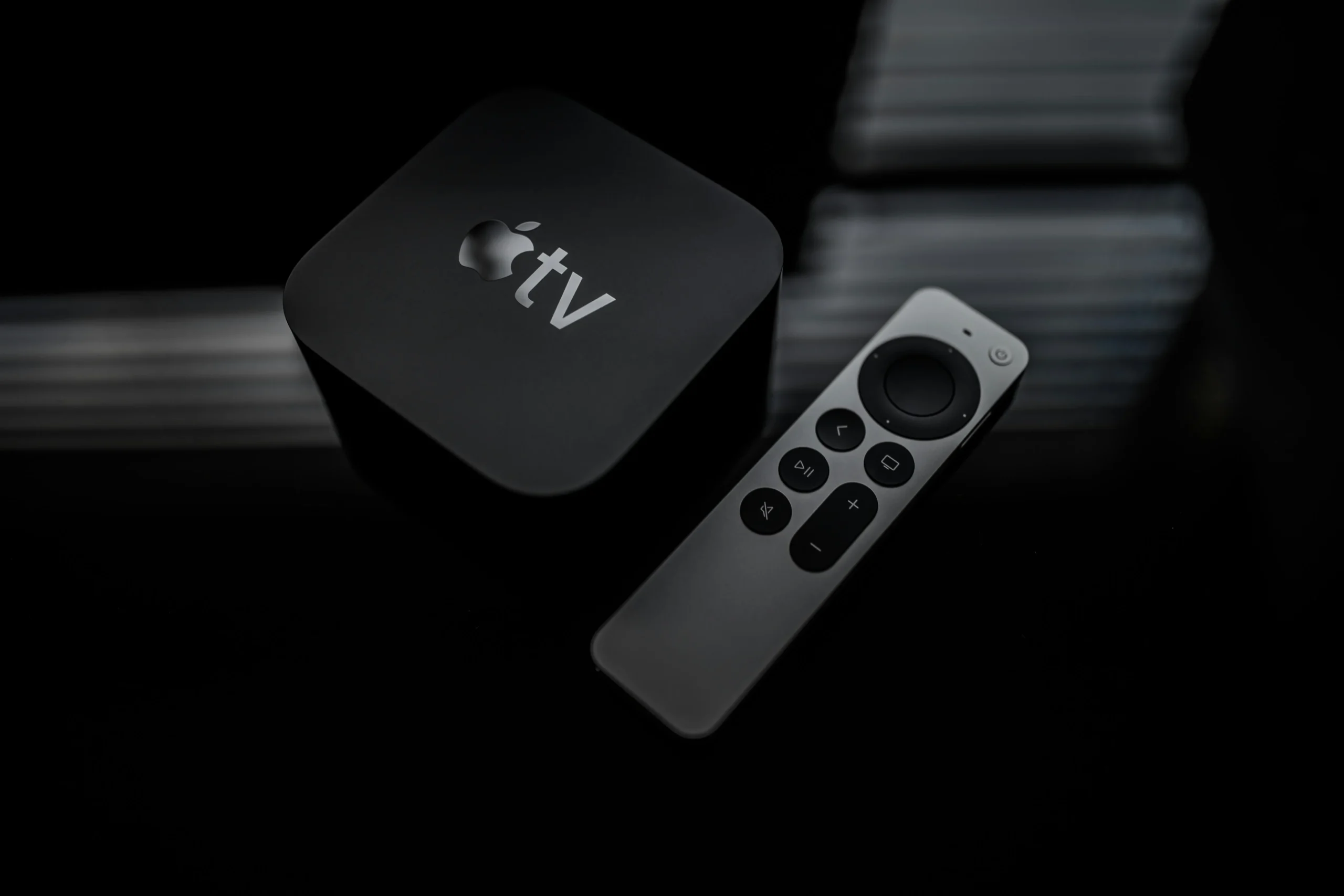
Learn why apple tv remote volume not working and how to fix volume button issues, reset the remote, change the battery, and solve iPhone Apple TV remote problems.
Your viewing experience can be rapidly ruined when your Apple TV remote volume is broken. You might observe that the Apple TV remote is functional for navigation but not for volume control, that the volume buttons are useless, or that the sound is unchanged. This is a frequent problem that can be caused by issues with your TV’s or sound system’s compatibility, settings, pairing, or batteries.
This article will explain why the volume on my Apple TV remote isn’t functioning, how to fix it step-by-step, and what to do if the Apple TV remote’s volume button isn’t working. It also includes solutions for iPhone Apple TV remote volume not working.
Why Is My Apple TV Remote Volume Not Working
Understanding the cause helps you fix the problem faster. There are several reasons why volume is not working on the Apple TV remote.
Common Reasons for Volume Issues
- Remote is not paired correctly
- Volume control on remote not working due to HDMI settings
- Low or dead battery
- Apple TV software glitch
- TV or soundbar compatibility issues
- iPhone Apple TV remote volume not working because of wrong settings
If the remote can navigate menus but cannot control volume, the issue is usually related to volume configuration rather than the remote being broken.
How Apple TV Remote Controls Volume

Before troubleshooting, it is important to understand how volume works.
Volume Control Explained
Apple TV remote controls volume using:
- HDMI CEC
- IR control for TVs and soundbars
If HDMI CEC is disabled or IR learning fails, the volume buttons not working on Apple TV remote becomes a common issue.
How to Fix Apple TV Remote Volume Not Working
Below are proven solutions that fix the problem in most cases.
Restart Apple TV from Remote
Restarting Apple TV clears temporary glitches.
How to Restart Apple TV Using Remote
- Press and hold the TV and Back buttons
- Hold until the Apple TV restarts
- Release the buttons when the Apple logo appears
This simple step often fixes volume on the Apple TV remote not working.
Check Volume Control Settings on Apple TV
Incorrect settings can stop volume control.
Steps to Check Volume Settings
- Open Settings on Apple TV
- Go to Remotes and Devices
- Select Volume Control
- Choose Auto or TV via IR
If volume control on the remote is not working, switching between Auto and IR may solve the issue.
How to Reset Apple TV Remote Volume Not Working
Resetting the remote can fix pairing issues.
Reset Apple TV Remote Steps
- Press and hold TV and Volume Down buttons
- Hold for five seconds
- Release and wait for pairing message
This helps if the volume button is not working on Apple TV remote due to connection problems.
Changing the Battery on Apple TV Remote
Low battery is a common reason for volume issues.
When to Change the Battery
- Volume buttons respond slowly
- Remote disconnects frequently
- Volume works sometimes but not always
How to Open an Apple TV Remote
The Apple TV remote does not open manually. It has a built-in rechargeable battery.
How to Charge Apple TV Remote
- Use a Lightning or USB C cable depending on model
- Charge for at least 30 minutes
- Test volume buttons again
Changing the battery on the Apple TV remote by recharging often fixes volume buttons not working on the Apple TV remote.
Why Does My Apple TV Remote Volume Not Work With Soundbar

Soundbars often cause volume problems.
Common Soundbar Issues
- HDMI CEC disabled
- IR not configured
- Unsupported soundbar model
Enable HDMI CEC on both Apple TV and soundbar settings to fix why the volume button is not working on Apple TV remote.
Volume Not Working on Apple TV Remote With iPhone
Many users face iPhone Apple TV remote volume not working.
Why Volume Does Not Work on iPhone Remote
- iPhone remote uses system volume only
- External sound system limits control
- Wrong output device selected
Turn Off Apple TV Remote on iPhone
If volume is confusing or unresponsive:
- Open Control Center
- Remove Apple TV Remote
- Reconnect after restarting Apple TV
This often resolves iPhone related volume problems.
Volume Buttons Not Working on Apple TV Remote After Update
Software updates sometimes reset settings.
What to Do After Update
- Restart Apple TV
- Check volume control settings
- Reset remote
This fixes why my Apple TV remote volume is not working after updates.
How to Fix Apple TV Remote Volume Not Working With TV
Sometimes the issue is your TV.
TV Settings to Check
- Enable HDMI CEC
- Disable external volume lock
- Update TV firmware
If your TV blocks volume commands, the volume button not working on the Apple TV remote issue will persist.
FAQs About Apple TV Remote Volume Not Working
Why does my Apple TV remote volume not work but navigation works
This usually means volume control settings or HDMI CEC is disabled.
Can I control volume without Apple TV remote
Yes, use a TV remote or iPhone remote as an alternative.
Does Apple TV remote control volume on all TVs
No, some TVs and soundbars have limited compatibility.
How do I know if my remote battery is low
Go to Settings then Remotes and Devices to check battery level.
Conclusion
When the Apple TV remote volume is not working, the issue is usually related to settings, battery level, HDMI configuration, or pairing problems. By restarting Apple TV from the remote, checking volume control settings, resetting the remote, and ensuring proper TV or soundbar compatibility, you can quickly restore full volume control.
Whether you are dealing with volume buttons not working on Apple TV remote or iPhone Apple TV remote volume not working, the solutions in this guide cover all common scenarios. Follow these steps carefully and your Apple TV audio control should work smoothly again.

Sid is a skilled content writer with over 9 years of experience, creating clear and helpful articles on a wide range of topics. Sid is also well-known for her knowledge of remote controls, codes, and setup guides, helping thousands of people with simple and reliable solutions. Her goal is to combine expert content writing with practical knowledge, making information easy to understand and useful for everyone. In her free time, she enjoys exploring new technology and sharing helpful tips with the community.
