

Learn how to change the Apple TV remote battery with this step by step guide that covers tips, troubleshooting and common questions.
Introduction
If you own an Apple TV you know how convenient it is to navigate your favorite shows and movies with the sleek Apple TV remote. However like any electronic device its remote runs on batteries. Over time the remote’s battery will deplete, requiring a replacement to keep your viewing experience seamless. In this blog we’ll explore everything you need to know about the Apple TV remote battery including how to change it, troubleshooting tips and frequently asked questions.
Understanding Your apple tv remote battery
Apple offers different remotes for various iterations of the Apple TV including the original Apple TV Remote, the Apple TV (4th generation) Remote and the Siri Remote. These remotes vary in design and battery specifications.
Types of Apple TV Remotes
1. Apple TV Remote (1st Generation):
- Uses a CR2032 battery.
- Features a simple button layout.
2. Apple TV Remote (4th Generation and Later):
- Comes with a built in rechargeable lithium ion battery.
- Includes a touch surface and Siri capability.
Understanding the type of remote you have will determine how you manage the battery replacement or charging process.
How to Change the apple tv remote battery
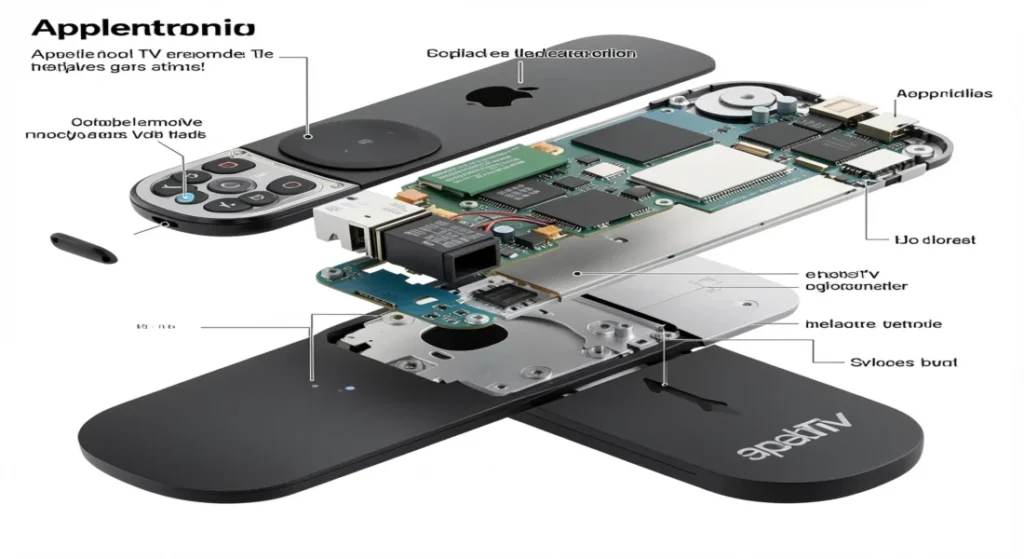
For the Apple TV Remote (1st Generation)
If you have an older model here’s how to change the battery:
1. Gather Your Tools:
You’ll need a CR2032 battery which is readily available at most electronics stores or online.
2. Open the Battery Compartment:
- Look for the small notch at the back of the remote.
- Use a coin or a flat object to twist and slide the compartment cover open.
3. Remove the Old Battery:
- Take out the old CR2032 battery.
- Dispose of it properly as it is non rechargeable.
4. Insert the New Battery:
- Place the new battery in the compartment
- ensuring that the positive side (+) aligns correctly.
5. Close the Compartment:
Slide the compartment cover back in place until you hear a click.
6. Test the Remote:
Point the remote at your Apple TV and press any button to check if it responds.
For the Siri Remote (4th Generation and Later)
If your Apple TV remote has a built in battery follow these steps:
1. Charging the Remote:
- Connect a Lightning to USB cable to the Lightning port on the bottom of the remote.
- Plug the other end into a USB power adapter or your computer.
2. Checking Battery Life:
- Navigate to Settings on your Apple TV.
- Go to Remotes and Devices. Here you can see the battery level of your remote.
3. Charging Duration:
- A full charge takes around 2.5 hours
- providing several weeks of battery life with regular use.
Troubleshooting Common Issues
If your remote isn’t working correctly after changing or charging the battery consider the following troubleshooting tips:
- Unresponsive Remote: Try restarting your Apple TV by disconnecting the power for a few seconds then reconnecting it.
- Bluetooth Connection: If the remote is not connected hold the Menu and Volume Up buttons for about five seconds to re establish a Bluetooth connection.
- Software Update: Ensure your Apple TV software is up to date by going to Settings > System > Software Updates.
Pros
1.Cost Effective:
Learning to change the battery yourself saves money compared to seeking professional help.
2.Time Saving:
Following a step by step guide allows for a quick and efficient battery replacement.
3.Skill Development:
Gaining hands on experience can enhance your problem solving skills related to technology.
4.Convenience:
You can change the battery at your convenience without relying on others.
5.Empowerment:
Successfully completing the task boosts confidence in managing technological devices.
Cons
1.Potential Damage:
Incorrect handling may lead to damaging the remote or its components.
2.Frustration:
If the guide is unclear it could result in frustration or wasted time.
3.Tool Requirements:
You may need specific tools that you don’t already own adding to the hassle.
4.Limited Assistance:
Lack of real time help if you encounter unforeseen issues.
5.Learning Curve:
If you’re not tech savvy, understanding instructions may be challenging.
Frequently Asked Questions
How long do Apple TV remote batteries last?
The battery life depends on usage. For the CR2032 battery expect around 6 months to a year while the Siri Remote can last several weeks on a full charge with regular use.
What should I do if my Apple TV remote won’t charge?
If your Siri Remote isn’t charging ensure the USB cable is functional. Try using a different Lightning cable or power adapter. If it still won’t charge, consider contacting Apple Support for repairs.
Can I use my Apple TV without a remote?
Yes! You can download the Apple TV Remote app on your iPhone or iPad to control your Apple TV. The app provides full functionality and can be a handy alternative while troubleshooting your remote.
Are there third party remotes compatible with Apple TV?
Yes several third party remotes are compatible with Apple TV but ensure they support all necessary functions such as navigating menus and using Siri.
Conclusion
Changing or charging the battery in your Apple TV remote is a straightforward process whether you have an older model using a CR2032 battery or a newer Siri Remote with a rechargeable battery. By following the steps outlined in this guide you’ll ensure your Apple TV remote remains functional allowing you to enjoy your favorite content without interruptions.
If you encounter any issues refer to the troubleshooting tips or consult the frequently asked questions section for further assistance. With proper care and timely battery changes your remote can continue to enhance your streaming experience for years to come.

Sidra is a skilled content writer with over 9 years of experience, creating clear and helpful articles on a wide range of topics. Sidra is also well-known for her knowledge of remote controls, codes, and setup guides, helping thousands of people with simple and reliable solutions. Her goal is to combine expert content writing with practical knowledge, making information easy to understand and useful for everyone. In her free time, she enjoys exploring new technology and sharing helpful tips with the community.
