
Discover everything about Sanyo remote control for TV codes, replacements, setup tips, and using your phone as a remote. Easy steps for all Sanyo TVs.
Finding the right Sanyo remote control for TV can feel like a chore, especially when you want to sit back and watch your favorite shows. Whether you’ve lost the original, it stopped working, or you’re just looking for an upgrade, this guide has you covered. We will walk you through everything from finding a replacement to programming a new one. You will learn about universal remotes, smartphone apps, and what to do if you can’t find your remote anywhere.
This article provides simple, step-by-step solutions for all your Sanyo TV remote needs. We aim to get you back in control of your television quickly and without any fuss.
Finding a Sanyo TV Remote Replacement
Losing or breaking your Sanyo TV remote is a common issue. Luckily, finding a Sanyo TV remote replacement is easier than you might think. There are several options available, catering to different needs and budgets.
OEM Replacement Remotes
A remote from an Original Equipment Manufacturer (OEM) is exactly the same as the one that came with your TV. This is the best solution if you want to be sure it will work. You won’t have to worry about programming or missing features. You need the model number of your Sanyo TV to get the right OEM remote. This information is normally on a label on the back of the TV. You can use this number to find the exact remote you need from online stores, like one for a Sanyo DP32640 or DP42740 model.
Universal Remotes
A universal remote is a great alternative. These devices are designed to work with multiple brands and models, including Sanyo. They offer a cost effective and flexible solution, especially if you want to control other devices like a DVD player or soundbar with a single remote.
How a Universal Remote Works
Will a universal remote control work on any TV? Mostly, yes. Universal remotes work by using a database of codes for thousands of devices. To connect one to your Sanyo TV, you must program it with the correct code. This process is usually straightforward.
How to Program a Sanyo Remote Control for TV
Programming your remote is the key to getting it to communicate with your television. Whether you have a new Sanyo branded remote or a universal one, the process involves a few simple steps.
Programming a Universal Remote with Sanyo TV Remote Codes
Using codes is the most common method for programming a universal remote. You will need the specific Sanyo TV remote codes for your remote’s brand. These are typically found in the manual that came with your universal remote.
Here is a step-by-step guide:
- Turn On Your Sanyo TV: Make sure your television is on before you begin.
- Find the Codes: Locate the Sanyo section in your universal remote’s manual. You will see a list of three, four, or five digit codes.
- Enter Programming Mode: Press and hold the “Setup” or “Code Search” button on your universal remote until the indicator light stays on.
- Enter the Code: Type in the first code from the list using the number pad on the remote. The indicator light should turn off after you enter the last digit.
- Test the Remote: Aim the remote at your Sanyo TV and press the “Power” button. If the TV turns off, you have successfully programmed the remote. Try other functions like volume and channel buttons to ensure they work.
- Try Another Code: If the TV does not respond, repeat the process with the next code on the list until you find one that works.
Some common Sanyo remote codes for Sanyo TV include 115, 148, and 240, but these vary widely depending on the universal remote manufacturer.
Using the Code Search Feature
If you can’t find the right code or have lost the manual, you can use the code search feature on your universal remote.
- Turn On Your TV: Ensure your Sanyo TV is powered on.
- Activate Code Search: Press and hold the “Setup” or “Code Search” button until the indicator light illuminates.
- Start the Search: Press the “Power” button on the remote. Then, press the “Channel Up” or “Channel Down” button repeatedly. The remote will send out a different code with each press.
- Wait for a Response: Continue pressing the channel button until your TV turns off. This indicates the remote has found the correct code.
- Lock in the Code: Quickly press the “Setup” or “Enter” button to save the code.
- Test Functionality: Turn your TV back on using the remote and test other buttons to confirm it’s working correctly.
Can I Use My Phone to Control My Sanyo TV?
Yes, you absolutely can use your phone to control your Sanyo TV. In fact, for many people, this has become the preferred solution, especially if the original remote is lost. This method turns your smartphone into a powerful and convenient controller.
Is There a Sanyo TV Remote App?
There are numerous third party remote control apps available for both Android and iOS devices. You can find options by searching for “Sanyo TV remote app” or “universal remote app” in the Google Play Store or Apple App Store. These apps use your phone’s built in hardware to communicate with your TV.
There are two main ways these apps work:
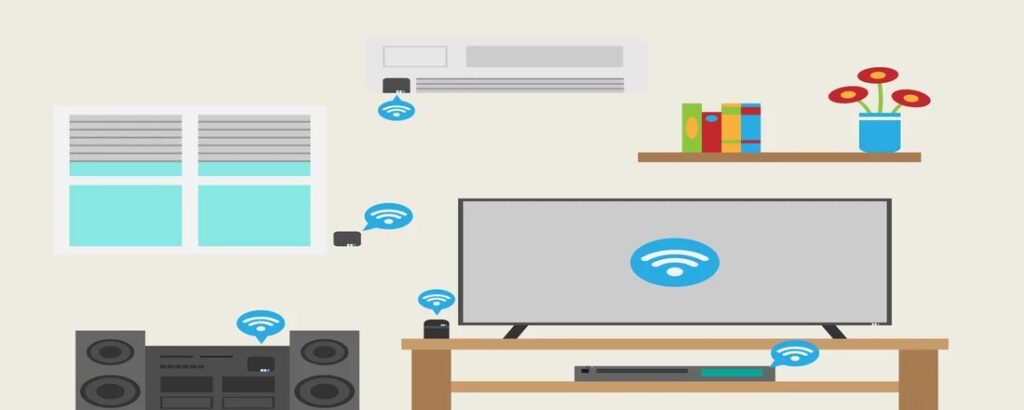
- Wi-Fi Control: If you have a Sanyo Smart TV connected to your home Wi-Fi network, you can use an app that operates over Wi-Fi. You just need to ensure your phone and TV are connected to the same network. The app will detect your TV, allowing you to control it seamlessly.
- IR Blaster: Some Android phones come with a built in infrared (IR) blaster. This hardware mimics the signal sent by a physical remote. If your phone has an IR blaster, you can download an app that uses it to control your Sanyo TV, even if it’s not a smart TV.
How to Connect Phone to Sanyo Smart TV
Connecting your phone to a Sanyo Smart TV is simple. For Wi-Fi-based apps, follow these general steps:
- Download an App: Choose and download a highly rated Sanyo remote app from your app store.
- Connect to Wi-Fi: Make sure both your smartphone and your Sanyo Smart TV are on the same Wi-Fi network.
- Launch the App: Open the app and follow its instructions to scan for devices on your network.
- Select Your TV: Your Sanyo TV should appear in a list of available devices. Select it to connect.
- Start Controlling: Once connected, the app’s interface will display buttons for power, volume, channels, and more, allowing you to control your TV.
Frequently Asked Questions
What to do if I lost my Sanyo TV remote?
If you lost your Sanyo TV remote, you have several great options. First, check if your TV has physical buttons on the side, back, or bottom for basic controls like power and volume. For a long term solution, you can either buy a direct Sanyo TV remote replacement, purchase one of the many Sanyo universal remote codes compatible devices, or download a remote control app on your smartphone.
How can I control my TV if I lost my remote?
Without a remote, you can use the physical buttons on the TV itself for essential functions. For full control, your best bet is to use a smartphone app. As long as you have a Sanyo Smart TV or a phone with an IR blaster, you can download a remote app and regain control within minutes.
Is Sanyo an Android TV?
While Sanyo has manufactured many types of televisions, not all of them are Android TVs. Some newer Sanyo models do run on the Android TV platform, which gives you access to the Google Play Store and Google Assistant. However, many older or more basic models use Sanyo’s proprietary operating system. If your TV is an Android TV, it will be much easier to control with various smartphone apps designed for the Android TV platform.
Can I download a TV remote app?
Yes, you can download a TV remote app. There are many available on both the Google Play Store for Android and the Apple App Store for iOS. Some are specific to Sanyo, while others are universal apps that support hundreds of brands. These apps are a fantastic backup or even a primary remote replacement.
Conclusion
It doesn’t have to be hard to deal with a misplaced or broken Sanyo TV remote. The solutions are straightforward to identify and use, whether you need to find an exact replacement or program a universal remote that can do a lot of things. As smart technology has grown, utilizing your phone as a remote control has also become a reliable and popular choice.
You may fix your remote control problems by following the steps in this guide. You now know how to get back to enjoying your Sanyo TV without any problems, whether you need to locate Sanyo universal remote codes or learn how to connect an app to your smart TV.

Sid is a skilled content writer with over 9 years of experience, creating clear and helpful articles on a wide range of topics. Sid is also well-known for her knowledge of remote controls, codes, and setup guides, helping thousands of people with simple and reliable solutions. Her goal is to combine expert content writing with practical knowledge, making information easy to understand and useful for everyone. In her free time, she enjoys exploring new technology and sharing helpful tips with the community.
