
Samsung remote only turns TV on and off? You are not imagining it, and the cause is more specific than most guides admit. The remote clearly works, because the TV obeys the power button. Yet volume, channel, menu and the arrows do nothing at all.
Most guides treat this as a general remote fault and tell you to change the batteries. That misses the point. This exact symptom, power working and nothing else, has a specific cause, and once you understand it the fix takes two minutes.
Samsung Remote Only Turns TV On and Off: the real reason
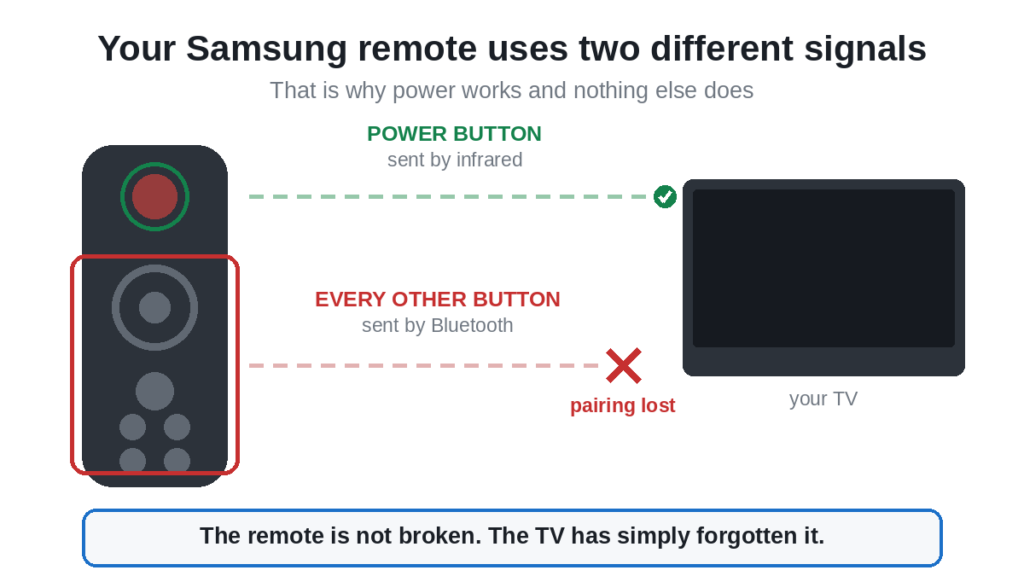
Your Samsung Smart Remote is not one remote. It is two.
The power button is sent as an infrared signal, the same technology every TV remote used for thirty years. It needs line of sight to the TV, and it needs no setup at all.
Every other button is sent over Bluetooth. Volume, channel, the arrows, Home, Back, the mic, all of it travels on a wireless link that has to be paired with the TV first.
Samsung built it this way deliberately. Bluetooth radios sleep when the TV is off, so a Bluetooth power button could never wake the set. Infrared can, because the TV keeps a tiny infrared receiver awake at all times.
Which means your symptom is telling you something precise: the infrared path is fine, and the Bluetooth pairing has dropped. The remote is not broken. The TV has simply forgotten it.
That is why cleaning the sensor, pointing more carefully, or standing closer will not help. None of those touch the Bluetooth link.
First, check which Samsung remote you have
This matters, because the explanation above only applies to one of them.
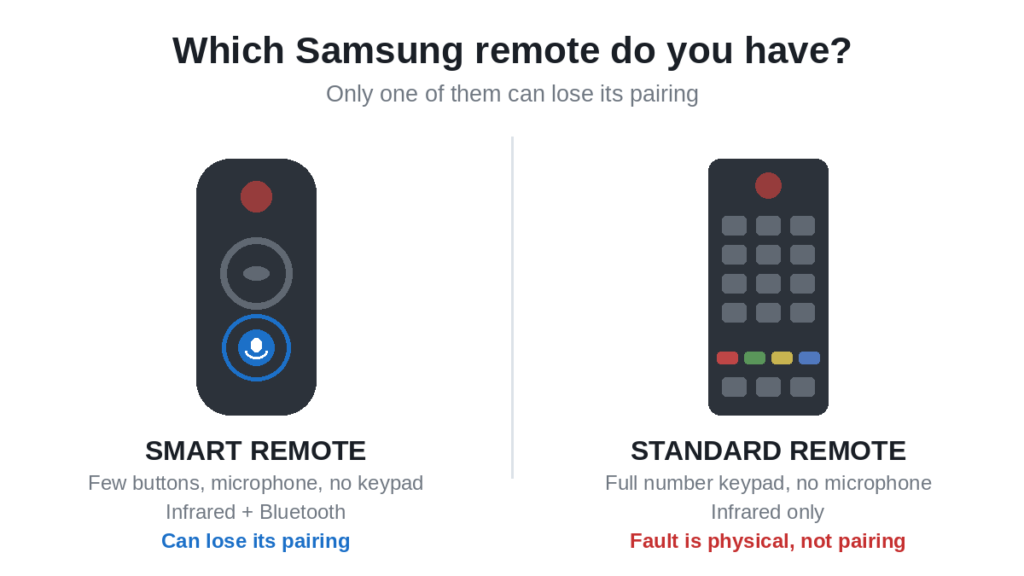
Smart Remote
Slim, curved, very few buttons, no number keypad, and usually a microphone button for voice search. Model numbers start with BN59. These are the dual mode remotes, and everything on this page applies to them.
Standard remote
Longer, flat, a full number keypad, coloured buttons along the bottom, no microphone. These are infrared only. Every button travels the same way.
If you have a standard remote and only power works, the cause is different and it is almost always physical. Jump to the section on standard remotes near the bottom of this page.
Fix 1: Change the batteries, and here is why it matters
This is not the usual throwaway advice. On a dual mode remote, weak batteries produce exactly the symptom you are seeing, and the reason is worth knowing.
The infrared LED fires in short, sharp bursts, a few milliseconds at a time. A tired battery can manage that. Maintaining a Bluetooth Low Energy connection is a continuous draw, and it needs steady voltage. A battery with enough left for the power button often has nothing left for the radio.
So the remote keeps switching the TV on while quietly failing at everything else, and nothing on the remote warns you.
- Slide off the back cover
- Take both batteries out
- Fit a fresh pair from a sealed pack, not from a drawer
- Check the plus and minus ends against the markings
- Put the cover back and try the volume button
Use both batteries from the same pack. Pairing an old cell with a new one gives you the performance of the old one. If volume now works, you are finished.
Fix 2: Re-pair the remote to the TV
If fresh batteries did not fix it, this is the one that usually does. You are telling the TV to accept the remote again.
Before you start, stand within one metre of the TV and point the remote at the bottom of the screen. This step catches a lot of people out. Pairing is kick-started over infrared, even though the finished connection is Bluetooth, so line of sight does matter for these few seconds even though it does not matter afterwards.
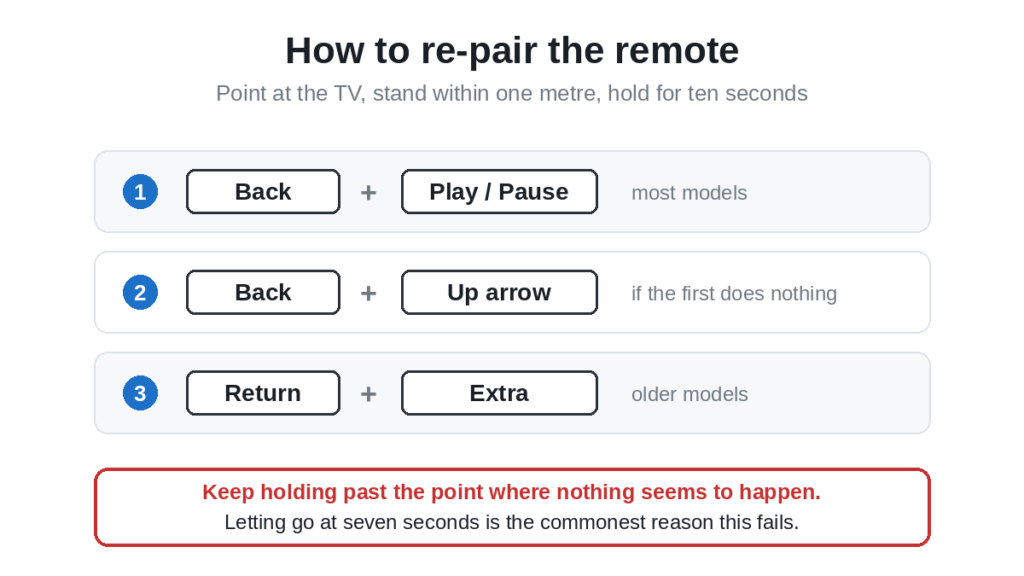
The button combination varies by model year. Work through them in this order, holding each for a full ten seconds:
- Back and Play/Pause together. On some remotes Back is labelled Return.
- Back and Up arrow together.
- Return and Extra together, on older models.
Keep holding past the point where you think nothing is happening. Ten seconds feels much longer than it sounds, and letting go at seven is the commonest reason this fails.
You will know it worked when a pairing message appears on the TV screen, or the small light on the remote starts flashing. Then test volume, not power.
If you get a message saying no device was found, go to the next fix first and then come back and try pairing again.
Fix 3: Power cycle the TV properly
Not just turning it off. Samsung TVs keep power to the mainboard when the screen is off, so the Bluetooth module never actually restarts.
- Turn the TV off
- Unplug it at the wall socket, not the extension lead
- Press and hold the power button on the TV itself for thirty seconds. Nothing will appear to happen. This drains the residual charge and is the step that makes the difference
- Wait a full minute
- Plug it back in and switch it on
- Try the remote, then try pairing again if needed
The button on the TV is usually underneath the bottom bezel, slightly right of centre, or behind the lower right corner. On some models it is a small joystick rather than a button.
Fix 4: Make sure Bluetooth is switched on
Rare, but it costs thirty seconds to rule out, and when it is the cause nothing else will ever work.
Using the buttons on the TV itself, or the app described further down, go to Settings, then General, then External Device Manager, and check that Bluetooth is enabled. Some models hide it under Connection instead.
If Bluetooth has been switched off, perhaps by a software update or a factory reset, no amount of re-pairing will do anything at all.
Fix 5: Clear the interference
Bluetooth shares the crowded 2.4GHz band with wifi, microwaves and a long list of other devices. Infrared shares nothing, which is another reason the power button keeps working while the rest does not.
Things that commonly interfere:
- A wifi router sitting on or directly behind the TV
- A soundbar with its own Bluetooth connection active
- A games console paired to Bluetooth controllers
- A microwave in the same room, while it is running
- Bluetooth headphones already paired to the TV and still connected
Move the router a metre away, switch off any Bluetooth headphones, and try again. If the remote works at one metre but not from the sofa, interference is your answer rather than a broken remote.
Fix 6: Update the TV software
Samsung has shipped firmware updates that broke remote pairing, and then shipped further updates that fixed it. If this started after an update, that is almost certainly what happened.
Go to Settings, then Support, then Software Update, and choose Update Now. You will need the TV buttons or the app to get there.
Leave Auto Update switched on afterwards.
Fix 7: Reset the remote itself
This clears the remote’s own stored state, which sometimes holds a broken pairing that it keeps trying to reuse.
- Take both batteries out
- Press and hold the power button for sixty seconds, with the batteries still out
- Press every other button on the remote once, including the ones you never use
- Put fresh batteries back in
- Run the pairing steps from Fix 2 again
Step three matters more than it looks. A button held slightly down by dust or a spilled drink keeps the remote busy transmitting that one command, so it ignores everything else you press.
Get the TV usable tonight with SmartThings
While you work through the fixes above, you do not have to sit there without a remote.
Samsung publishes a free app called SmartThings that turns your phone into a full remote. It works over your home wifi, so Bluetooth pairing problems do not affect it at all, and you can reach every menu you need for the fixes on this page.
- Download it from Google Play or the App Store
- Your phone and the TV must be on the same wifi network
- The TV must be a smart model, which is most sets from 2016 onwards
Open the app, let it find the TV, and enter the code that appears on screen. After that you have volume, input, menus and apps from your phone.
Two honest limitations. On many models the app cannot switch the TV on from fully off, because the wifi radio sleeps. And it will not help with an older non smart Samsung. For those, a phone with an infrared blaster is the only app based route.
If you have a standard infrared remote
Full keypad, no microphone, no Bluetooth. Everything travels by infrared, so a dropped pairing cannot be the cause. Something physical is.
- A stuck button. The most likely cause by far. If any button is held down, even slightly, the remote transmits that command continuously and ignores the rest. Press every button firmly several times and feel for one that does not spring back.
- Dirt under the rubber. Years of dust and skin oil build up under the keypad and stop the contacts closing. The power button, being the most used, often keeps working the longest.
- Liquid damage. A spilled drink corrodes the contact pads. Power may survive while the rest dies.
- Corroded battery contacts. White or green powder in the compartment. Clean it with a cotton bud and a little white vinegar, then dry it completely.
Our guide to a Samsung remote not working with the TV covers these in more depth.
When the remote needs replacing
If you have worked through everything above and volume still does nothing, the Bluetooth module in the remote has likely failed. Infrared and Bluetooth are separate components, so one can die while the other carries on, which is exactly the symptom you have.
Three routes:
- Warranty. If the TV is still in warranty, Samsung may replace the remote free. Ask before buying anything. The Samsung community forum has long threads on this exact fault, and Samsung staff respond in them.
- A genuine Samsung replacement. Check the model number printed inside the battery compartment, starting BN59, and match it. Our guide to programming a BN59 Samsung remote walks through setup.
- A universal remote. Cheaper, and it controls your other devices too. Note that a universal remote is infrared only, so you lose voice search and some smart functions. The codes are in our list of Samsung TV remote codes.
Frequently asked questions
Why does my Samsung remote only turn the TV on and off?
Because the power button is sent by infrared while every other button is sent by Bluetooth. Infrared needs no setup, so it keeps working. The Bluetooth pairing between remote and TV has dropped, which kills everything else. Re-pairing usually fixes it.
How do I re-pair a Samsung Smart Remote?
Stand within a metre of the TV, point the remote at the bottom of the screen, and hold Back and Play/Pause together for ten seconds. If that does nothing, try Back and the Up arrow for ten seconds.
Will new batteries fix it?
Often, yes. Bluetooth needs steady voltage while infrared only needs short bursts, so a weak battery can run the power button and still fail at everything else. Fit a fresh pair before trying anything more complicated.
Do I need to point a Samsung Smart Remote at the TV?
Not in normal use, because Bluetooth does not need line of sight. You do need to point it during pairing, because pairing is started over infrared.
Can I use my Samsung TV without the remote?
Yes. The free SmartThings app gives you full control over wifi. There are also physical buttons on the TV, usually under the bottom bezel or behind the lower right corner.
My remote has a keypad and only power works. Is this the same problem?
No. A remote with a full number keypad and no microphone is infrared only, so there is no pairing to lose. The cause is physical, usually a stuck button or dirt under the keypad.
Why did this start after a software update?
Samsung firmware updates have broken remote pairing before. Re-pair the remote, and check for a newer update, since the fix often arrives in the next release.
Can a soundbar stop my Samsung remote working?
It can. A soundbar with an active Bluetooth connection adds traffic to the same 2.4GHz band the remote uses. It can also physically block the infrared sensor if it sits in front of the lower bezel.
In short
Power works because it is infrared. Nothing else works because the Bluetooth pairing has dropped. Fit fresh batteries first, because weak cells cause this exact symptom, then re-pair by holding Back and Play/Pause for ten seconds while pointing at the TV. If that fails, unplug the TV and hold its own power button for thirty seconds before trying again.And install SmartThings while you work. It costs nothing and it gets your TV usable straight away.

