Having trouble with your Samsung remote not working with tv? Discover easy troubleshooting tips, common causes, and quick fixes to get your Samsung TV remote working again in minutes. Learn how to reset the pair and solve connection issues without expert help.
This guide covers everything you need to know about why my Samsung TV is not working with a remote and how to get you back to your movie night quickly.
What remote issue are you experiencing?
Troubleshooting your remote depends on the issue that you’re having with it. If it seems like it’s pressing buttons by itself, it may actually be that your TV’s controls are dirty.
There are four conditions which may cause a remote control pad to function improperly :
- Bad batteries.
- An electronic glitch in the remote control pad.
- A defective remote control pad.
- A defective remote control sensor on the TV.
QUICK ANSWER
There are a few things you may do to get your Samsung smart TV remote working properly again. It is suggested that the batteries be checked, the remote be reset, the network connection be checked, the remote be examined for damage, the SmartThings app remote feature be tried, and the Samsung TV be reset. To find out all the details, keep reading.
JUMP TO KEY SECTIONS
- Examine the batteries.
- The Samsung TV remote to be reset.
- Verify the network connection.
- Is there anything in the way of the TV and the remote?
- Examine the remote for any physical damage.
- Utilize the SmartThings app as a remote
- Upgrade your Samsung television.
- The Samsung TV should be reset.
Check the batteries if your Samsung remote is not working
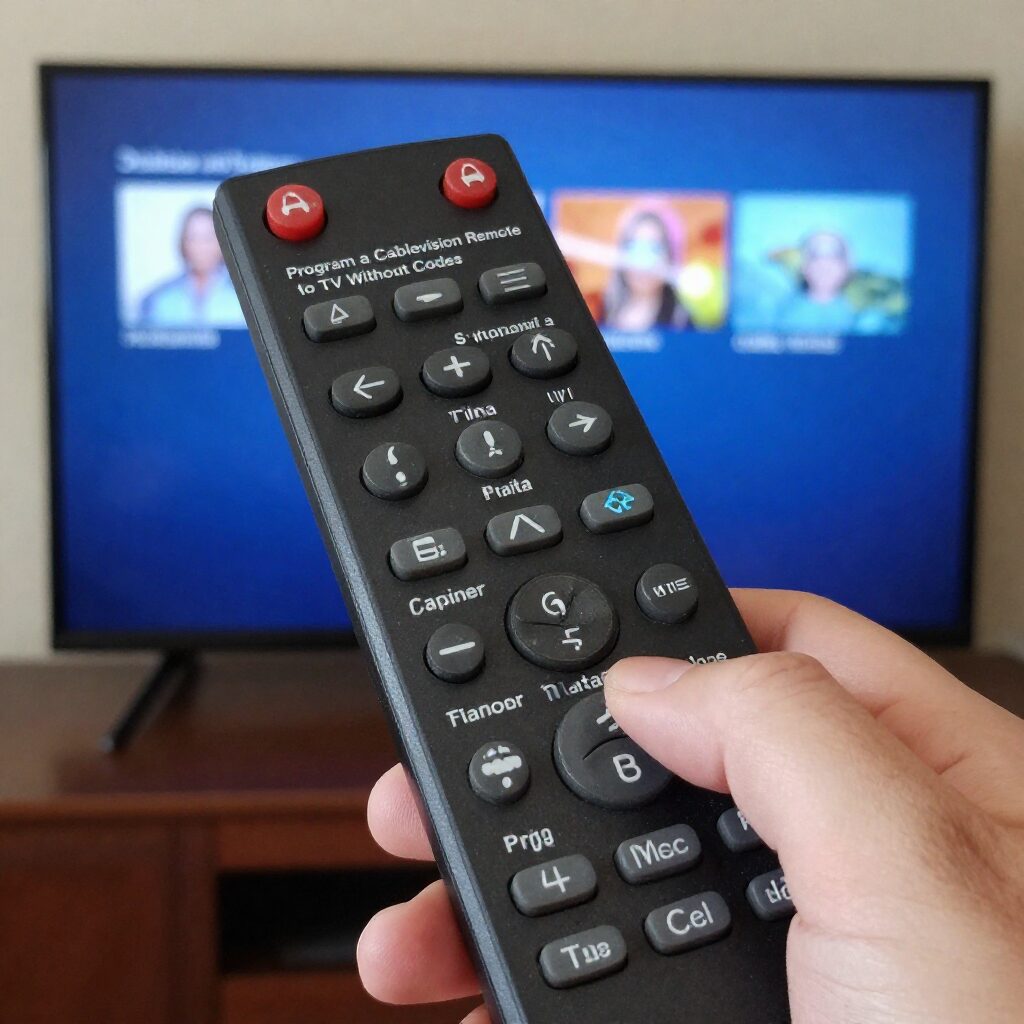
One of the most common causes of a Samsung remote not working with a TV is a low or dead battery. Remove the old batteries and replace them with new ones, ensuring that they are inserted correctly. Low battery power can prevent the remote from correctly transmitting signals to your Samsung television. After changing the batteries, try using the remote again to determine whether the problem has been resolved.
Reset the Samsung TV remote if it is not working with the TV.
If your Samsung remote is not working with your TV, resetting it could help to resolve pairing and signal issues. Remove the batteries from the remote and press the power button for approximately 10 seconds to remove any remaining power. After that, put in new batteries and attempt pairing the remote with your Samsung TV again. This easy reset procedure frequently resolves distant connectivity problems quickly.
Check the Network Connection If Samsung Remote Isn’t Working With TV
If your Samsung remote is not working with your TV, checking the network connection can help in finding the problem. Smart Samsung remotes may require a reliable internet or Bluetooth connection to function successfully. Go to your TV’s settings and ensure that the device is linked to Wi-Fi without pause. Restart the router if necessary, and reconnect the TV to the network to restore proper remote function.
Check if Anything Is Blocking the TV and Remote
A Samsung remote not working with TV might occur when something interferes with the signal between the remote and the TV sensor. Make sure no items, decorations, or furniture are in front of the TV receiver. Point the remote directly at the Samsung TV and try to use it from a closer distance. Removing blocks can quickly restore remote functionality.
Check the remote for any physical damage.
Physical damage can be a primary cause why a Samsung remote does not operate with a television. Examine the remote closely for broken buttons, loose battery contacts, or signs of water damage. If the remote was dropped recently, internal components may no longer function properly. Cleaning the remote and repairing broken parts may help your Samsung TV function properly again.
Use SmartThings App as a Remote
If your Samsung remote does not function with your TV, you can control it via the SmartThings app on your smartphone. Download the app, connect your phone and Samsung TV to the same Wi-Fi network, and then pair them. The app lets you change channels, adjust the volume, and access TV settings without the need for a real remote. This is a quick and easy fix if your Samsung remote stops working.
Upgrade your Samsung television.
Outdated software might sometimes cause a Samsung remote not to work with the TV. Updating your Samsung TV to the most recent firmware will improve remote functionality and resolve connectivity issues. Go to the TV’s settings menu, check for available software updates, and install the most recent version. Once the update is complete, restart the TV and try the remote again.
Reset your Samsung TV
If your Samsung remote does not function with the TV, restarting the Samsung TV can help resolve temporary software faults and connection issues. Turn off the TV, disconnect it from the power source for a few minutes, and then reconnect it. If the problem continues, you can conduct a factory reset through the TV’s settings menu. After restarting the television, check to see if the remote works properly again.
Frequently Asked Questions
What do you do if your TV doesn’t respond to the remote?
First, perform a power cycle on the TV by unplugging it for 60 seconds. Next, check the remote batteries. If it’s a Smart Remote, try re pairing it by holding the Return and Play/Pause buttons.
Why does my Samsung remote not work with my TV?
The most common reasons are dead batteries, Bluetooth pairing disconnection, or physical obstruction of the IR sensor. If the remote has been dropped, internal damage is also possible.
How do I fix a Samsung TV remote that is blinking red?
A blinking red light on the remote usually means it has lost connection to the TV. Stand closer to the TV and hold the Return and Play/Pause buttons to re establish the link. If the light flashes rapidly, the batteries may be critically low.
Can I reset my Samsung TV without a remote?
Yes. How to hard reset Samsung TV without a remote? You can use the physical control button located under the Samsung logo or on the back right side of the TV. Navigate to Settings > General > Reset. Alternatively, connect a USB keyboard to the TV to navigate the menus.
Conclusion
Dealing with a Samsung remote that does not function with the TV can be annoying, but the majority of problems can be resolved with easy troubleshooting methods. These options, which include testing the batteries and network connection, resetting the remote, and updating your Samsung TV software, can help you quickly restore normal performance. If the problem persists, utilizing the SmartThings app or resetting the TV could provide a temporary or permanent solution. By following the steps outlined in this article, you can resolve typical Samsung remote difficulties and resume a smoother watching experience.

Sidra is a skilled content writer with over 9 years of experience, creating clear and helpful articles on a wide range of topics. Sidra is also well-known for her knowledge of remote controls, codes, and setup guides, helping thousands of people with simple and reliable solutions. Her goal is to combine expert content writing with practical knowledge, making information easy to understand and useful for everyone. In her free time, she enjoys exploring new technology and sharing helpful tips with the community.
