
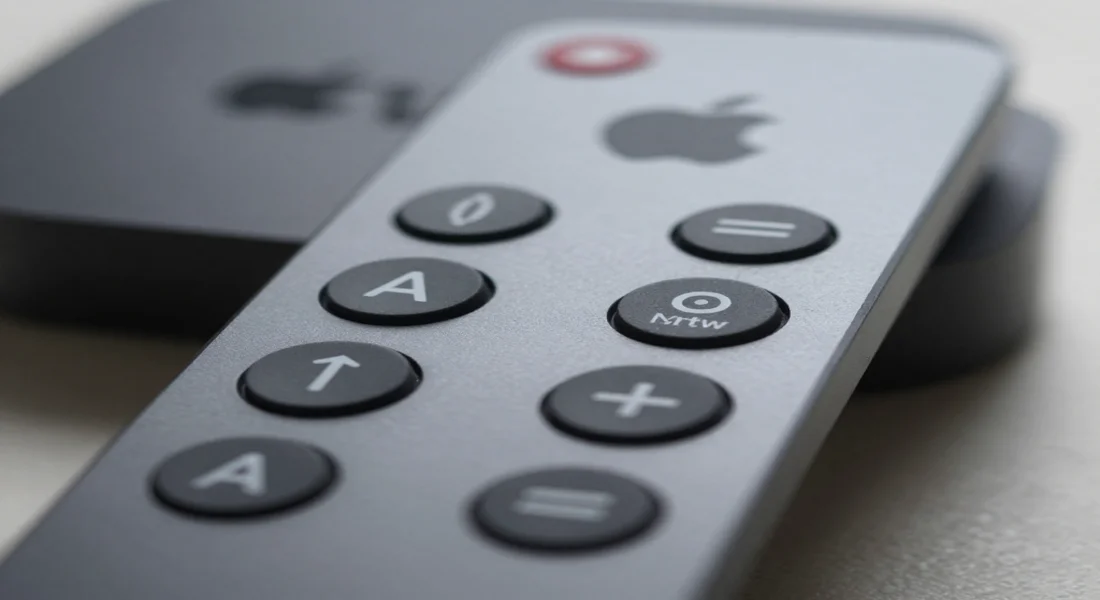
Looking for an Apple TV remote replacement? Discover the best replacement remotes, compatibility tips, setup steps, and affordable alternatives that work perfectly with Apple TV devices.
Your Apple TV remote is small sleek and powerful. It is also incredibly easy to lose. Whether it has vanished into the couch cushions suffered an unfortunate accident or stopped working you need a solution. This guide covers everything you need to know about an Apple TV remote replacement. We will explore official Apple options third party alternatives and even how to use your iPhone as a temporary stand in. Finding a replacement is simpler than you might think.
Understanding Your Apple TV Remote Options
When your original remote is gone or broken you have several paths forward. You can buy an official replacement directly from Apple consider a third party remote or use a device you already own. Each option has its own benefits depending on your budget and needs.
The Official Siri Remote
The best and most seamless option is getting a new Siri Remote (or Apple Remote for older models). Apple designs these remotes to work perfectly with the Apple TV software. They offer full functionality including Siri voice commands which many third party remotes lack.
The newest Siri Remote has a click pad that you may touch to move around more accurately. It also has separate power and mute controls that let you operate your TV and audio receiver. This connection makes your entertainment setup easier. You can charge the remote over a USB-C port and it will last for months on a single charge.
Third Party Remote Controls
A third party remote can be a terrific option if the official Siri Remote is too expensive for you. A lot of firms make universal remotes that work with Apple TV. These are usually cheaper and may have distinct features such as buttons that light up or a more traditional layout.
But be aware that there may be trade offs. Some third party remotes might not work with Siri voice control. Setting it up can also be harder than pairing an official Apple control. Always look at the product’s specs to be sure it will work with your Apple TV model. The Function 101 Button Remote is a popular choice since it has a basic classic style that many people like better than the trackpad.
How to Pair a New Remote to Your Apple TV
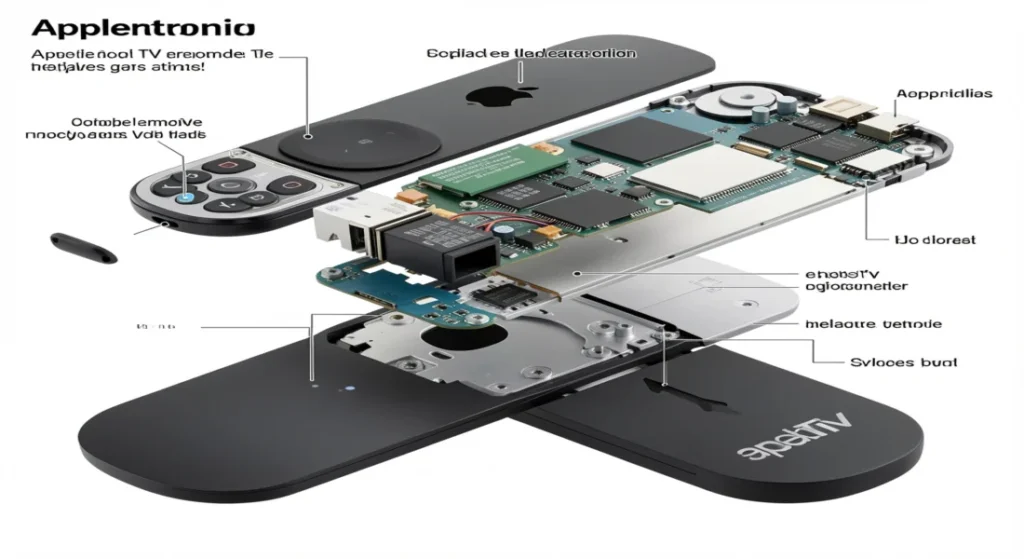
Once you have your replacement, pairing it is usually straightforward. The process for an official apple tv remote replacement is designed to be quick and easy.
Pairing a Siri Remote or Apple Remote
Follow these simple steps to connect your new official remote:
- Point your new remote about three inches away from your Apple TV.
- Press and hold the Back button (or Menu button on older remotes) and the Volume Up button for five seconds.
- A message should appear on your TV screen confirming that the remote is paired.
If the remote does not pair there are a few troubleshooting steps you can take. First make sure your Apple TV is plugged in and powered on. You can try unplugging your Apple TV from power waiting about ten seconds and plugging it back in. Then attempt the pairing process again. Also ensure the remote is charged.
Pairing a Third Party or Universal Remote
The process for pairing a third party remote varies by manufacturer. Most will require you to put the remote into a “pairing” or “learning” mode. The instructions included with the remote will guide you through the specific steps. This often involves navigating to the Apple TV’s settings menu.
Go to Settings > Remotes and Devices > Learn Remote. From there your Apple TV will prompt you to press and hold specific buttons on your new remote. This teaches the Apple TV to recognize the signals from your third party device.
What to Do If You Lost Your Apple TV Remote
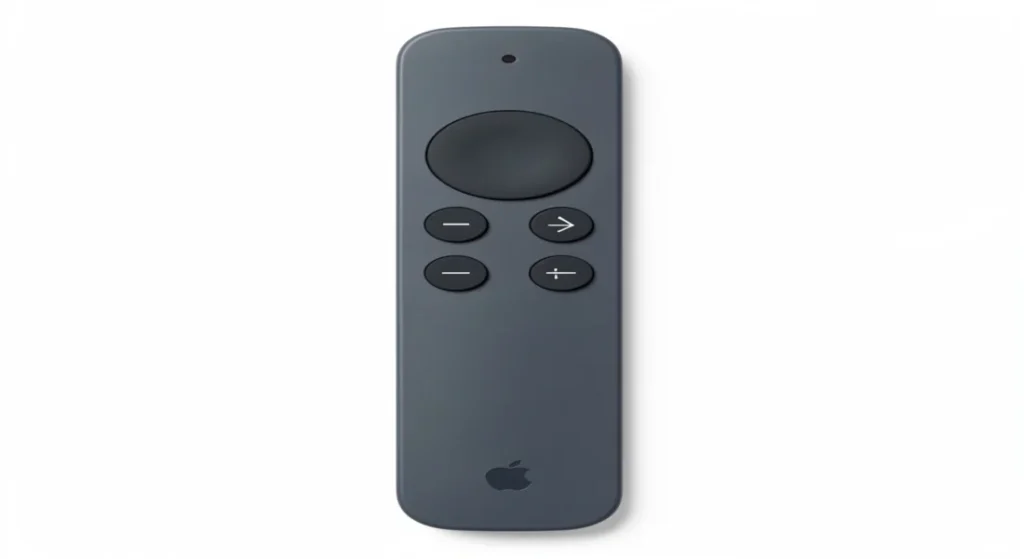
Losing your remote is frustrating but it doesn’t mean your Apple TV is unusable. You have a powerful remote control right in your pocket: your iPhone or iPad.
Using the Apple TV Remote in Control Center
The built in Apple TV Remote feature on your iPhone or iPad is a lifesaver. It provides all the essential functions of the physical remote including navigation playback controls and even keyboard entry for typing passwords or searching for content.
How to Set It Up:
- Make sure your iPhone or iPad is connected to the same Wi-Fi network as your Apple TV.
- Open the Settings app on your iOS device.
- Tap on the Control Center.
- Find Apple TV Remote in the list and tap the green plus (+) icon to add it.
Now you can access the remote anytime by swiping down from the top right corner of your screen to open the Control Center. Tap the remote icon and it will automatically connect to your Apple TV.
Benefits of Using Your iPhone as a Remote
- Convenience: You almost always have your phone with you.
- Easy Typing: Using your iPhone’s keyboard is much faster than navigating an on-screen keyboard with a physical remote.
- No Extra Cost: This feature is built into iOS and iPadOS.
- Works with Older Models: It is compatible with Apple TV 4K, Apple TV HD, and even 2nd and 3rd generation models.
This feature is the perfect temporary solution while you wait for your replacement remote to arrive. For some users it works so well that they continue using it long term.
Frequently Asked Questions (FAQs)
Here are answers to some common questions about replacing an Apple TV remote.
Can Apple TV remotes be replaced?
Yes absolutely. You can purchase a new Siri Remote directly from Apple or authorized retailers. There are also many third party remotes available that are compatible with Apple TV.
Can I pair a new remote to my Apple TV?
Yes pairing a new remote is a simple process. For an official Siri Remote you just need to point it at the Apple TV and press a combination of buttons. For third party remotes you typically use the “Learn Remote” feature in the Apple TV settings.
Can I control Apple TV without a remote?
Yes. The easiest way is to use the Apple TV Remote feature on your iPhone or iPad. You can add it to your Control Center for quick access. This provides full control over your Apple TV.
Will any remote work with Apple TV?
No not any remote will work. You need either an official Apple Remote or a third party remote specifically designed to be compatible with Apple TV. Many universal remotes support Apple TV but you should always check compatibility before buying.
What if you lost your Apple TV Remote?
If you lose your remote use the Apple TV Remote feature on your iPhone or iPad as an immediate solution. This will allow you to continue using your Apple TV without interruption. You can then take your time to order a physical replacement.
How long will an Apple TV Remote last?
The rechargeable Siri Remote can last for several months on a single charge with typical use. The battery’s overall lifespan will depend on usage and charging habits over the years but it is designed to last for the life of the remote.
Making the Right Choice for Your Setup
Finding an Apple TV remote replacement is a manageable task. For the most integrated and seamless experience the official Siri Remote is the top choice. It guarantees full functionality including voice commands and TV controls. For those on a tighter budget or who prefer a more traditional button layout a compatible third party remote is an excellent option.
And remember your iPhone or iPad can always serve as a capable backup. By setting up the Control Center feature you ensure you’re never left without a way to enjoy your favorite shows and movies. No matter which route you choose you can get back to streaming in no time.

Sid is a skilled content writer with over 9 years of experience, creating clear and helpful articles on a wide range of topics. Sid is also well-known for her knowledge of remote controls, codes, and setup guides, helping thousands of people with simple and reliable solutions. Her goal is to combine expert content writing with practical knowledge, making information easy to understand and useful for everyone. In her free time, she enjoys exploring new technology and sharing helpful tips with the community.
