
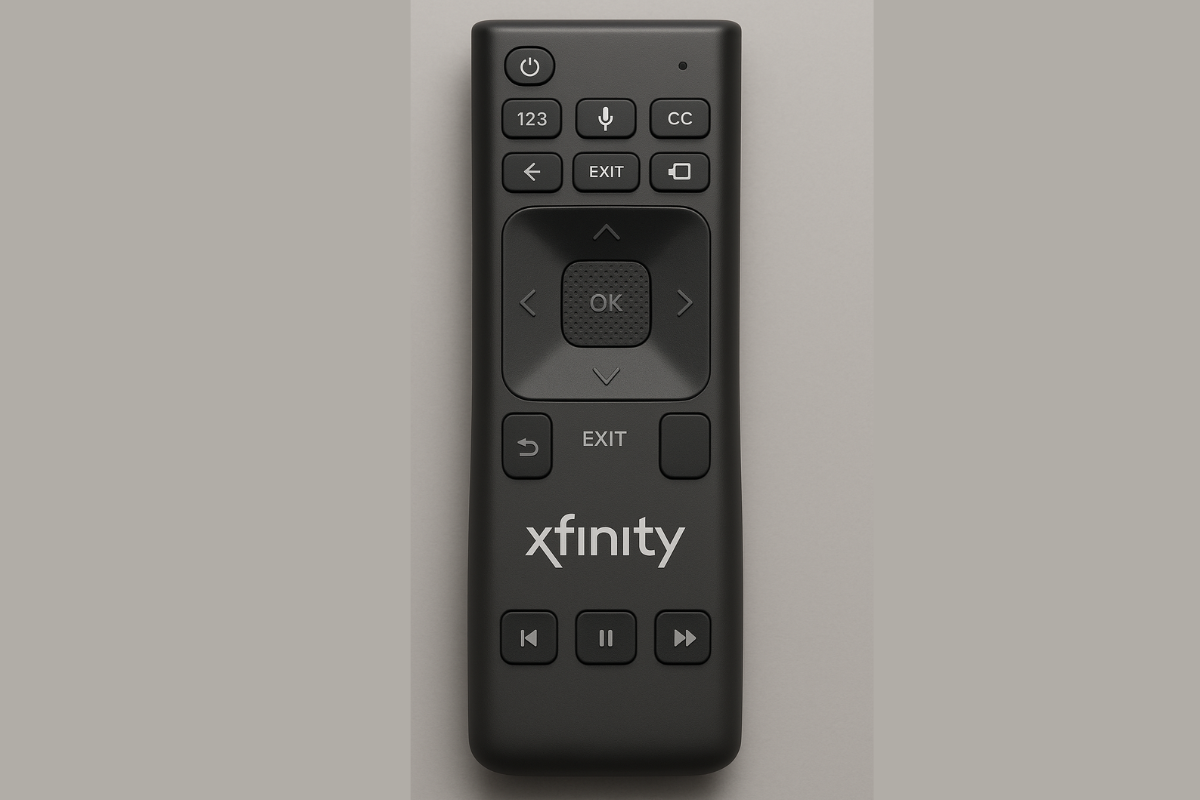
Learn how to reset your Xfinity remote control in simple steps. This easy guide helps fix common issues and reconnect the remote to your TV or Xfinity box.
Xfinity remote controls are designed to make TV viewing easier, whether you prefer voice commands, standard buttons, or web based control. This guide explains how Xfinity remotes work, how to set them up, and which model is best for your needs using clear language and practical steps.
What Is an Xfinity Remote Control?
An Xfinity remote control lets you operate your TV and Xfinity cable box from one device. Depending on the model, it can control power, volume, channels, apps, and even respond to voice commands.
Xfinity offers several types of remotes, ranging from basic button based models to advanced Bluetooth voice remotes and browser based controls.
How to Set Up an Xfinity Remote
Setting up an Xfinity remote usually takes only a few minutes.
Basic Setup Steps
- Turn on your TV.
- Press and hold the Setup button until the LED turns green.
- Enter the TV manufacturer code shown on your screen.
- Test the remote by changing volume or channels.
If the remote responds correctly, setup is complete.
How Xfinity Voice Remotes Work
Voice enabled Xfinity remotes allow you to control your TV by speaking instead of pressing buttons.
What You Can Do With Voice Control
- Search for shows or movies
- Change channels
- Open apps like Netflix or YouTube
- Check weather updates
- Get content recommendations
Simply press the microphone button and speak naturally.
Types of Xfinity Remotes Explained
Xfinity provides different remote models to match different user preferences.
XR15 and XR11 Voice Remotes
These are popular voice-enabled remotes that combine traditional buttons with voice search.
Best For
- Users who want fast navigation
- Hands free searching
- Simple TV and app control
They work with most modern TVs and Xfinity cable boxes.
XR100 Remote (Basic Model)
The XR100 remote is a simple, non voice remote designed for reliability.
Key Features
- Power and volume control
- Channel navigation
- Input and menu buttons
This remote is ideal for users who prefer a traditional layout without advanced features.
XR16 Voice Remote (Modern Streaming Remote)
The XR16 Voice Remote is designed for Xfinity X1 and Xfinity Flex users who focus on streaming.
Why XR16 Stands Out
- Bluetooth connection (no direct line of sight required known)
- Minimal button design
- Dedicated voice control
- Quick access to streaming apps
It’s best for users who want a clean design and faster content discovery.
Digital Adapter Remote (For Older TVs)
A digital adapter remote is used with older TVs that rely on a cable adapter box.
What It Can Do
- Change channels
- Control volume
- Power the TV on and off
Most Xfinity remotes are pre programmed to work with digital adapters or can be paired easily.
Legacy Xfinity Remotes
Legacy remotes include older models such as XR2 and XR5.
Why Some Users Still Use Them
- Simple layout
- Reliable performance
- Easy setup with TV codes
Although they don’t support voice or Bluetooth, they remain effective for basic TV control.
What Is the Xfinity Web Remote?
The Xfinity Web Remote allows you to control your TV using a web browser instead of a physical remote.
When the Web Remote Is Useful
- Your remote is lost or damaged
- You need accessibility support
- You want keyboard-based searching
It works on laptops, tablets, and smartphones.
How to Use the Xfinity Web Remote
With the Web Remote, you can:
- Change channels
- Browse the TV guide
- Open streaming apps
- Adjust volume
- Type searches using your keyboard
It mirrors most features of a physical Xfinity remote.
Tips for Using the Xfinity Web Remote Effectively
Best Practices
- Sign in to your Xfinity account for full access
- Use a stable internet connection
- Bookmark the Web Remote page for quick access
- Use it on multiple devices when needed
- Enable voice input if supported by your browser
Xfinity Web Remote for X1 and Flex Users
The Xfinity Web Remote is fully compatible with:
- Xfinity X1
- Xfinity Flex
It allows complete TV control without a physical remote, making it a reliable backup solution.
Key Takeaway
Xfinity offers flexible remote control options to match different viewing styles. Whether you prefer voice control, basic buttons, or browser based access, Xfinity remotes are designed to simplify TV navigation and improve your viewing experience.
This guide focuses on clarity, real use cases, and helpful steps, following Google’s 2026 content quality updates.
Related Article
Best Universal Remotes with Voice Control in 2025
Best Universal Remotes for Smart Homes in 2025
How to Reset a Universal Remote – Easy Guide2025
GE Universal Remote Codes For Roku TV & Programming [2025]
Universal Remote Codes For Sanyo TV [GE, RCA, Philips, Etc]
Frequently Ask Questions
Q:What is the Xfinity remote control?
ANS: You can control your Xfinity TV box, TV, and other compatible home entertainment devices using the Xfinity remote control provided by Comcast. It comes in a variety of variants, ranging from entry-level remote controls to high-end voice remotes like the XR15 and XR16, which feature app navigation, Bluetooth connectivity, and voice search.
Because it can be configured to manage numerous devices simultaneously, the Xfinity remote control is a practical, one-stop solution for controlling your viewing experience. This remote is made to simplify and make it easy to use, whether you’re switching channels, using apps, or utilizing voice commands.
Q:Can I use my phone as my Xfinity remote?
ANS: Yes, you can use the Xfinity Web Remote or the Xfinity Stream app on your phone to use your Xfinity remote
With the Xfinity Stream app, which is compatible with iOS and Android, you can:
Modify the channels
Look through the TV guide.
Look for films and television series.
Watch live TV or DVR recordings online.
Utilize your phone as a virtual remote control for Xfinity.
Alternatively, you can use any phone browser to control your TV using the Xfinity Web Remote. It’s particularly helpful if you need accessibility features or have misplaced your actual Xfinity remote control.
Both choices are excellent substitutes for your standard remote control, providing complete functionality.
Q:How to get a new remote from Xfinity?
ANS: A new Xfinity remote control can be ordered through the Xfinity app or website, picked up in-store, or obtained by contacting customer service. Replacements can be picked up in-store or mailed to your home, and they are frequently free.
Q:What are the buttons on my Xfinity remote?
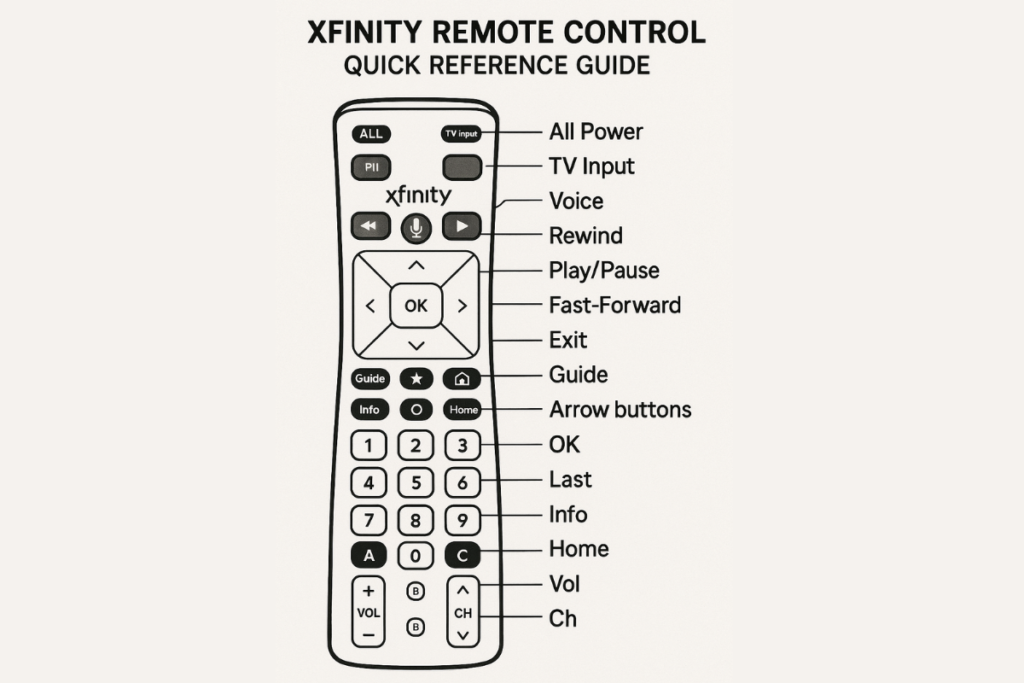
ANS: The buttons on your Xfinity remote control differ slightly depending on the model. However, the majority of them include:
Power: Turn your cable box and TV on and off.
Voice (Mic icon): Enable voice commands (works with voice remotes, such as XR15 and XR16).
Xfinity: This brings up the Xfinity menu.
Guide: Shows the TV guide.
Info: Provides information about the current program.
Use the arrow keys and OK to navigate menus and choose items.
Exit: Ends the active menu or application.
Final – Returns to the channel that preceded it.
Volume/Mute:Regulates the volume of audio or TV.
Channel Up/Down allows you to navigate between channels.
Settings: Access system settings by clicking the gear symbol.
Apps: Starts up streaming apps such as YouTube, Peacock, or Netflix.

Sid is a skilled content writer with over 9 years of experience, creating clear and helpful articles on a wide range of topics. Sid is also well-known for her knowledge of remote controls, codes, and setup guides, helping thousands of people with simple and reliable solutions. Her goal is to combine expert content writing with practical knowledge, making information easy to understand and useful for everyone. In her free time, she enjoys exploring new technology and sharing helpful tips with the community.
