
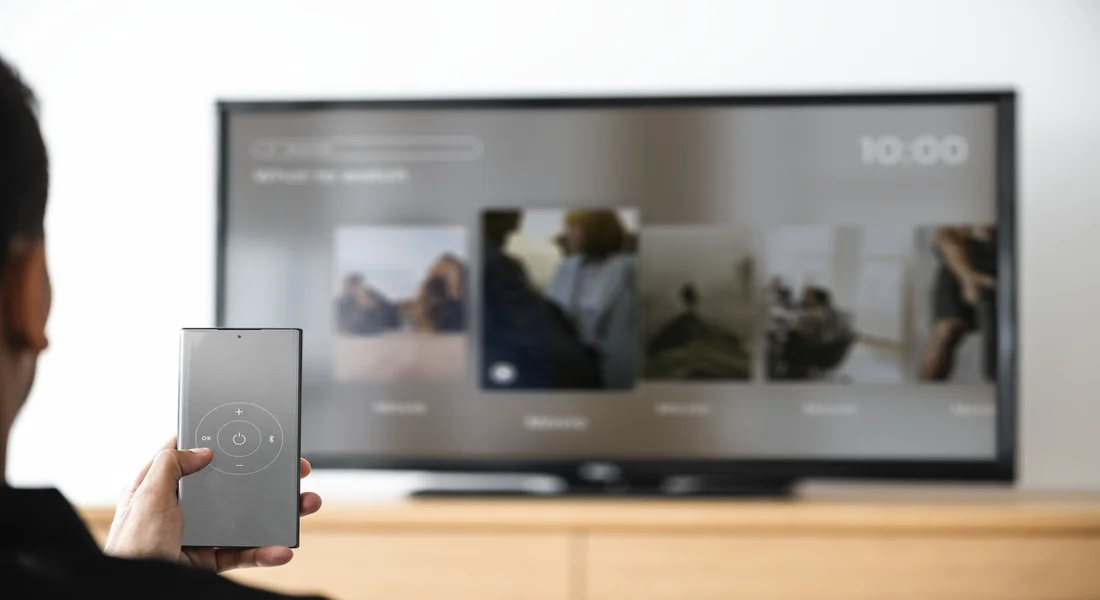
Lost your remote? Learn how to use a Philips TV remote app to control your smart TV from your phone. Find setup guides, features, and troubleshooting tips.
Have you ever lost the remote control just before your favourite show starts? It’s something that happens a lot. You look under the cushions and behind the furniture, but it’s gone. The Philips TV remote app is a modern solution that converts your smartphone into a powerful controller. This app enables you to control your Philips Smart TV from your phone or tablet.
It has all the features of your physical remote and more. It’s a useful backup and typically has more features than the regular clicker. This guide will walk you through everything you need to know. We’ll explore what the app is, its key features, and how to set it up. We will also cover common troubleshooting steps and look at some of the best universal remote apps available for your Philips TV. Get ready to take full control of your viewing experience.
What is the Philips TV Remote App?
Is there an app for the Philips TV remote? Yes, there is. Philips TV Remote is the official app that lets you easily control your Philips Smart TV. It links your phone or tablet to your TV through your home’s Wi-Fi network. This means that as long as your phone and TV are on the same network, you may control the TV from any room in the home.
This app is more than simply a digital copy of your physical remote. It frequently has extra functions that make it easier to use your smart TV. For instance, typing in search terms for movies or shows on your phone’s keyboard is far faster than using the directional buttons on a regular remote. The app is basically the main place where you can operate your Philips TV.
If you own a Philips Roku TV, you’ll be happy to know that there is a special app for the remote. The basic Roku app works perfectly with these models. It has a familiar and easy to use interface for managing your channels and settings.
Key Features of the Philips TV Remote App
The Philips TV remote app features go beyond simply changing channels or adjusting the volume. These apps are designed to enhance your user experience and make interacting with your smart TV more intuitive.
Here are some of the standout features you can expect:
- Full Remote Functionality: Access all the standard buttons you’d find on your physical remote. This includes power, volume, channel up/down, mute, source selection, and navigation arrows.
- Easy Text Entry: One of the biggest advantages is the ability to use your phone’s keyboard. Searching for content on Netflix, YouTube, or other apps becomes incredibly simple and fast. No more slowly clicking through an on screen alphabet.
- Quick Launch Channels and Apps: Many remote apps allow you to see a list of installed applications on your TV and launch them with a single tap from your phone. This is a great way to jump straight into your favorite streaming service.
- Voice Control: Some versions of the app support voice commands. You can search for content, change settings, or open apps just by speaking into your phone’s microphone.
- Media Casting: You can often cast photos, videos, and music from your phone directly to the big screen. This makes it easy to share memories with family and friends.
- No Line of Sight Needed: Unlike traditional infrared (IR) remotes, a Wi-Fi-based app Philips TV remote doesn’t require you to point it directly at the TV. As long as you’re connected to the same network, it will work.
How to Set Up and Connect the Philips TV Remote App
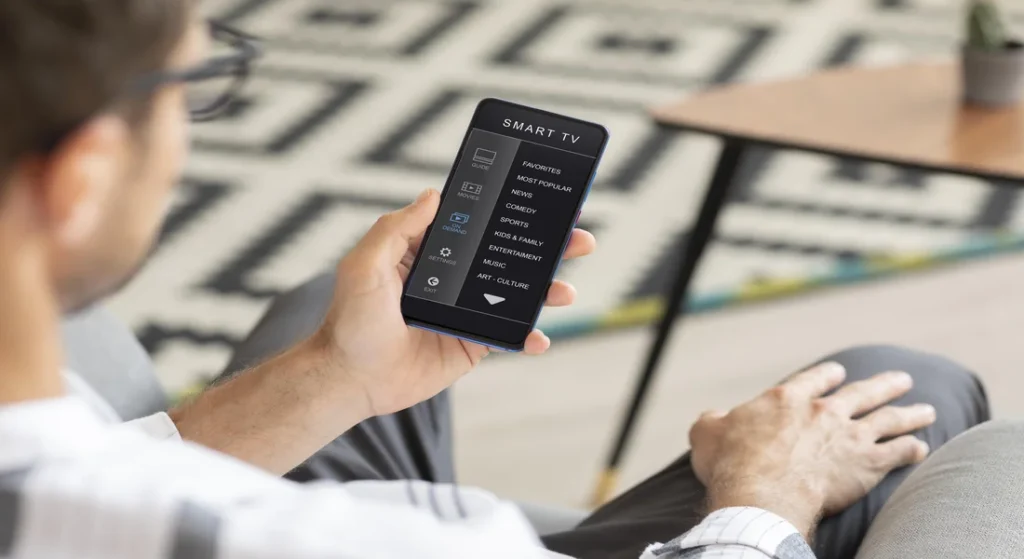
Getting started with the app is usually a straightforward process. Before you begin, ensure both your Philips Smart TV and your smartphone are connected to the same Wi-Fi network. This is the most crucial step for the two devices to communicate.
Here’s a step-by-step guide on how to connect Philips remote app to TV:
- Download the App: Go to the Google Play Store (for Android) or the Apple App Store (for iOS) on your smartphone. Search for “Philips TV Remote” and download the official application. If you have a Philips Roku TV, search for the “Roku” app.
- Open the App: Once installed, open the app. It will automatically begin scanning your Wi-Fi network for compatible Philips Smart TVs.
- Select Your TV: Your TV should appear in a list of available devices. Tap on its name to initiate the connection process. If you have multiple Philips TVs, make sure you select the correct one.
- Enter the Pairing Code: A code will appear on your TV screen. Enter this code into the app on your phone when prompted. This is a security measure to ensure you are authorizing the correct device.
- Start Controlling: Once the code is accepted, your phone is paired with your TV. You should now see the remote interface on your app screen and can begin to control Philips TV with the phone.
This simple setup process makes it easy for anyone to get started. You can now put your physical remote away as a backup and enjoy the convenience of a Philips TV app control system.
Troubleshooting Common Issues
Sometimes, things don’t go as planned. If your Philips smart TV remote control is not working through the app, don’t worry. Most issues have simple solutions. Here are some common problems and how to fix them.
The App Can’t Find My TV
- Check Wi-Fi Connection: This is the most common culprit. Verify that both your smartphone and your Philips TV are connected to the exact same Wi-Fi network. Some homes have multiple networks (e.g., a 2.4GHz and a 5GHz band), so ensure they are on the same one.
- Restart Your Devices: A classic IT solution that often works. Turn off your TV and your phone completely. Also, try restarting your Wi-Fi router. Wait a minute, then turn everything back on and try connecting again.
- Check TV Settings: On your Philips TV, navigate to the network settings. Ensure that the option to allow control from mobile devices is enabled. This setting can sometimes be called “IP Control” or “Mobile Device Connection.”
The App Disconnects Frequently
- Weak Wi-Fi Signal: If your TV or phone is far from your router, the signal might be weak, causing disconnects. Try moving your router closer to the TV or using a Wi-Fi extender to boost the signal.
- App or TV Software Updates: Make sure both the Philips TV Remote app on your phone and the software on your Philips TV are updated to the latest versions. Manufacturers release updates to fix bugs and improve performance.
What to Do If You Lose Your Physical Remote Entirely
Losing the remote makes setup a bit trickier, but it’s not impossible. Here’s how to turn on a Philips TV without the remote:
Most Philips TVs have a physical power button. It’s often located on the back, bottom, or side of the TV. It might be a single button that you press to turn on the power or a small joystick like control that allows for basic navigation (volume, input source). Once the TV is on and connected to Wi-Fi, you can proceed with the app setup as described above. This makes the app a perfect Philips TV remote replacement.
Best Universal Remote Apps for Philips TV
While the official Philips app is a great choice, it’s not the only option. A good universal remote app for Philips TV can control not just your television but also other devices like a Philips blu ray remote control or even a Philips dvd vcr combo remote control.
Here are some of the best universal remote options:
- SURE Universal Remote: This is a highly rated app that supports a vast range of devices, including Philips Smart TVs. It can use both Wi-Fi for smart devices and your phone’s built in IR blaster (if it has one) for older, non smart devices.
- Peel Smart Remote: Peel combines a universal remote with a TV guide. It learns your viewing habits and suggests content you might like. It works with many smart TVs, including Philips models.
- AnyMote Universal Remote: Another powerful app that works over Wi-Fi and IR. It has a customizable interface, allowing you to create macros that perform a series of commands with a single tap (e.g., “Movie Mode” could turn on your TV, Blu ray player, and dim your smart lights).
Using a universal remote for Philips TV can simplify your home entertainment setup by consolidating multiple physical remotes into one convenient app on your phone.
Frequently Asked Questions
Here are answers to some of the most common questions about using a remote app for a Philips TV.
Is there a remote app for Philips TV?
Yes. The primary app is the “Philips TV Remote” app, available for both Android and iOS devices. It allows you to control your Philips Smart TV over your Wi-Fi network. Additionally, there are many third party universal remote apps that are compatible with Philips TVs.
Does Philips TV have a remote app?
Yes, Philips provides an official app for its smart TV lineup. For Philips Roku TVs, the standard Roku mobile app serves as the official remote application. Both offer extensive control and features beyond a standard remote.
How do I control my Philips TV with my phone?
To control your Philips TV with your phone, you need to download a compatible remote app like the official “Philips TV Remote” app. Then, ensure both your TV and phone are on the same Wi-Fi network. Open the app, select your TV from the list of devices, and enter the pairing code that appears on your TV screen. Once paired, you can use your phone as a fully functional remote.
Is there an app for a Philips Roku TV remote?
Yes, the official Roku app is the perfect remote for a Philips Roku TV. It offers all the features of a physical Roku remote, plus extras like a keyboard for typing, voice search, and private listening through your phone’s headphones. Just download the “Roku” app from your app store and connect it to your Philips Roku TV.
Conclusion: Embrace the Convenience
The Philips TV remote control app is a game changer for managing your home entertainment. It provides a reliable, feature packed alternative to your physical remote. Whether you’ve lost your original clicker, are tired of replacing batteries, or simply want the advanced functionality of keyboard entry and quick app launching, a remote app is the perfect solution.
By transforming your smartphone into a powerful Philips smart TV control hub, you simplify your viewing experience. Setup is quick, the features are practical, and troubleshooting is manageable. From the official Philips app to versatile universal remote options, you have plenty of choices to take command of your television. Download an app today and discover a smarter way to watch TV.

Sid is a skilled content writer with over 9 years of experience, creating clear and helpful articles on a wide range of topics. Sid is also well-known for her knowledge of remote controls, codes, and setup guides, helping thousands of people with simple and reliable solutions. Her goal is to combine expert content writing with practical knowledge, making information easy to understand and useful for everyone. In her free time, she enjoys exploring new technology and sharing helpful tips with the community.
