
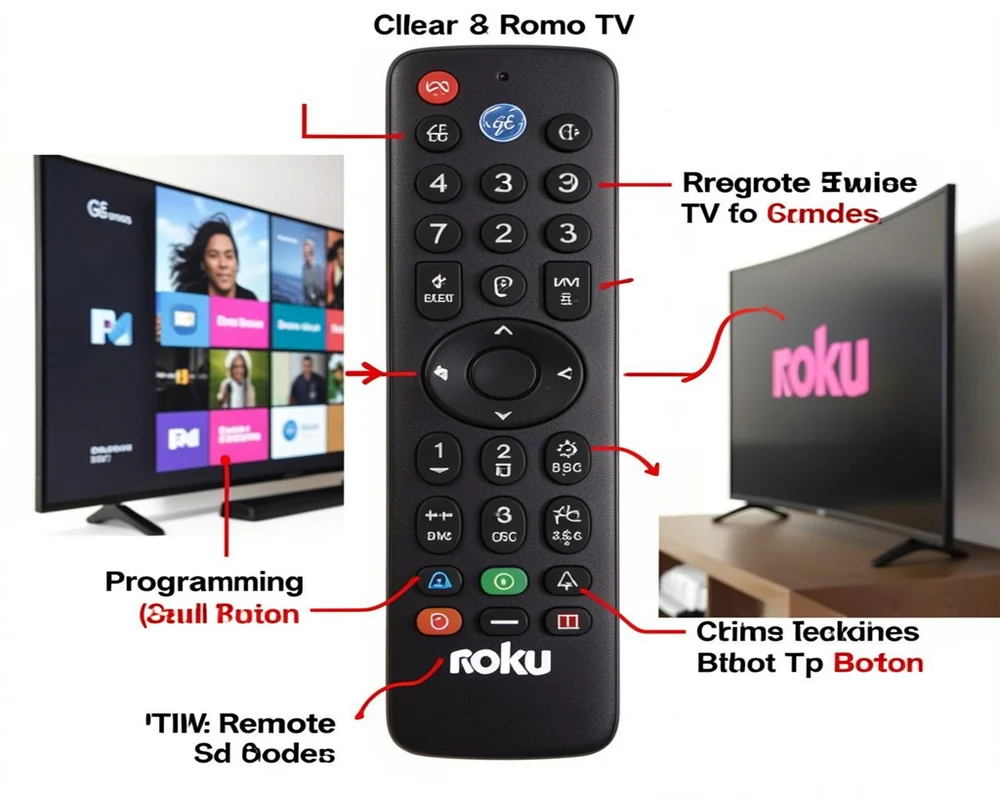
Learn how to program a GE remote to Roku TV without codes using simple steps. Follow this easy guide with an auto search method and quick troubleshooting tips.
This guide takes you the whole way through. We outline the specific steps to follow. You will also discover the built in search function for syncing your devices. We also detail some key universal remote troubleshooting tips in the event you encounter a problem.
From the end of this post, you will become a master at your home entertainment system. You will learn what GE universal remote programming is. Let’s get into the setup process so you can return to streaming.
Reasons to Not Use the Codes for Your Roku TV Setup
Most people believe they need to find one specific four digit number to pair up a new remote. This is no longer true. Today’s controllers have intelligent technology that does the hard work for you. This is known as an auto code search.
It automatically cycles through thousands of pre programmed codes with the auto code search function. It sends these signals to your television one at a time. When it discovers the right match, your television reacts. The time saved by this method is huge. You don’t need to guess which manufacturer code applies for your specific television model.
There are a few unique benefits to beginners that should be noted in using this method:
- You do not do so by reading some long list of codes printed in extremely small type.
- No need to google obsolete model numbers.
- The remotes test the codes quicker than human hands can wrangle them.
- This particularly comes in handy for old television models that have undocumented codes.
Preparing Your Devices for Connection
Before you begin pushing buttons, know that your equipment needs to be ready. With a little prep, the connection process is seamless. For your supplies and for your environment.
The first step is to put new batteries in your new controller. Weak batteries make the signal weaker. Low signal causes the auto code search to not work well. Depending on your model, always use fresh AA or AAA batteries.
Second, ensure that you have a direct line of sight to your television. Keep any soundbars, books or decorations that obstruct the sensor on the bottom of the television screen out of the way. The controller must continuously transmit an infrared signal to the TV.
Third, make sure your television is plugged directly into a functioning wall outlet. Switch off all glaring lights in the office. Bright sunlight or high intensity LED lights might disrupt infrared remote signals at times. You can then start pairing your room, once it’s ready.
Steps to Program GE Remote to Roku TV Without Codes
Here is exactly how to link your devices. Also, please read through the whole list once before starting. This gives you a sense of the timing. Timing matters a lot in this process.
Step 1: Turn On Your TV The Physical Way
You have to start with your TV on. Similar to the first step, walk over to your television and hit the physical power button. This button is typically located on the bottom edge or side panel of your screen. Multiple monitors will display a picture. The remote must know that the television is awake and ready to accept a signal.
Step 2: Go to Programming Mode
Pick up your GE remote. Scroll to the top for the “Setup” button. Press and hold down this Setup button. Look at the little red indicator light above the top of your controller. Wait for this red light to turn solid.
As soon as the red light remains ON, release the Setup button. The red light solidifies, letting you know that the remote is now in programming mode. It sits idle, waiting for your command.
Step 3: Choose Your Device Type
Your controller can control several devices including DVD players, cable boxes and other televisions. You have to inform it of which device you’re going to be programming. On your controller, quickly press and hold down the “TV” button.
Keep an eye on that red indicator light. You will see it blinking once and then becoming solid. This also tells us the remote knows it is searching for a television code.
Step 4 : Initiate Auto Code Search
Now you will start the real search. The controller has a clear line of sight to the television screen. Press once on the remote “Power” button.
The remote will then transmit a series of ten unique codes to the TV. Every time it transmits a code, the red indicator light will flash. Please focus on the television screen.
Did your television turn off?
- Press the Power button again to send the next ten codes,
- if it did not turn off. Repeat until the television turns off.
- If the TV did turn off, then stop pushing the Power button right away. Move to the next step.
Step 5: Identify the Specific Code
Your remote discovered a group of ten codes, one of which is correct. Now you need to hunt for the specific code from that batch.
Physically turn the television back on using a button on the television. Then, turn the remote back toward the screen. Hit the “Volume Up” (VOL +) button once. The remote will transmit the first code in that successful batch.
If the TV doesn’t immediately turn off, press and hold Volume Up again. Keep holding the Volume Up button slowly. Wait about three seconds in between each press. Keep repeating this until the TV turns off again.
Step 6: Save Your Progress
The television again goes black and then you have the perfect match. You’re going to have to memorize this code immediately in the remote’s memory.
Hit the “TV” button on the controller once. The red signal light will go out completely. This means the code is saved. Your Roku TV setup is now complete.
Essential Universal Remote Troubleshooting
Technology doesn’t always cooperate the first time around. Not to fret if your devices do not sync right away. You just have to know how to troubleshoot a universal remote. Lets take a look at some of the common problems and their swift fix.
Light Does Not Turn Red
If you press the Setup button and it isn’t doing anything, check your power source. Open the back panel. Make sure the batteries are oriented correctly. The positive and negative ends should correspond to the picture in the compartment. If they’re in the right way, put a brand new set of batteries in.
The Television Ignores the Commands
You could even finish setting it up only to discover that you can’t do anything other than use the power button. The volume or channel buttons may have no effect. That means the remote found a partial match. Different televisions share similar codes. You would have to go back to Step 1 and redo the entire auto code search process. The remote will continue searching and eventually locate a complete match that powers all functions.
The Search Takes Too Long
It can be annoying and tedious to repeatedly press the Power button. The database has 1000’s of codes on it. You may have to hit that Power button 20 or so times. Be patient. Maintain a firm aim of the remote at the television. If your finger strays and you are inadvertently aiming the remote at, say, the floor, the television won’t be able to pick up the signal.
Resetting the Controller
If you mess up, or just want to start over, your remote’s memory can be wiped. This is known as a factory reset.
- Release the Setup button when the red light remains on.
- Press the Mute button once.
- Press the zero (0) key on your keyboard.
The red light will blink two times then go out. The remote was now spotless. You restart the steps of the programming.
Hacks for Getting More from Your Entertainment Center
A GE universal remote programming unlocks a more pleasant viewing experience once you are done with the process. You don’t have to leave three different controllers on your coffee table anymore. You can control your cable box, your DVD player and your audio receiver with this single device.
You will repeat the auto code search on other devices. Just make sure you hit the “CBL” or “DVD” button during Step 3, not “TV.” Nothing has changed in the process whatsoever.
Be sure to label your devices or keep note of what you plugged in. This helps people not get confused when they want to watch a movie or switch to cable television. A universal controller simplifies your living room and helps you unwind way easier.
Frequently Asked Questions
We put together some of the most common questions beginners have about that process. These answers add extra clarity to help you tame your home theater system.
Will a GE remote work with all Roku devices?
It works for Roku TVs from brands like TCL, Hisense and Element. These TVs include infrared receivers. Although certain simple universal remotes based on infrared will not work with Roku Streaming Sticks. Streaming sticks are placed behind the television and operate via radio frequency or Bluetooth. An infrared (IR) controller requires a direct line of sight to function.
What if the auto code search fails miserably?
If you go through every single code yet the television never actually turns off, your television may not be compatible. This is rare, but it occurs with very new or obscure television brands. This time you might have to use the direct code entry method. The manual code list can be found at the manufacturer’s website. Look for the specific version number of your remote.
Does my remote lose memory of settings when batteries are changed?
No, it does not lose its memory in an instant. The latest GE controllers have a memory retention feature. You have roughly 10 minutes to replace dead batteries with new ones. During this short period of time, the remote stores the saved codes. Make sure you have the new batteries directly accessible before removing the old ones.
Why does it exhibit volume but the menu button does not work?
Universal controllers manage the basic elements admirably. They control power, volume and channel selection. But they can find proprietary menu functions to be challenging. The only limitation in this remote is that, if the specific Roku home button or dedicated app buttons do not work, your existing remotes are to blame and nothing else. You may have to use your original Roku controller for deep system settings.
Is internet access required in order to program the controller?
No. Wi Fi or Bluetooth is not used by the controller. All of the codes are stored on a tiny chip inside the remote itself. You don’t require a smart phone or an app, nor an internet connection, to sync the remote to your television.
Conclusion
If you want to control your devices without being dependent on companies, learning how to program GE remote to Roku TV no codes would help. You shouldn’t have to consult confusing manuals or search for little strings of numbers. With the auto code search, you allow the controller to do all the heavy lifting for you.
As always, make sure your stuff is working properly, double check those fresh batteries and keep a clear line of sight to your television. Follow the step by step process carefully. Keep an eye on the red indicator light in order to track your progress. If you encounter a hurdle, refer to the universal remote troubleshooting tips to get back on track.
With your Roku TV setup complete, you can start relaxing. Grab some snacks, launch your favorite streaming app, and enjoy everything synced up perfectly on your home entertainment system. You’ll want to keep this guide on hand, just in case you ever need to install another TV or similar device in your home. Happy streaming.

Sid is a skilled content writer with over 9 years of experience, creating clear and helpful articles on a wide range of topics. Sid is also well-known for her knowledge of remote controls, codes, and setup guides, helping thousands of people with simple and reliable solutions. Her goal is to combine expert content writing with practical knowledge, making information easy to understand and useful for everyone. In her free time, she enjoys exploring new technology and sharing helpful tips with the community.
