
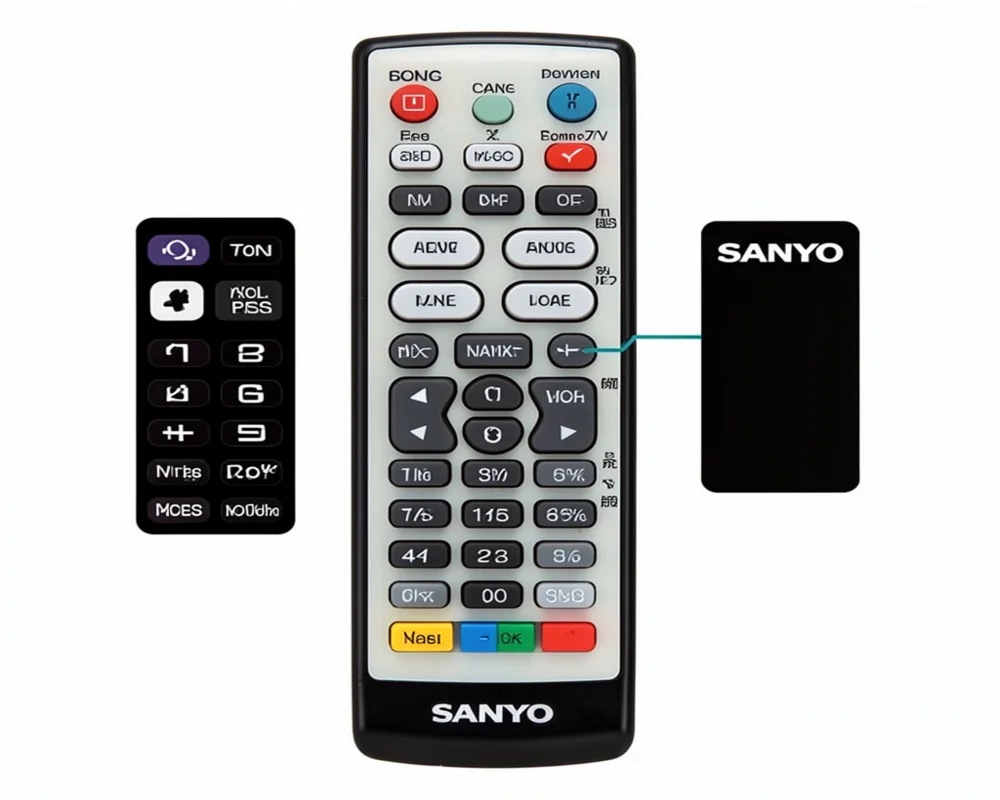
Find working GE universal remote codes for Sanyo TV and learn how to program your remote quickly with this easy step-by-step setup guide.
You’ve got a trusty Sanyo TV and a brand new GE universal remote ready to simplify your entertainment setup. Finding the correct GE universal remote codes for Sanyo TV can feel like a search for a needle in a haystack but it doesn’t have to be complicated. This guide is here to walk you through the entire process from finding the right codes to syncing your devices seamlessly.
In this article you will learn everything you need to know about how to use a GE universal remote with your Sanyo television. We will cover the different programming methods provided comprehensive code lists and answer common questions to help you get your universal remote working perfectly.
Why Use a GE Universal Remote?
Before we dive into the technical details let’s appreciate the convenience of a universal remote. A GE universal remote control consolidates the functions of multiple remotes into one. This means you can control your TV DVD player soundbar and streaming devices without juggling a handful of controllers. It simplifies your viewing experience and reduces clutter. Learning how to program the remote is a small time investment for a big payoff in convenience.
Preparing to Program Your GE Remote
To ensure a smooth setup process a little preparation goes a long way. Before you begin gather the following:
- Your GE Universal Remote: Make sure it has fresh batteries. Weak batteries can interrupt the programming process.
- Your Sanyo TV: It needs to be plugged in and turned on manually.
- The Remote’s Manual (Optional): If you still have the instruction booklet that came with your remote it can be a helpful resource. If not, don’t worry this guide has you covered.
- Patience: While the process is straightforward it can sometimes require a bit of trial and error.
With these items ready you can confidently move on to programming.
3 Ways to Program a GE Universal Remote for Your Sanyo TV
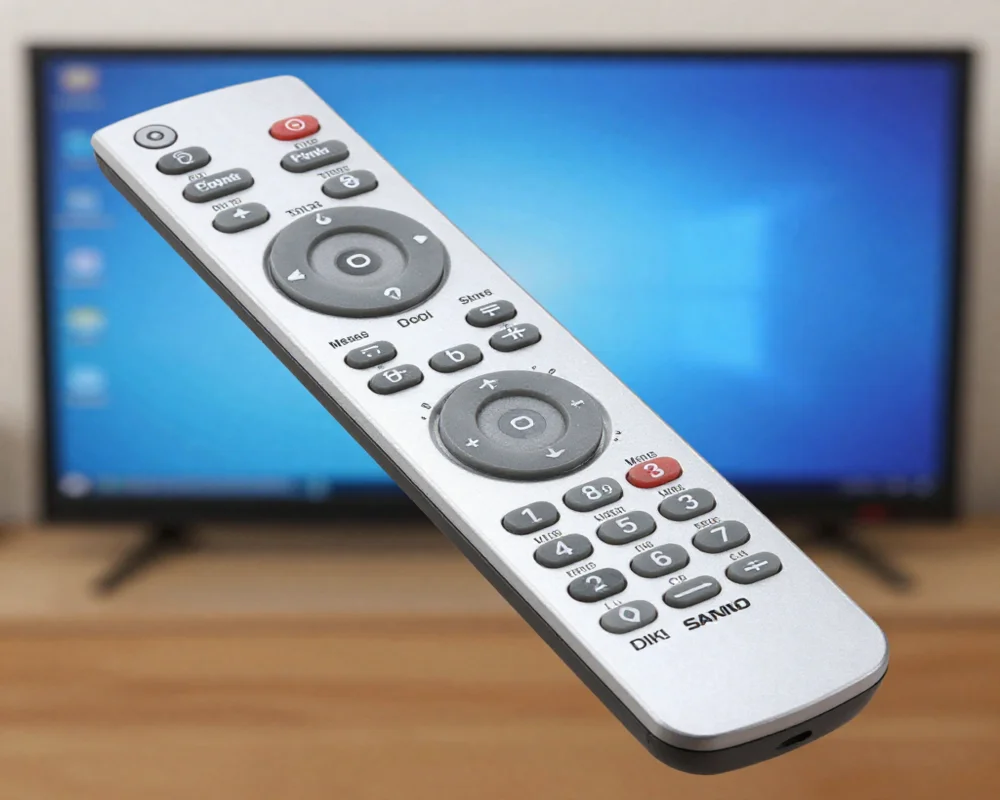
There are three primary methods to set up universal remote controls. The best method for you will depend on whether you have the specific code for your device. We will explore all three options starting with the most direct approach.
Method 1: Direct Code Entry
Direct Code Entry is the fastest and most reliable way to program your remote. It involves manually entering a specific code that corresponds to your Sanyo TV. The main challenge is finding the right universal remote tv codes.
Here are the step by step instructions:
- Turn On Your TV: Manually power on your Sanyo television.
- Enter Setup Mode: Press and hold the SETUP button on your GE universal remote until the red indicator light on the remote stays on. This signals that the remote is in programming mode.
- Select the Device: Press and release the TV button on your remote. The red indicator light will blink once and then remain lit.
- Enter the Code: Using the number pad enter one of the 4 digit or 5 digit GE universal remote control codes for Sanyo TVs from the list below. After you enter the final digit the red light should turn off. If the light blinks rapidly the code was entered incorrectly or is not supported.
- Test the Remote: Point the remote at your Sanyo TV and press the POWER button. If the TV turns off you have successfully programmed your remote. Test other functions like volume and channel selection to ensure full compatibility.
If the first code doesn’t work, repeat the process with the next code on the list until you find one that operates your TV correctly.
GE Universal Remote Codes for Sanyo TV
Finding the best universal remote code for my TV is a common goal. Sanyo has used various codes over the years so you may need to try a few. Here is a list of known codes.
4 Digit GE Universal Remote Codes for Sanyo TV:
- 0049
- 0097
- 0110
- 0004
- 0268
- 0012
- 0108
- 0180
- 1004
- 1048
- 1049
- 1073
- 1080
- 1162
- 1169
- 1180
- 0904
- 0416
5 Digit GE Universal Remote Codes for Sanyo TV:
- 10178
- 11936
- 10154
- 10159
- 10232
Start with the first code and work your way down. Once you find a code that turns the power on and off make sure to check other functions like menu navigation and input selection. Sometimes a code provides basic functionality but not full control.
Method 2: Auto Code Search
What if you’ve tried all the codes and none of them work or you simply don’t have a code list handy? The Auto Code Search method is your next best option. This feature allows the remote to scan through its entire library of codes one by one until it finds the correct one for your Sanyo TV.
Here’s how to perform an auto code search:
- Turn On Your TV: Manually power on your Sanyo TV.
- Enter Setup Mode: Press and hold the SETUP button on the remote until the red indicator light turns on and stays lit.
- Select the Device: Press and release the TV button. The indicator light will blink and then stay on.
- Initiate the Search: Point the remote at the TV and press and release the POWER button. The remote will send the first power off code.
- Continue Searching: Continue pressing the POWER button every 5 seconds. The remote will cycle through all its stored codes. Stop immediately when the TV turns off.
- Lock the Code: Once the TV turns off press the TV button on your remote to lock in the code. The red indicator light will turn off confirming the code is saved.
- Test Functionality: Turn your TV back on using the remote and test all functions.
This method can take some time but it’s a very effective way to find a working code when direct entry fails.
Method 3: Brand Code Search
A third option, the Brand Code Search is a hybrid of the first two methods. It narrows down the search to a specific brand making the process faster than a full auto search.
- Turn On Your TV: Manually power on your Sanyo television.
- Enter Setup Mode: Press and hold the SETUP button until the red indicator light stays on.
- Select Device and Brand: Press the TV button. Then refer to your remote’s manual for the number associated with the Sanyo brand (often ‘1’). Press that number on the keypad.
- Search Within the Brand: Press and release the POWER button repeatedly until your Sanyo TV turns off.
- Save the Code: Once the TV powers down press and hold the ENTER or OK button to save the code.
This method streamlines the search by only cycling through codes known to be associated with Sanyo.
Universal Remote Codes For Sanyo TV [GE RCA Philips Etc]
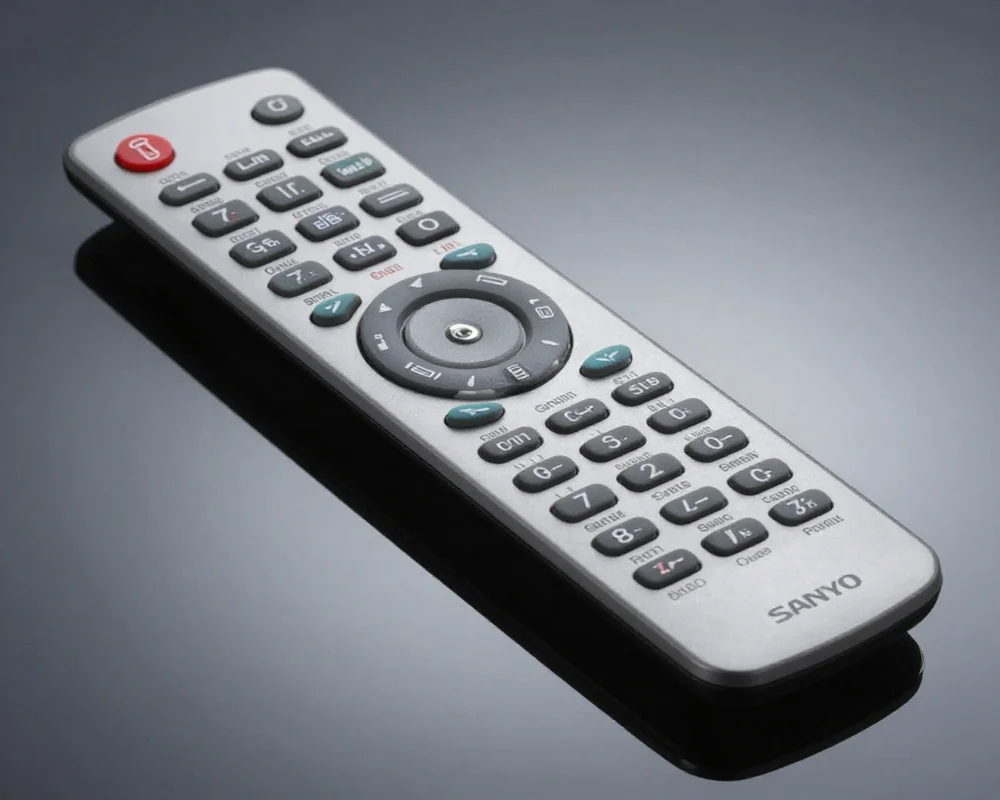
While this guide focuses on GE remotes it’s useful to know that other universal remotes also work with Sanyo TVs. If you have a different brand of remote such as an RCA or Philips the programming process is very similar. The main difference will be the specific universal remote tv codes you need. You can typically find these lists on the manufacturer’s website or through a quick online search for your remote’s model and the Sanyo brand.
How to Use a Universal Remote to Access Smart TV Functions?
Modern Sanyo TVs often come with smart features like built in apps for streaming services. Can a universal remote control these? The answer is often yes but with some limitations.
Many GE universal remotes have dedicated buttons for apps or a “Home” button that can launch the smart TV interface. However for full smart functionality the code you program must support these advanced features. If your initial code only controls basic functions like power and volume try other codes from the list.
Some advanced universal remotes like the Logitech Harmony series are configured via a computer or smartphone app. This allows you to map specific functions to buttons providing more robust control over your Sanyo smart TV’s features.
Frequently Asked Questions
Here are answers to some of the most common questions about programming a universal remote.
How do I program a remote to a Sanyo TV?
To program a universal remote to a Sanyo TV you can use one of three methods: Direct Code Entry Auto Code Search or Brand Code Search. Each method involves putting the remote in setup mode, selecting the TV device and either entering a code manually or having the remote scan for one automatically.
How can you program a universal remote to a Sanyo TV?
The process is simple. Turn on your TV, put your universal remote in programming mode (usually by holding the ‘SETUP’ button) , press the ‘TV’ button and then either enter a Sanyo specific code or use the auto search function by repeatedly pressing the ‘POWER’ button until the TV turns off.
How do I program a universal remote to a TV?
The general steps apply to most TVs.
- Turn on the TV.
- Put the remote in setup mode.
- Select the device type (TV).
- Enter the manufacturer’s code or use an auto scan feature.
- Test the remote’s functions.
What is the code for a TV?
The “code for a TV” is a specific numerical sequence (usually 4 or 5 digits) that tells a universal remote how to communicate with a particular brand and model of television. There isn’t one single code; each manufacturer has multiple codes for their devices.
How can I configure a universal TV remote?
Configuration involves syncing the remote with your TV. You can do this by entering a specific device code or using the remote’s automatic code search feature. The goal is to find the code that allows the remote to control your TV’s power volume channels and other functions.
Conclusion
Losing an original remote or wanting to declutter your living space are common reasons to switch to a universal controller. With this guide the question of “how do I program my GE remote?” should no longer be a mystery. By following the steps for Direct Code Entry or the Auto Code Search method you can successfully sync your GE universal remote control with your Sanyo TV.
Remember to test different GE universal remote codes for Sanyo TV to find the one that offers the most complete functionality especially if you have a smart TV. In just a few minutes you can have a single remote controlling your entire home entertainment system making your viewing experience simpler and more enjoyable.

Sid is a skilled content writer with over 9 years of experience, creating clear and helpful articles on a wide range of topics. Sid is also well-known for her knowledge of remote controls, codes, and setup guides, helping thousands of people with simple and reliable solutions. Her goal is to combine expert content writing with practical knowledge, making information easy to understand and useful for everyone. In her free time, she enjoys exploring new technology and sharing helpful tips with the community.
