
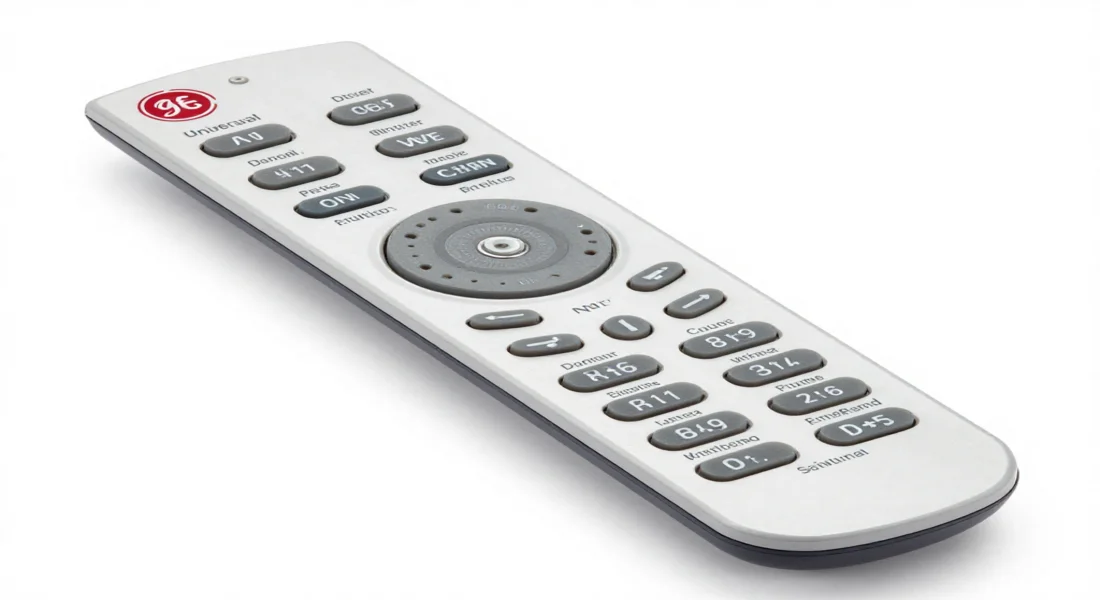
Find working codes for a GE universal remote with a complete updated list and easy programming steps. Learn how to set up your remote for TVs, DVD players, and more.
If you lost your original manual, don’t worry. This guide covers everything you need to know. We will walk you through the programming process step-by-step. You will find codes for major brands like Samsung, Vizio, and Sony. We also explain how to set up your device even if you don’t have a code at all. Let’s get your remote working so you can get back to relaxing.
How to Program GE Remote: 3 Easy Methods
Most people think programming a universal remote is difficult. It is actually quite simple once you know the steps. There are three main ways to set up your device: Direct Code Entry, Auto Code Search, and Brand Code Search.
Method 1: Direct Code Entry
This is the fastest way to set up your remote. You simply enter a specific code assigned to your device brand.
- Find Your Code: Scroll down to our code lists below and locate your device brand (e.g., Samsung, LG, Vizio).
- Prepare the Remote: Remove the battery cover. Look for a sticker indicating the version (CL3, CL4, or CL5). This helps if you need to look up more specific codes later. Reinsert the batteries.
- Enter Setup Mode: Press and hold the SETUP button until the red indicator light turns on and stays on. Release the button.
- Select Device Type: Press and release the device button you want to control (TV, DVD, CBL/SAT). The red light will blink once and remain on.
- Enter the Code: Use the number pad to enter the 4-digit code from the list. The red light will turn off if the code is valid.
- Test the Remote: Point the remote at your device and press the POWER button. If the device turns off, you are done. If not, repeat the steps with the next code in the list.
Method 2: Auto Code Search
If you cannot find a working code, use this method. The remote will scan through its entire library of universal remote tv codes until it finds a match.
- Turn On Device: Manually switch on the TV or device you want to control.
- Enter Setup Mode: Press and hold SETUP until the red light stays on.
- Select Device: Press and release the device button (e.g., TV). The red light will blink once and stay on.
- Start Search: Press and release the POWER button. The remote will send a code every few seconds.
- Wait for Response: Keep your remote pointed at the TV. When your device turns off, press the #1 button manually to lock in the code.
- Test: Turn the device back on and check if volume and other buttons work.
Method 3: Brand Code Search
This method is faster than Auto Search but slower than Direct Entry. It limits the search to a specific brand.
- Turn on your device.
- Press and hold the DEVICE button (TV, DVD) you want to program.
- While holding the device button, press and hold the POWER button. The red light will turn on.
- Release both buttons.
- Enter the code for your specific brand (usually found in the manual, but often synonymous with the first digit of the brand’s standard codes).
- Press and release the POWER button repeatedly until your device turns off.
- Press STOP or ENTER to save the code.
GE Universal Remote Codes for Popular TV Brands
Finding the right code is half the battle. We have compiled the most common codes for the top television manufacturers. These generally work for CL3, CL4, and CL5 remote versions.
GE Universal Remote Codes for a Samsung TV
Samsung TVs are incredibly popular, and pairing them is usually straightforward. Try these codes first:
- 0004, 0005, 0009, 0012, 0015, 0080, 0104, 0105, 0106, 0172, 0942, 3301, 5791, 5801
GE Universal Remote Codes for a Vizio TV
If you need ge universal remote codes for a vizio tv, start with these. Vizio often uses 4-digit codes starting with “1” or “5”.
- 0081, 0112, 0120, 1161, 5631, 6111, 6121, 6131, 5561, 6511, 6471
GE Universal Remote Codes for a Panasonic TV
For those asking about ge universal remote codes for a panasonic tv, the following list covers most plasma, LED, and LCD models.
- 0003, 0054, 0170, 0171, 0062, 0381, 0950, 5201, 5531, 5821, 6231, 1571
GE Universal Remote Codes for a Sharp TV
Sharp Aquos and other models require specific inputs. Use these ge universal remote codes for a sharp tv to gain control.
- 0004, 0009, 0020, 0063, 0079, 0095, 0122, 0123, 3191, 5341, 5941, 6001, 6011, 6171
GE Universal Remote Codes for a Toshiba TV
Toshiba televisions remain a staple in many homes. These ge universal remote codes for a toshiba tv should help you connect quickly.
- 0012, 0049, 0095, 0105, 0109, 0117, 0120, 0141, 0159, 0170, 0178, 0924, 1311, 5531, 5081
GE Universal Remote Codes for LG TV
- 0004, 0005, 0009, 0012, 0050, 0057, 0080, 0156, 0227, 0338, 1181, 1221, 1911, 3001, 5511, 6021
GE Universal Remote Codes for Sony TV
- 0002, 0013, 0071, 0128, 0380, 1071, 1901, 2741, 4981, 5321, 5811
GE Universal Remote Codes for Hisense TV
- 0001, 0073, 0216, 0671, 1651, 2081, 2141, 2211, 4391, 5331, 5341, 6161, 6171
Troubleshooting Common Issues
Even with the right ge universal remote control codes, things might not work perfectly the first time. Here are common problems and how to fix them.
The Remote Light Won’t Stay On
This usually indicates a battery issue. Universal remotes need fresh batteries to enter programming mode. If the batteries are old, the remote might not have enough power to save the code properly. Replace them with new AA or AAA batteries and try again.
The Code Didn’t Work
You entered the code, the light turned off, but the TV didn’t power down. This means the remote accepted the code format, but it wasn’t the right one for your specific model. Manufacturers like Samsung or Sony have dozens of codes. Go back to the list and try the next code in the sequence. It is common to try three or four codes before finding the perfect match.
Volume Works, But Menu Doesn’t
This is a “partial code” issue. You found a code that controls basic functions like power and volume, but it doesn’t map correctly to the menu or input buttons. This happens often with program ge remote tasks. You need to keep trying other codes in the list until you find one that offers full functionality.
Advanced Programming: DVD and Streaming Devices
Your GE remote isn’t just for TVs. You can use it for DVD players, soundbars, and streaming boxes like Roku (if compatible via IR).
DVD and Blu-Ray Player Codes
- Sony: 0324, 0379, 0389, 6006, 6049
- Samsung: 0240, 0358, 0455, 6001, 6012
- LG: 0227, 0338, 0907, 6005
- Panasonic: 0225, 0292, 0363, 6001, 6002
To set these up, follow the same “Direct Code Entry” method described above, but press the DVD or AUX button instead of the TV button during step 4.
Cable and Satellite Box Codes
- Comcast/Xfinity: 0195, 0217, 0476, 8088
- DirecTV: 0099, 0247, 0566, 0639, 8018, 8021
- Dish Network: 0775, 1775, 8041, 8045
Why Use a GE Universal Remote?
You might wonder if setting this up is worth the effort. Learning how to set up universal remote devices saves you time in the long run.
First, it reduces clutter. You can put the soundbar remote, the TV remote, and the DVD remote in a drawer. You only need one device on the coffee table.
Second, it saves money. If you lose your original TV remote, buying a brand-specific replacement can cost $30 or more. A GE universal remote is inexpensive and works with almost everything.
Third, it is durable. These remotes are built to last and are easy to replace if broken. They are a practical investment for any home theater setup.
Frequently Asked Questions
How do I program my GE universal remote without a code?
You can use the Auto Code Search feature. Turn on your TV, hold SETUP until the red light appears, press the TV button, then press POWER repeatedly until the TV turns off. Once it turns off, press #1 or ENTER immediately to save the code. This forces the remote to scan its internal library for a compatible signal.
How do I find my universal remote code?
The best way is to look at the code tables provided in this blog post. You can also open the battery compartment of your remote. Look for a sticker that says CL3, CL4, or CL5. This version number helps you find specific code lists on the Jasco website if our list doesn’t cover your niche device.
How to pair a universal remote to a TV?
Pairing is just another word for programming. You need to “introduce” the remote to the TV using a language it understands. This language is the 4-digit code. Use the Direct Code Entry method: Hold Setup, press TV button, enter the code.
What is the code search button?
GE remotes usually do not have a dedicated button labeled “Code Search.” Instead, you access the code search function by holding down the SETUP button. This button is the key to all programming functions on the device.
How to set up a GE replacement remote?
A replacement remote works exactly like the original universal remote. Ensure you have fresh batteries. Determine what version of the remote you have (CL3, CL4, etc.) by checking the sticker inside the battery case. Then, follow the Direct Code Entry steps listed in the first section of this guide.
What are the codes for a GE universal remote?
The codes are 4-digit numeric sequences that identify specific brands. For example, Samsung usually uses codes like 0004 or 0012. Sony often uses 0002 or 0013. There isn’t one single code for the remote itself; you must use the code matching the device you want to control.
How do I get the One For All universal remote setup without the code?
While this guide focuses on GE remotes, the process for “One For All” remotes is very similar. They typically use a “Magic” button instead of a “Setup” button. You would hold the Magic button and then use their specific search sequence, usually involving the digit keys 9-9-1. However, for a GE remote, stick to the Setup button method.
Conclusion
Setting up your entertainment center shouldn’t be a headache. With the right codes for a ge universal remote, you can take control of your devices in minutes. Whether you are looking for universal remote control codes for a new smart TV or an old DVD player, the process is consistent and reliable.
Remember to try the Direct Code Entry method first, as it is the fastest. If you get stuck, the Auto Code Search is a powerful backup that works for almost any device. Don’t let a lost manual stop you from enjoying your movie night. Bookmark this page so you always have access to these codes whenever you buy a new device.

Sid is a skilled content writer with over 9 years of experience, creating clear and helpful articles on a wide range of topics. Sid is also well-known for her knowledge of remote controls, codes, and setup guides, helping thousands of people with simple and reliable solutions. Her goal is to combine expert content writing with practical knowledge, making information easy to understand and useful for everyone. In her free time, she enjoys exploring new technology and sharing helpful tips with the community.
