
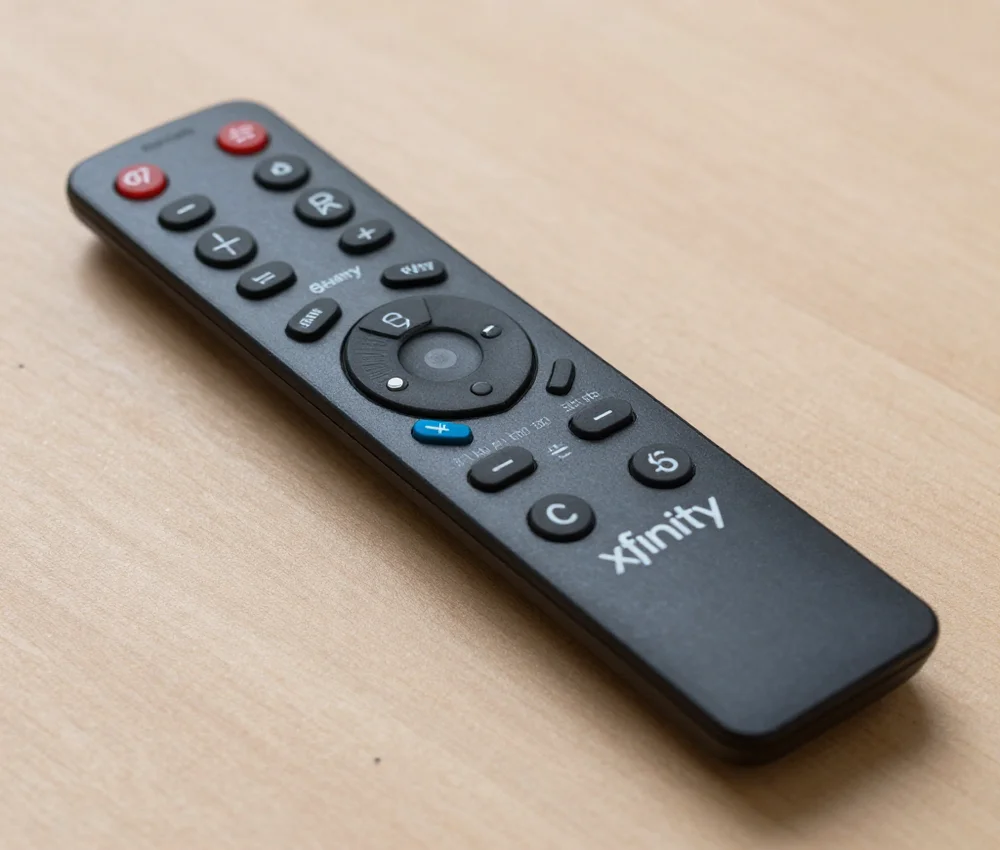
Learn how to use the Xfinity Web Remote to control your TV from any browser. Step-by-step guide, features, and troubleshooting tips included.
In an era where digital convenience defines our daily lives, losing your physical remote control shouldn’t stand between you and your favorite show. Whether you are dealing with a misplaced clicker or simply prefer the comfort of your laptop keyboard the xfinity web remote offers a seamless solution. This browser based tool transforms your computer tablet or smartphone into a fully functional remote control. Designed with a strong focus on accessibility and ease of use it allows users to navigate menus, search for content and manage their X1 or Flex boxes with just a few clicks. In this comprehensive guide we will explore how to set up this digital tool, its unique benefits and why it is a game changer for modern home entertainment.
What is the Xfinity Web Remote?
The xfinity web remote is a web based application accessible via any standard internet browser. Unlike traditional remote apps that require a specific download from an app store this tool lives at a dedicated URL. It serves as a virtual interface for Xfinity X1 and Flex customers.
The primary purpose of this tool is to provide a “voice free” way to use the features of the Xfinity Voice Remote. For individuals who have difficulty speaking or those who find typing easier than navigating with arrows this platform is invaluable. It bridges the gap between traditional hardware and modern assistive technology ensuring that everyone has equal access to their entertainment.
Key Features and Benefits of Using the Web Interface
Using a web based remote offers several advantages over a plastic handheld device. Here are the standout features:
- Universal Browser Compatibility: It works on Chrome Safari Edge and Firefox. You can access it from a PC, Mac iPad or Android device.
- Assistive Technology Integration: The interface is compatible with screen readers eye tracking software and sip and puff (SnP) devices.
- Keyboard Search: Typing a movie title is significantly faster on a physical or touchscreen keyboard than using an on screen alphabet grid.
- Independence for All Users: It provides a way for users with speech impairments to use “voice” commands by typing them into a text box.
- No Battery Required: You never have to worry about dead AA batteries in the middle of a movie marathon.
How to Set Up the Xfinity Web Remote Step by Step
Setting up your digital remote is a quick process that takes less than five minutes. Follow these steps to pair your browser with your TV box.
Step 1: Access the Remote Portal
Open your preferred web browser on your phone or computer. Navigate to the official site at remote.xfinity.com.
Step 2: Sign In with Your Xfinity ID
Click the “Log In” button. Enter your Xfinity username and password. This ensures that the web app can see the specific TV boxes associated with your account.
Step 3: Choose Your TV Box
If you have multiple TVs in your house (such as the living room and bedroom) you will see a list of available boxes. Click on the name of the TV Box you wish to control.
Step 4: Use “Easy Pair” for Quick Connection
If the login method is not working you can use the Easy Pair feature.
- Press the microphone button on your physical remote and say “Easy Pair.”
- A seven digit code will appear on your TV.
- Enter this code into the prompt on your web browser to link the devices instantly.
Navigating the Interface: Tips for Success
Once you are connected you will see a layout that mimics a physical remote. You can use your mouse or touchscreen to click the buttons.
Typing Commands
The most powerful part of the xfinity web remote is the text box. Instead of speaking you can type commands like:
- “Watch CNN”
- “Find action movies”
- “Launch Netflix”
- “Guide”
Zooming and Scaling
If the remote looks too small on your smartphone use the “pinch to zoom” gesture. On a computer you can hold CTRL and + (Windows) or CMD and + (Mac) to make the buttons larger and easier to click.
Driving Digital Excellence
Navigating the complex world of smart devices and online platforms is easier when you have the right partner. While Xfinity simplifies your home entertainment, we simplify your business’s digital journey.
Our team provides a range of services to help you scale and succeed:
- Web Development: We build high performance responsive websites that function as beautifully as the most advanced web apps.
- Mobile App Development: We create custom iOS and Android solutions that put your brand directly in your customer’s pocket.
- SEO Optimization: We ensure your business is the first thing people see when they search for your services online.
- Digital Marketing: Our data driven strategies help you reach the right audience at the right time.
- UX/UI Design: We focus on the user journey ensuring your digital platforms are intuitive and easy to navigate for everyone.
- Consultancy: Our experts provide the roadmap you need to integrate the latest technology into your business model.
Xfinity Web Remote vs. Physical Remote: Which is Better?
While the physical Voice Remote is great for quick channel surfing the xfinity web remote wins in specific scenarios.
| Feature | Physical Voice Remote | Xfinity Web Remote |
| Search Speed | Slow (D pad) or Voice | Fast (Keyboard) |
| Accessibility | Limited | High (Eye tracking/SnP) |
| Power/Volume | Yes | No |
| Portability | Room bound | Anywhere on home Wi Fi |
| Batteries | Required | Not Required |
It is important to note that the web remote cannot currently control TV hardware functions like volume mute or the TV’s power button. For those tasks you will still need your physical remote or the buttons on the TV itself.
Frequently Asked Questions
Does the Xfinity Web Remote work with the Xumo Stream Box?
Currently the xfinity web remote is designed specifically for X1 and Flex TV boxes. It is not compatible with the Xumo Stream Box at this time.
Can I use the web remote if I am not at home?
No. For security and functionality reasons your browser enabled device (phone or laptop) must be on the same home Wi Fi network as your Xfinity TV Box to control it.
Is there a separate app for the web remote in the Play Store?
There is no standalone app specifically for the web remote. Xfinity has retired the old “TV Remote App” and replaced its functionality with the Xfinity Stream App and the web portal at remote.xfinity.com.
How do I fix connection issues with the web remote?
First ensure both devices are on the same network. Clear your browser cache or try a different browser if the page fails to load. If you still have trouble use the “Easy Pair” method mentioned above to reset the connection.
Can I control my DVR with the web remote?
Yes. You can navigate to your recordings and manage your DVR settings through the web interface just as you would with a physical remote.
Conclusion
The xfinity web remote represents a significant step forward in making technology work for everyone. By removing the barriers of physical hardware and speech requirements Xfinity has created a tool that is as inclusive as it is convenient. Whether you are using it as a primary navigation tool or a backup for a lost remote the web interface provides a reliable fast and user friendly experience.

Sid is a skilled content writer with over 9 years of experience, creating clear and helpful articles on a wide range of topics. Sid is also well-known for her knowledge of remote controls, codes, and setup guides, helping thousands of people with simple and reliable solutions. Her goal is to combine expert content writing with practical knowledge, making information easy to understand and useful for everyone. In her free time, she enjoys exploring new technology and sharing helpful tips with the community.
