
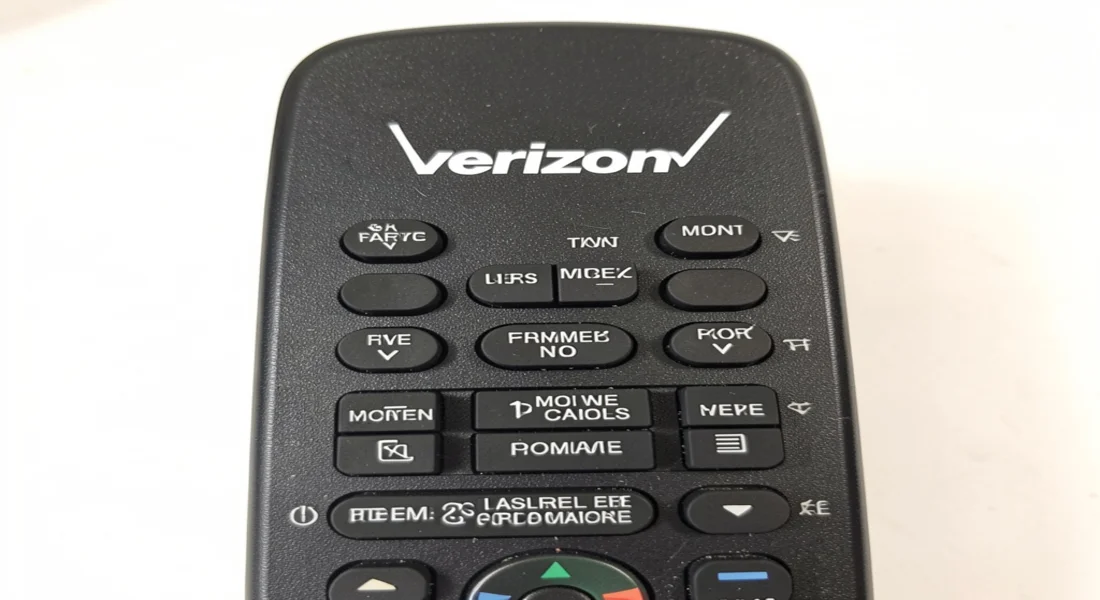
Learn how to set up and program a Verizon remote with easy step-by-step instructions. Find working codes, pairing methods, and quick troubleshooting tips.
Have you ever sat down to watch your favorite show, only to realize your controller isn’t working? Dealing with a finicky or unprogrammed verizon remote can be frustrating, especially when you just want to relax. Whether you have the latest Voice Remote or an older model, understanding how your device works is the key to a smooth entertainment experience.
This guide will walk you through everything you need to know. We will cover how to set up your new controller, fix common issues, and even touch on how the term “remote” applies to job opportunities within the company. By the end of this post, you will be an expert on your verizon fios remote and ready to enjoy your TV without the headache.
What is a Verizon Remote?
A verizon remote control is the handheld device that allows you to interact with your Fios TV Set-Top Box. It is your primary tool for navigating channels, adjusting volume, and accessing on-demand content. Over the years, Verizon has released several versions of these controllers, each with different features and capabilities.
The most modern versions use Bluetooth technology, meaning you don’t always have to point them directly at the box. Older models rely on infrared (IR) signals, which require a clear line of sight. Knowing which model you have is the first step in troubleshooting or programming it correctly.
While this article focuses on the TV hardware, it is worth noting that the term often brings up search results for Verizon careers remote jobs. We will touch on those opportunities later, but for now, let’s focus on getting your entertainment system running smoothly.
How to Connect a New Verizon Remote
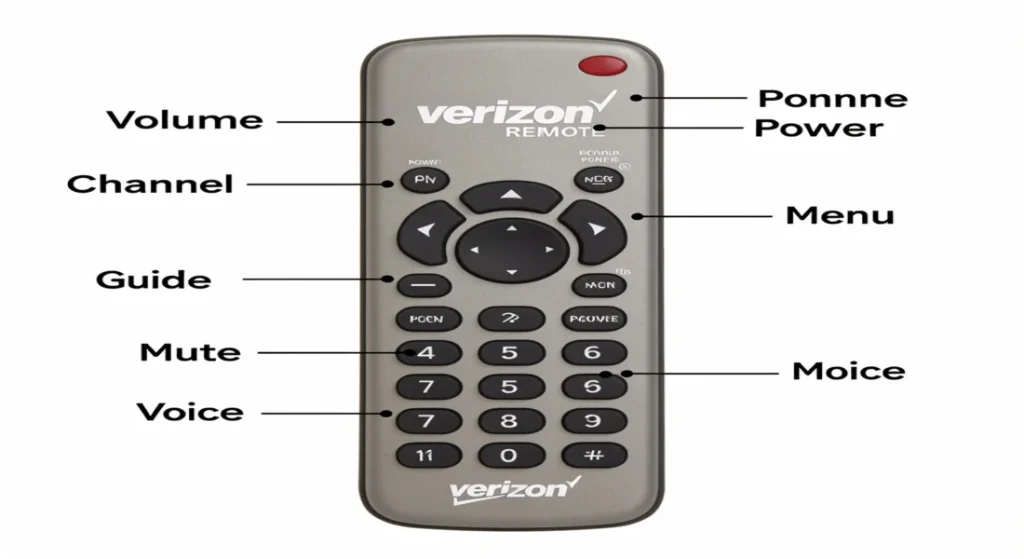
Setting up a new controller doesn’t have to be difficult. The process varies slightly depending on the specific model you have. Below are the steps for the most common devices you will encounter.
Fios TV Voice Remote
The Fios TV Voice Remote is the latest standard for Fios TV One users. It features voice command capabilities and Bluetooth connectivity.
Pairing Steps:
- Point the verizon fios remote control toward your Fios TV One box.
- Press and hold the Play/Pause and “O” buttons simultaneously.
- Watch for the blue light on the controller to start flashing.
- Release the buttons.
- When the blue light stops flashing and stays solid, your device is connected.
Once paired, the remote usually auto-detects your TV brand to control power and volume. If it doesn’t, you can go into the Menu settings under “Voice Control” to run a manual setup.
Fios TV+ Remote
The Fios TV+ Remote is designed for the newer streaming based boxes. It has a sleek design and distinct buttons.
Pairing Steps:
- If you are replacing an old unit, you must unpair it first. Press and hold the button on top of your Fios TV+ device for 15 seconds.
- Navigate to the “Unpair remote” option on your screen using the button on the box.
- Once the old one is gone, the system will prompt you to pair the new one.
- Follow the on screen instructions, which typically involve holding specific buttons until a light flashes.
Verizon P265 Remote
This is the classic, longer remote often found with older Fios installations. It relies on IR codes to work.
Pairing Steps:
- Turn on your TV and Fios box.
- Press and hold the OK and FiOS TV buttons together. Release them when the red light blinks twice and stays on.
- Press and release the Play/Pause button once every second.
- The remote will cycle through codes. Stop pressing the button immediately when your TV turns off.
- Press the TV Power button to turn the TV back on.
- If it works, press OK to save the code.
Troubleshooting Your Verizon Fios Remote Control
Even the best technology has hiccups. If your controller isn’t responding, try these simple fixes before buying a replacement.
- Check the Batteries: This is the most common issue. Swap out the old batteries for fresh ones.
- Re-pair the Device: Sometimes the connection drops. Follow the pairing steps above to reconnect.
- Remove Obstructions: If you have an older IR remote, make sure nothing is blocking the sensor on your TV box.
- Reset the Remote: Most models have a reset sequence (often holding a specific button combo) that restores factory settings.
If buttons are sticky or unresponsive, you might need to clean the device. Use a slightly damp cloth with a small amount of rubbing alcohol to wipe the surface. Never submerge it in water.
How to Program Remote Verizon Fios for Other Devices
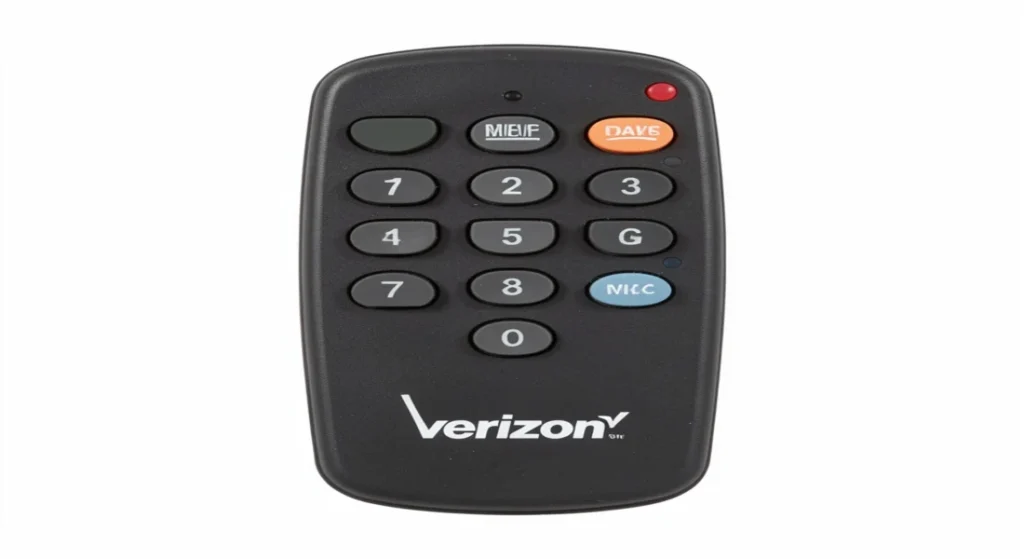
You likely want one controller for everything. You can program remote verizon fios to handle your TV volume, mute, and power, as well as auxiliary devices like soundbars or DVD players.
Auto Search Method
Many Fios remotes have an auto search feature.
- Turn on the device you want to control (e.g., your soundbar).
- Hold the OK and device key (like TV or AUX) until the light turns solid.
- Press the Play/Pause or Channel Up button repeatedly until the device turns off.
- Press OK to lock in the code.
Manual Code Entry
If auto search fails, you can find specific codes for your device brand on the Verizon support website.
- Locate the 3 or 4-digit code for your brand.
- Enter programming mode on your remote (usually holding OK and 0).
- Type in the code using the number pad.
- Test the power and volume buttons.
Mastering verizon fios programming remote steps ensures you don’t have to juggle three different clickers just to watch a movie.
How to Find a Lost Verizon Remote
We have all been there. You put the remote down for a second, and it vanishes. If you have the Fios TV Voice Remote, you are in luck.
The “Find My Remote” Feature:
- Go to your Fios TV One Set Top Box.
- Press the power button twice quickly.
- Your paired remote will start beeping.
- Follow the sound to find it (usually buried in the couch cushions).
- Press any button on the remote to stop the beeping.
If you have an older model without this feature, you will have to search the old fashioned way. While you search, you can download the Fios TV Mobile App on your smartphone. It functions as a digital controller, allowing you to change channels and adjust volume directly from your phone screen.
Verizon Careers Remote: Working from Home
While most people search for “remote” to fix their TV, many are looking for Verizon careers remote opportunities. Verizon is a large employer offering various work from home positions.
Types of Remote Roles
- Customer Service: These roles involve helping customers with billing, technical support, and service questions over the phone or chat.
- Sales: Inside sales representatives can often work remotely, managing accounts and selling services.
- Corporate Roles: Many jobs in marketing, finance, HR, and IT operate on a hybrid or fully remote schedule.
How to Apply
Visit the official Verizon Careers website and use the filter options to select “Remote” or “Work from Home.” These positions are highly competitive, so ensure your resume highlights your ability to work independently and manage digital communication tools effectively.
Frequently Asked Questions
Here are answers to common questions people search for regarding Verizon remotes.
What is a Verizon remote?
A Verizon remote is a dedicated handheld device used to operate Fios TV equipment. It communicates with the Set Top Box to change channels, access menus, and control volume. Modern versions also use voice commands to find content easily.
How to connect a new Verizon remote?
To connect a new remote, you generally need to pair it with your box. For a Voice Remote, hold the Play/Pause and “O” buttons while pointing it at the box. For older models, you may need to enter specific codes. Refer to the “How to Connect” section above for detailed steps for your specific model.
How to find Verizon remote?
If you have a Fios TV Voice Remote paired with a Fios TV One box, press the power button on the box twice. The remote will emit a beeping sound. If you have an older model, you cannot make it beep, but you can use the Fios TV Mobile App as a backup controller while you look.
Are Verizon remotes free?
Generally, Verizon provides one remote for free with each Set Top Box you rent as part of your service plan. If you lose it or break it, you may have to pay for a replacement. Sometimes, support agents may send a free replacement if the device is defective, but this is handled on a case by case basis.
How big is a Verizon remote?
The size depends on the model. The older P265 remote is about 8-9 inches long and fairly rectangular. The newer Fios TV Voice Remote is smaller, more ergonomic, and measures approximately 6-7 inches in length.
What are the two types of TV remotes?
Broadly speaking, the two main types used by Verizon are Infrared (IR) and Bluetooth (RF).
- IR Remotes (like the P265): Require a direct line of sight to the TV box. You must point the remote directly at the device.
- Bluetooth Remotes (like the Voice Remote): Do not require a line of sight. They can control the box from anywhere in the room, even if the box is hidden in a cabinet.
Conclusion
Whether you are trying to program remote verizon fios for your new TV or looking for a new job with Verizon careers remote, understanding the landscape is essential. Your Verizon remote is the gateway to your home entertainment. By following the simple setup and troubleshooting guides above, you can ensure that your movie nights are never interrupted by technical difficulties.
Take a few minutes today to check your batteries, clean your buttons, and maybe even learn a few voice commands. A little maintenance goes a long way in keeping your verizon fios remote working perfectly. And if you are ever in doubt, the Fios TV Mobile App is always there as a handy backup.

Sid is a skilled content writer with over 9 years of experience, creating clear and helpful articles on a wide range of topics. Sid is also well-known for her knowledge of remote controls, codes, and setup guides, helping thousands of people with simple and reliable solutions. Her goal is to combine expert content writing with practical knowledge, making information easy to understand and useful for everyone. In her free time, she enjoys exploring new technology and sharing helpful tips with the community.
