
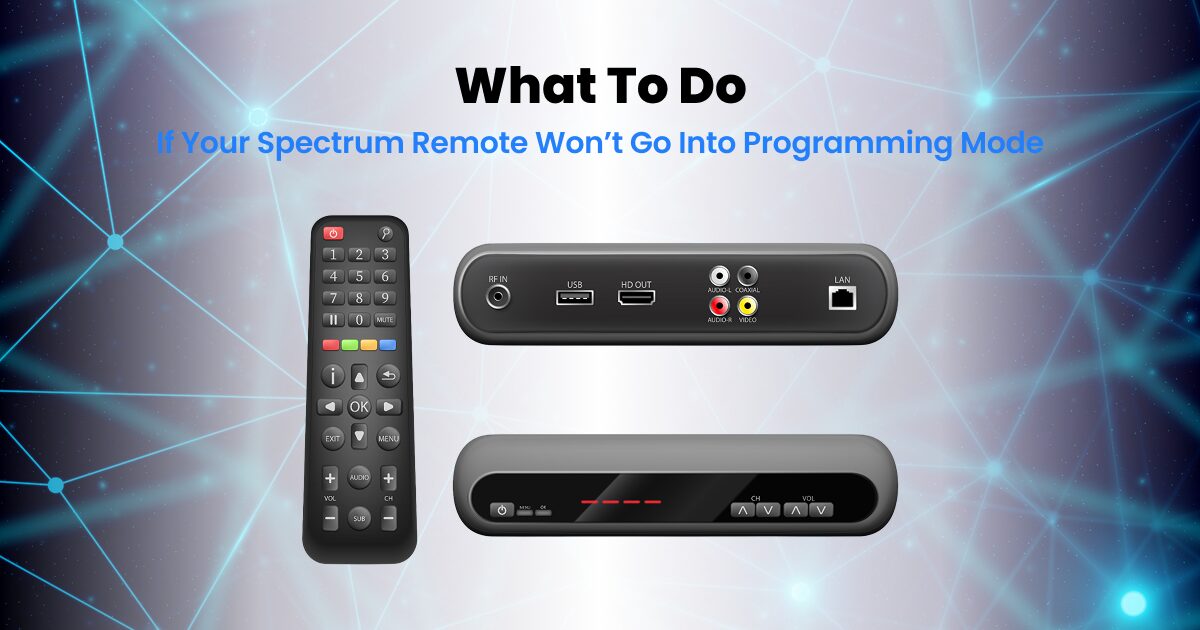
Find a complete list of TV remote codes for Spectrum and learn how to program your remote with our easy step by step guide for all major TV brands.
It can be frustrating when you have multiple remotes cluttering your coffee table: one for the TV, one for the cable box, and maybe another for your sound system. A Spectrum universal remote is designed to solve this problem by controlling all your devices. To make that happen, you first need to sync it with your television. This is where finding the right TV remote codes for Spectrum becomes essential. These codes are the key to unlocking seamless control over your entire home entertainment setup.
This guide will walk you through everything you need to know about Spectrum remote programming. We’ll cover what these codes are, provide step by step instructions for programming your remote, and offer a comprehensive list of codes for major TV brands. Whether you’re setting up a new television or need to reprogram a Charter remote, you’ll find all the information you need right here.
What Are TV Remote Codes for Spectrum?
TV remote codes are long, unique numbers assigned to certain brands of electronic devices. When you enter the right code into your universal Spectrum remote, you’re telling it the “language” that your TV speaks. This lets the remote send the correct infrared (IR) signals to turn your TV on and off, adjust the volume, switch channels, and access menus.
Without these codes, your Spectrum remote can only communicate with the Spectrum cable box it came with. Programming it for your TV and other devices like DVD players or audio receivers consolidates control into one handy device. Think of it as a universal translator for your electronics. Each brand, from Samsung to Sony, has its own set of codes. Sometimes, a brand may even have multiple codes, so a little trial and error might be necessary to find the one that works perfectly with your specific model.
How to Program Your Spectrum Remote
There are two primary methods for Spectrum remote programming: using a specific code or using the auto search function. The direct code entry method is usually faster if you have the right code on hand. The auto search method is a great alternative if you can’t find your code or if the ones you’ve tried don’t work.
Method 1: Programming With a Code
This is the most common and direct way to sync your remote. Follow these simple steps.
- Power On Your TV: Make sure the television you want to program is turned on.
- Enter Programming Mode: Press and hold the Menu and OK buttons on your Spectrum remote simultaneously. Hold them until the Input or Power button at the top of the remote blinks twice. This indicates the remote is in programming mode.
- Enter the TV Code: Using the number pad on the remote, enter the 4 or 5-digit code for your TV brand. You can find a list of codes in the section below. After you enter the code correctly, the Input button should blink twice again to confirm.
- Test the Remote: Aim the remote at your TV and try using the Power and Volume buttons. If the TV responds, you have successfully programmed your remote! If it doesn’t work, repeat the process using the next code on the list for your brand.
Method 2: Programming Without a Code
If you can’t find the right code, this method will have the remote scan through all its stored codes until it finds the one for your TV.
- Turn On Your TV: Ensure your television is on before you begin.
- Activate Programming Mode: Press and hold the Menu and OK buttons together until the Input button blinks twice.
- Initiate the Auto Search: Press and release the TV Power button. The Input button should stay lit.
- Scan for the Code: Aim the remote at your TV and press and hold the Up Arrow button. The remote will cycle through all its codes, sending a signal to turn the TV off. Keep holding the button.
- Lock in the Code: The moment your TV turns off, immediately release the Up Arrow. This stops the scan and locks in the correct code.
- Confirm the Connection: Press the Power button to turn your TV back on. Test the volume and other functions to ensure everything is working correctly. If it works, press the TV Power button one last time to save the settings. The Input button will blink twice to confirm.
Spectrum Remote TV Codes for Popular Brands
Finding the right code is the most important part of the programming process. Below is a list of common TV codes for Spectrum remote controllers, organized by brand. Remember that your TV model might respond to one code better than another, so you may need to try a few. This list includes the popular Samsung TV code for Spectrum remote and LG TV codes for Spectrum remote.
| TV Brand | Spectrum Remote Control Codes |
| Samsung | 10812, 10060, 10702, 10178, 10650, 10766, 10814, 11060, 11903, 12051 |
| LG | 11423, 10017, 11265, 10178, 10700, 10856, 11178, 11768, 11993, 12358 |
| Sony | 10000, 10810, 10834, 11317, 11685 |
| Vizio | 11758, 10864, 10885, 11756 |
| Philips | 11454, 11866, 10054, 10690, 11154, 11744, 11806, 11856, 11867, 12372 |
| Toshiba | 11524, 10156, 11256, 11265, 10060, 10650, 10822, 11156, 11356, 11704 |
| Sharp | 10818, 10093, 10688, 10851, 11602, 11756, 12360 |
| Panasonic | 10250, 11480, 11457, 10051, 10650, 11271, 11410, 11941 |
| RCA | 11547, 10178, 11447, 10047, 10051, 10093, 10679, 11781, 11953, 12187 |
| Insignia | 11423, 11564, 10171, 11204, 11517, 11641, 11780, 12002, 12049, 12417 |
If your brand isn’t listed here, Spectrum provides an online code lookup tool on their support website that can help you find more specific Charter remote codes or codes for other devices.
Troubleshooting Common Issues
Sometimes, even with the right steps, you might run into problems. Here are some common issues and how to resolve them.
The Remote Isn’t Responding at All
If your remote seems completely dead, start with the basics.
- Check the Batteries: This is the most common culprit. Replace the batteries with a fresh pair. Make sure they are inserted correctly.
- Check the Line of Sight: Ensure there are no obstructions between the remote and the TV’s IR sensor.
- Clean the Remote: The IR sensor on the remote can get dirty. Wipe the top end of the remote with a soft, dry cloth.
The Code Doesn’t Work
If you’ve entered a code and the TV doesn’t respond, don’t worry. This is a common part of the process.
- Try Another Code: TV manufacturers often use multiple codes. Go back to the list and try the next code for your brand.
- Use the Auto Search Method: If you’ve tried all the codes for your brand without success, use the auto search method described earlier. This is often the best way to find a working code for less common TV models.
Some Buttons Work, but Others Don’t
This can happen if the code you’ve used provides only partial functionality. For example, the volume might work, but the power button doesn’t.
- Find a Better Code: Your best bet is to repeat the programming process with a different code from the list for your brand.
- Try Auto Search Again: The auto search function might land on a different code that offers more complete control.
Frequently Asked Questions
Here are answers to some of the most common questions about Spectrum remote control codes for TV.
Q: Why won’t my Spectrum remote work?
There are several potential reasons. The most common issues include dead batteries, an incorrect TV code, or an obstruction blocking the remote’s signal. Start by replacing the batteries. If that doesn’t help, try reprogramming the remote using a different code or the auto search method. Finally, make sure nothing is physically blocking the path between your remote and your TV’s sensor.
Q: How do I find the model of my Spectrum remote?
To find the exact model of your Spectrum remote, simply open the battery cover on the back. You will usually find a sticker with the model number printed on it (e.g., UR5U-8780L, 1060BC3). Knowing your remote’s model can be helpful when looking for specific instructions on Spectrum’s support site.
Q: How do I reset my Spectrum remote?
If your remote is behaving erratically or you want to start fresh, you can perform a factory reset. The method can vary slightly by remote model, but a common procedure is:
- Press and hold the Menu and OK buttons until the Input button blinks twice.
- Press and release the number 9, then 8, then 1.
- The Input key will blink twice to confirm that the remote has been reset to its factory settings. After a reset, you will need to reprogram it for your TV and any other devices.
Q: Can I control my soundbar or audio receiver with a Spectrum remote?
Yes, most Spectrum universal remotes can be programmed to control other audio/video devices. The process is the same as programming it for a TV. You will need to find the correct device code for your soundbar or receiver and follow the direct code entry or auto search programming steps. Just be sure to press the correct device button (e.g., AUD) before entering the code.
Conclusion
Mastering your Spectrum remote is a simple way to streamline your entertainment experience. By using the correct TV remote codes for Spectrum, you can get rid of that pile of remotes and control everything with a single device. Whether you choose the direct code entry method with our handy list or opt for the auto search function, you’re just a few steps away from a more organized and convenient setup.
Don’t be discouraged if the first code you try doesn’t work. With a little patience and the troubleshooting tips provided, you’ll have your remote and TV communicating perfectly in no time. Now you can sit back, relax, and enjoy your favorite shows with the simplicity of one remote.

Sid is a skilled content writer with over 9 years of experience, creating clear and helpful articles on a wide range of topics. Sid is also well-known for her knowledge of remote controls, codes, and setup guides, helping thousands of people with simple and reliable solutions. Her goal is to combine expert content writing with practical knowledge, making information easy to understand and useful for everyone. In her free time, she enjoys exploring new technology and sharing helpful tips with the community.
