

Find updated Spectrum remote codes, setup steps, auto search methods, and fixes for common issues. Easy guide for all Spectrum remotes.
If you wish to use a Spectrum universal remote to operate your TV, cable box, soundbar, or other devices, you must have Spectrum remote codes. Using the right Spectrum remote code guarantees seamless functioning whether you’re replacing a lost remote, setting up a new one, or resolving connection problems.
Because Spectrum offers a variety of remote models, each of which supports several programming techniques, many users have difficulties. Everything from locating the correct codes to programming your remote control with or without codes is explained in detail in this guide.
What Are Spectrum Remote Codes?
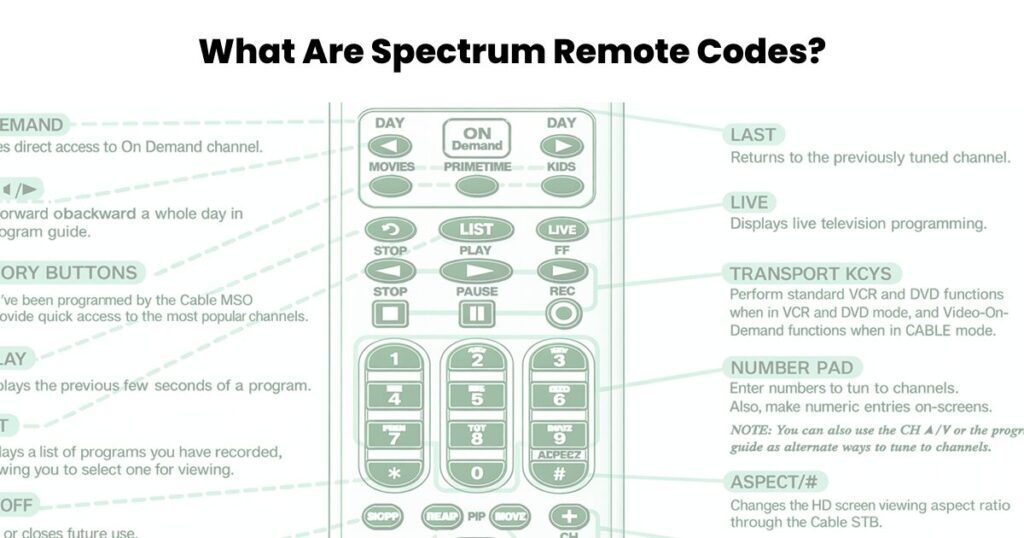
Numerical combinations known as spectrum remote codes enable your remote to interact with your TV or other devices. Different infrared signals are used by different TV brands, and these codes instruct the remote control which signals to send.
Your Spectrum remote may turn on the TV but not be able to change input or volume, or it may not function at all, if you don’t have the right code.
Spectrum remotes can control:
- TVs
- Cable boxes
- Soundbars
- DVD or Blu ray players
- Audio receivers
Types of Spectrum Remotes You May Have
Before entering Spectrum remote codes, it’s important to identify your remote model. The programming steps vary slightly by model.
Common Spectrum Remote Models
- Spectrum 110
- Spectrum 210
- Spectrum 1060BC2 / 1060BC3
- Spectrum 1056B03
- Spectrum UR5U-8780L
- Spectrum UR3-SR3S
You can usually find the model number on the back of the remote or inside the battery compartment.
Spectrum Remote Codes for TVs
Below are commonly used Spectrum remote TV codes. If one code doesn’t work, try another listed for your brand.
Samsung TV Spectrum Remote Codes
- 12051
- 10812
- 10060
- 11060
LG TV Spectrum Remote Codes
- 10178
- 11178
- 10017
- 11265
Sony TV Spectrum Remote Codes
- 10000
- 11100
- 10810
- 11685
Vizio TV Spectrum Remote Codes
- 11758
- 10864
- 10178
- 11756
TCL / Roku TV Spectrum Remote Codes
- 11756
- 12434
- 10885
- 10017
Panasonic TV Spectrum Remote Codes
- 10051
- 10250
- 10650
Codes may vary depending on the TV model and remote type.
How to Program Spectrum Remote Codes
This is the most common method and works for most Spectrum remotes.
Step-by-Step Instructions
- Turn on your TV manually.
- Press and hold the TV button on the Spectrum remote.
- While holding the TV button, press OK or Select.
- Release both buttons when the LED blinks twice.
- Enter the Spectrum remote code for your TV brand.
- The LED will blink twice if the code is accepted.
- Test the remote by adjusting volume or changing channels.
If the remote does not respond, repeat the steps using a different code.
How to Program Spectrum Remote Without Codes

If you don’t know your TV’s code, use the auto search method.
Auto Code Search Steps
- Turn on the TV.
- Press and hold TV + OK until the LED blinks twice.
- Press Channel Up repeatedly.
- Stop when the TV turns off.
- Press OK to save the code.
This method scans all built in Spectrum remote codes until it finds a compatible one.
How to Program Spectrum Remote to Control Volume
Many users report that the remote changes channels but does not control volume. This usually happens when the TV code is incorrect or incomplete.
Fix Volume Control Issues
- Reprogram the remote using a different TV code
- Ensure the remote is set to TV audio mode
- Reset the remote and repeat setup
- Check TV audio settings (HDMI-CEC, external speakers)
How to Reset a Spectrum Remote
Resetting clears all saved codes and restores default settings.
Reset Instructions
- Remove the batteries.
- Press and hold the Power button for 15 seconds.
- Reinsert fresh batteries.
- Reprogram the remote using Spectrum remote codes.
This fix works well for unresponsive remotes.
Common Spectrum Remote Problems and Solutions
Spectrum Remote Not Working
- Replace batteries
- Check line of sight to TV
- Reprogram using auto search
- Reset the remote
Remote Turns TV On but No Volume
- Incorrect TV code
- Audio device not synced
- HDMI-CEC conflict
Spectrum Remote Not Pairing
- Ensure correct remote model
- Try manual and auto programming
- Restart cable box
Spectrum Remote Codes for Audio Devices
You can also program Spectrum remotes for soundbars and receivers.
Popular Audio Brands
- Bose
- Samsung Soundbars
- LG Sound Systems
- Sony Audio Receivers
The programming process is similar but requires selecting the AUX or Audio button instead of TV.
Frequently Asked Questions
How do I find my Spectrum remote code?
You can find codes in the Spectrum remote manual, official Spectrum support pages, or by using the auto search method.
Do Spectrum remote codes change?
Yes. New TV models may require updated codes. Auto search helps when codes are outdated.
Can one Spectrum remote control multiple devices?
Yes. Spectrum universal remotes can control TVs, cable boxes, and audio devices.
Why does my Spectrum remote stop working after a power outage?
Power interruptions can reset the cable box connection. Reprogramming the remote usually fixes the issue.
Can I use Spectrum remote codes on another universal remote?
No. Spectrum remote codes are specific to Spectrum remotes and may not work on other brands.
Tips for Successful Spectrum Remote Programming
- Always use fresh batteries
- Point the remote directly at the TV
- Try multiple codes for your brand
- Save the code immediately after the TV responds
- Write down the working code for future use
Conclusion
Controlling your TV and other devices with a single remote is simple when you use the appropriate spectrum remote codes. Spectrum remotes provide a variety of options for almost all TV brands, whether you prefer auto search or manual code entering.
You can program, reset, and troubleshoot your Spectrum remote without getting frustrated if you follow the instructions in this article. If one code doesn’t work, try another or make sure it works by using the auto search function.
This comprehensive handbook guarantees that you maintain easy and confident management over your home entertainment system.

Sid is a skilled content writer with over 9 years of experience, creating clear and helpful articles on a wide range of topics. Sid is also well-known for her knowledge of remote controls, codes, and setup guides, helping thousands of people with simple and reliable solutions. Her goal is to combine expert content writing with practical knowledge, making information easy to understand and useful for everyone. In her free time, she enjoys exploring new technology and sharing helpful tips with the community.
