
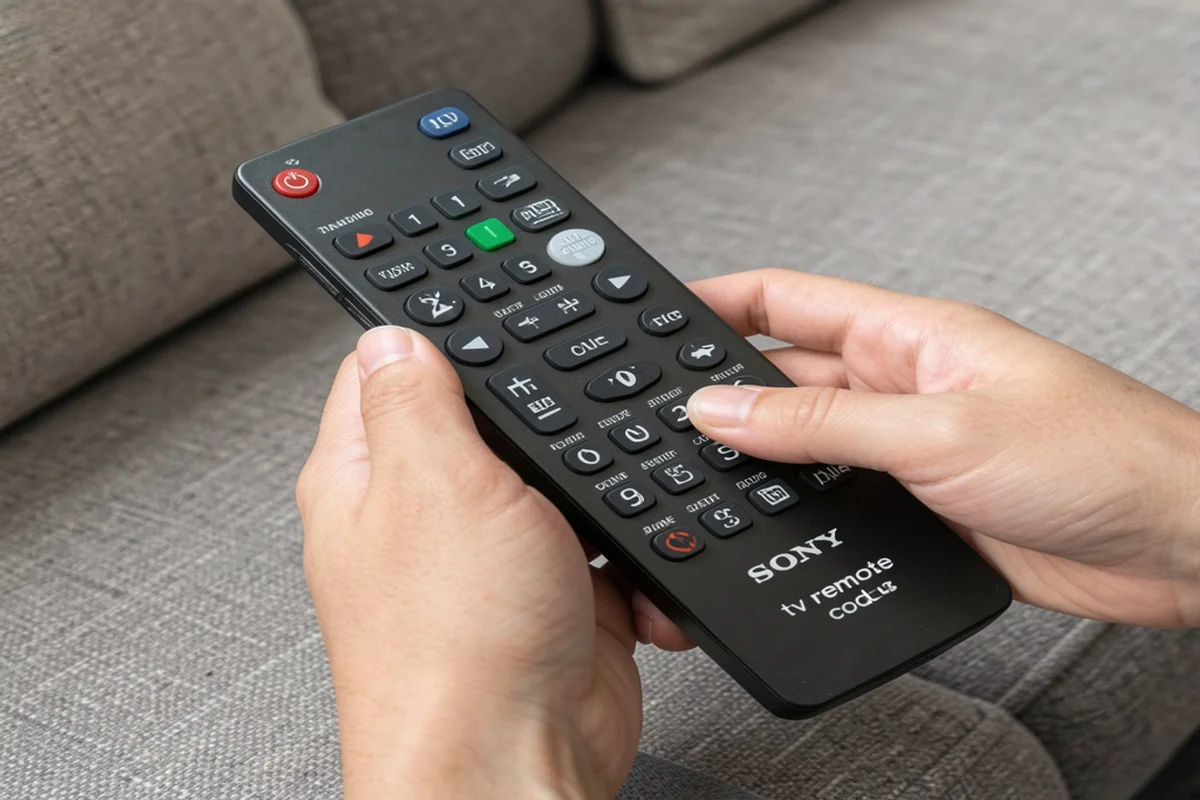
Need a Sony TV remote code? Learn how to program your universal remote with our step by step guide list of common codes and easy troubleshooting tips.
Whether you bought a brand new universal remote or you need to replace an old clicker programming it is easier than you might think. You do not need to be a technology expert to make your devices talk to each other. We will guide you through the entire process.
What Is a Sony TV Remote Code?
A remote code is a simple numeric password. It bridges the communication gap between your television and your remote control. Different manufacturers use different radio frequencies. The code tells your remote which specific frequency to send out.
When you enter the correct code the television recognizes the signal. This allows you to change channels, adjust the volume and access smart menus. If you enter the wrong number the television ignores the remote completely.
The Most Common Sony TV Remote Programming Codes
Sony televisions are incredibly popular. Because of this almost every universal remote on the market supports them. Below is a list of the most common sony tv remote programming codes.
You will notice that codes come in different lengths. The length depends entirely on the brand and age of your remote control.
3 Digit Codes:
- 002
- 011
- 080
- 111
- 273
4 Digit Codes:
- 1000
- 1001
- 1010
- 1080
- 1100
5 Digit Codes:
- 10000
- 10810
- 11685
- 11904
- 12778
RCA Remote Codes for Sony TV
RCA makes some of the most widely used universal remotes available today. If you own one of these devices you need specific rca remote codes for sony tv models.
Try these popular codes for your RCA remote:
- 1000
- 1080
- 1111
- 1273
- 10010
Write these down before you begin the setup process. You might need to try more than one code before you find the perfect match.
Step by Step: How to Program Your Universal Sony Remote
Programming your new universal sony remote takes only a few minutes. Grab your remote, ensure it has fresh batteries and follow these simple steps.
Step 1: Turn on your television.
Manually press the power button on the television itself. The television must be on for the remote to send the pairing signal.
Step 2: Enter setup mode.
Press and hold the “Setup” button on your remote control. Wait for the small LED light at the top of the remote to turn red. Once the light stays solid red, release the setup button.
Step 3: Select the device type.
Press and release the “TV” button on your remote. The red light will blink once and then remain solid. This tells the remote you want to program a television.
Step 4: Enter the code.
Using the number pad type in the first sony tv remote code from our list above. The red light will turn off if you enter a valid code.
Step 5: Test the connection.
Point the remote directly at the television. Press the power button. If the television turns off you successfully programmed the device.
If the television does not turn off, do not worry. Simply repeat the steps using the next code on the list.
How to Find Older Sony TV Remote Codes
Technology changes rapidly but many people still enjoy their older television models. If you have a classic tube TV or an early flat screen model modern codes might fail.
You can still connect your devices using older sony tv remote codes. Here are a few older codes that frequently work:
- 002
- 011
- 101
- 273
If these manual codes fail you can use the Auto Code Search feature. The auto search method forces the remote to scan through its entire internal database.
How to use Auto Code Search:
- Turn on your television.
- Press and hold the “Setup” button until the red light stays on.
- Press the “TV” button.
- Point the remote at the TV and press the “Power” button once.
- The remote will begin sending ten different codes at a time.
- Press the “Volume Up” button slowly to test individual codes.
- Stop pressing exactly when the television turns off.
- Press the “TV” button again to lock in that working code.
Connecting Other Audio and Video Devices
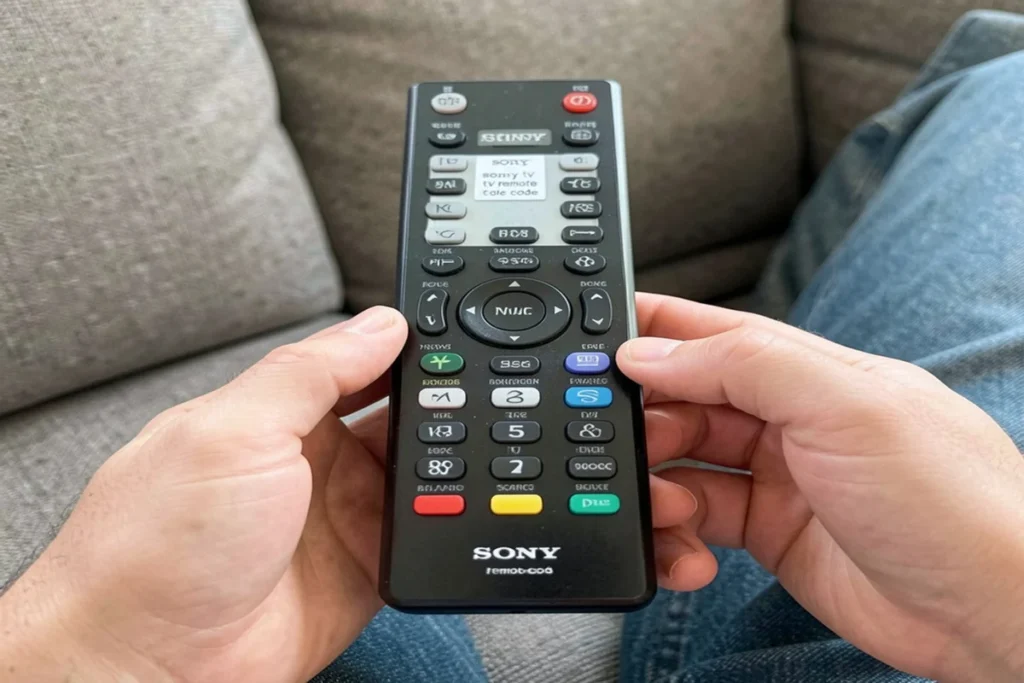
Your entertainment center likely includes more than just a television. A true universal remote can control your entire setup from one device.
Sony DVD Player Remote Control Codes
If you still watch classic movies on discs you need your sony dvd player remote to work properly. Many universal remotes can replace a broken DVD controller. Try these common sony dvd player remote control codes:
- 20533
- 20864
- 21033
Sony Blu Ray Player Remote
High definition movie fans need a working Sony blu ray player remote. The pairing process is exactly the same as the TV setup. You just press the “DVD” or “AUX” button instead of the “TV” button during setup. Use code 21516 or 20533 for most Sony Blu Ray players.
Sony Stereo Remote Control
Great television requires great sound. If you use a surround sound receiver you can program your remote to control the volume. Setting up your sony stereo remote control requires audio specific codes. Try entering 30158, 30176 or 31058 into your remote while pressing the “AUD” or “STR” device button.
What to Do If You Have a Lost Sony TV Remote
Misplacing a remote is a universal human experience. It slips between the couch cushions or disappears into another room. If you are currently dealing with a lost sony tv remote you have several practical options.
- First check the physical buttons on your television. Most models have hidden buttons along the bottom edge or behind the right side panel. You can use these to change the channel and volume temporarily.
- Second, consider buying a generic replacement. A basic Sony universal remote is very inexpensive. You can find them at any local electronics store or order them online. They often work right out of the box without requiring any programming at all.
- Third, use your smartphone. Many modern smart televisions connect to the wireless internet. You can download the official Sony application on your phone. This app turns your mobile screen into a fully functional remote control.
Setting Up a New Spectrum Remote
Cable providers frequently update their hardware. If you recently upgraded your cable box you probably received a new spectrum remote. These remotes are designed to control both the cable box and your television simultaneously.
To pair your Spectrum remote with your Sony television follow these steps:
- Turn on your Sony television.
- Press and hold the “Menu” and “OK” buttons at the same time.
- Wait for the Input button to blink twice.
- Press the “TV” power button once.
- Aim the remote at the TV and press and hold the number “2” or “3”.
- Release the number button the exact moment the television turns off.
Spectrum assigns specific numbers to major television brands. For Sony holding down the number 2 or 3 usually triggers the correct pairing sequence.
Troubleshooting TV and Remote Not Working
Sometimes even when you follow every step perfectly things fail. A tv and remote not working together is annoying but the fix is usually very simple.
Here are the most common reasons your remote is failing:
- Dead Batteries: This is the most frequent culprit. Even if the red light turns on, weak batteries cannot send a strong enough signal to the television. Replace the old batteries with a brand new pair.
- Blocked Sensor: The remote relies on an infrared light beam. This beam must travel in a straight line to the television. If a soundbar, a stack of books or a picture frame blocks the bottom of the TV the signal will bounce away. Clear the path between you and the television.
- Wrong Device Mode: Universal remotes control multiple devices. If you accidentally pressed the “CBL” or “DVD” button the remote stops talking to the TV. Press the “TV” button once to put the remote back into television mode.
- Internal Glitch: Televisions are just large computers. Sometimes their software freezes. Unplug your television from the wall outlet. Wait for two full minutes. Plug it back in and try the remote again. This simple reset fixes many communication errors.
Frequently Asked Questions
Understanding how remotes work can feel overwhelming. We compiled answers to the most common questions people ask when setting up their home theater systems.
Can any universal remote work with my television?
Yes, almost every universal remote will work. Sony is a major global brand. Because they are so popular, remote manufacturers always include Sony codes in their software. You just need to find the correct manual code or use the auto search feature.
Why does my remote only control the volume?
Sometimes a code is only a partial match. A partial match might let you change the volume but prevent you from changing the channel. If this happens the code you entered is wrong. Go back to the setup process and try the next code on your list until all buttons function properly.
How do I find the model number of my remote?
Look at the front of the remote near the bottom edge. If it is not there, open the battery compartment. The model number is usually printed on a small white sticker inside the battery bay. Knowing your model number helps you find the exact instruction manual online.
Do I need to reprogram my remote if I change the batteries?
Most modern remotes have internal memory. They remember your codes even when you take the batteries out. However if you leave the batteries out for a very long time the memory might erase. If that happens simply use this guide to enter the code again.
Conclusion
Setting up your entertainment system does not have to be a stressful chore. Finding the right sony tv remote code is usually the only hurdle standing between you and a relaxing movie night.
Remember to gather your codes before you start. Make sure you have fresh batteries installed. Follow the programming steps carefully and do not panic if the first code fails. Universal remotes hold hundreds of codes and the auto search feature is always there as a backup plan.
By using the universal tv remote control codes and troubleshooting tips provided in this guide you can take full control of your devices. Grab your remote, enter your code and enjoy your television again.

Sid is a skilled content writer with over 9 years of experience, creating clear and helpful articles on a wide range of topics. Sid is also well-known for her knowledge of remote controls, codes, and setup guides, helping thousands of people with simple and reliable solutions. Her goal is to combine expert content writing with practical knowledge, making information easy to understand and useful for everyone. In her free time, she enjoys exploring new technology and sharing helpful tips with the community.
