
Learn how to program universal remote using auto code search with simple steps. Quick setup guide, tips, and troubleshooting for all TV brands.
This guide will show you exactly how to connect your remote to your devices. We will walk through the steps clearly. We will also cover common issues and how to fix them. By the end of this post you will control your entire entertainment system with just one remote.
What Is Auto Programming?
Auto programming is a built in feature on most modern universal remotes. It allows the remote to scan through its internal database of codes automatically. Instead of typing numbers from a paper manual you let the remote do the work.
When you trigger a device code search the remote sends dozens of different signals to your television. It tests one code after another. When it finally sends the correct signal your television turns off. This tells you that the remote found the matching code.
Program Universal Remote Using Auto Code Search Step by Step
Follow these instructions carefully. The exact buttons might vary slightly depending on your remote brand. However the core remote control programming process remains the same across almost all models.
Step 1: Prepare Your Equipment
First insert fresh batteries into your universal remote. Weak batteries can interrupt the signal. This causes the search process to fail. Use high quality alkaline batteries for the best results.
Step 2: Enter Setup Mode
You need to tell the remote that you want to program it. Look for a button labeled “Setup” or “Code Search.”
Press and hold this button down. Watch the small LED indicator light at the top of the remote. Wait until this red light turns on and stays solid.
Step 3: Select Your Device
Now you must tell the remote what type of device you want to control. Look at the top row of buttons on your remote. You will see buttons labeled “TV” “DVD” “CBL” or “AUX.”
Press and release the button that matches your device. If you are programming a television press “TV.”
Step 4: Start the Device Code Search
Aim the remote directly at your television. Press the power button on the remote one time.
The remote will now send a batch of codes to the television. On many models it sends ten codes at once. The red light will blink several times as it transmits these signals.
Watch your television closely. Did the television turn off?
If the television stays on, press the power button again. The remote will send the next batch of codes. You might need to press the power button many times. Some remotes require you to press it up to 300 times to get through the entire list. Be patient and keep pointing the remote at the screen.
Step 5: Lock in the Correct Code
When the television finally turns off you must act quickly. This means the remote just sent the correct code.Do not press the power button again. If you do, the remote will skip past the correct code.
Instead, press the “Volume Up” button slowly. This action prompts the remote to resend the last few codes one by one. Press it once and wait three seconds. If the television turns back on you found the exact code.
Once the television responds, press the original device button (like “TV”) one more time. This saves the code into the remote’s memory. The red light will turn off. Your setup is complete.
Testing Your Universal Remote Setup
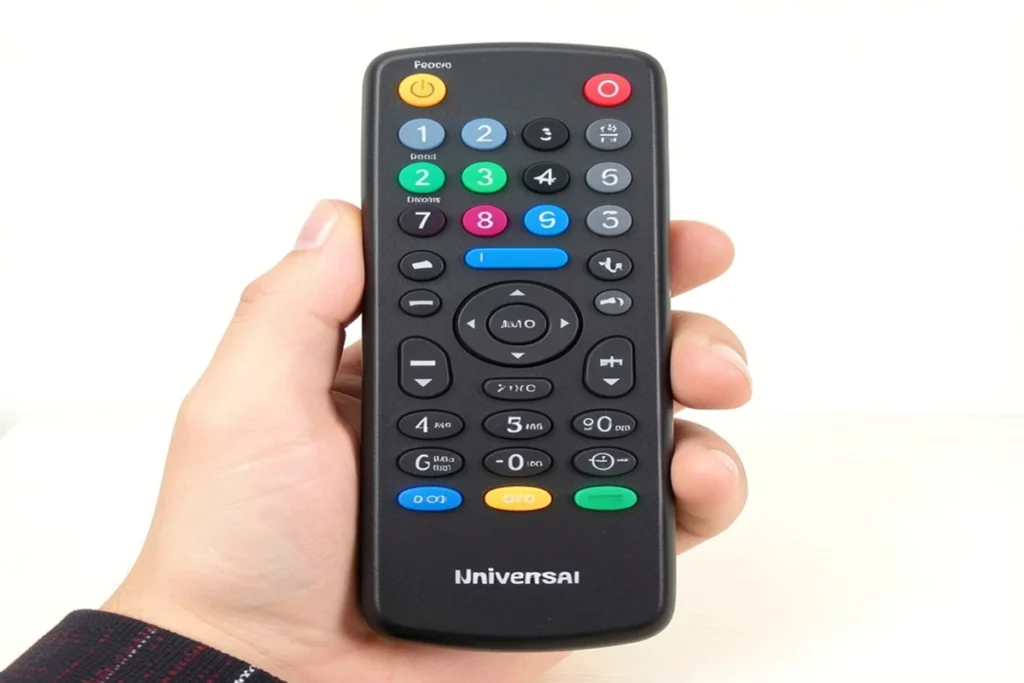
After saving the code you need to test the remote. Do not assume everything works perfectly just because the power button works.
- Point the remote at the television and press the power button. The television should turn on.
- Next test the volume buttons. Turn the volume up and down. Make sure the volume bar appears on the screen.
- Test the channel buttons. Change the channel up and down. Finally test the input or source button.
If all these buttons work you succeed. If the power button works but the volume buttons do not you have a partial code match. You will need to repeat the auto programming steps to find a better code.
Common Remote Control Programming Mistakes to Avoid
Many beginners make simple mistakes during setup. You can save time by avoiding these common errors.
- First people often rush the process. When pressing the power button to search for codes they press it too fast. The television needs a moment to receive the signal and power down. If you press the button rapidly you will skip right past the correct code.
- Second users forget to point the remote directly at the device. The remote uses an infrared beam. This beam requires a clear line of sight. If you point the remote at the ceiling the television will never receive the code.
- Third, people use old batteries. A remote might have enough power to blink a red light but not enough power to send a strong infrared signal. Always start with new batteries to prevent this issue.
Troubleshooting Auto Programming Issues
Sometimes the process does not work on the first try. Do not give up. You can usually fix the problem with a few simple tweaks.
- If the indicator light never turns solid in step two the remote might be locked. Some remotes have a factory lock to prevent accidental reprogramming. Check your specific brand’s manual online to learn how to unlock it.
- If you cycle through all the codes and the television never turns off you might have a compatibility issue. Some very old or very obscure television brands do not share codes with major universal remotes. In this case you might need a brand specific remote.
- If your remote controls the wrong device you pressed the wrong device button in step three. For example if your DVD player turns off while you are trying to program the television you likely pressed the “DVD” button by mistake. Start the process over from the beginning.
Why You Should Consolidate Your Remotes
Using one controller offers many benefits. It instantly declutters your living space. You no longer have to dig through couch cushions to find a specific remote.
It also makes things easier for guests. When a friend visits you do not have to explain a complex system of four different remotes just to watch a movie. You hand them one remote and they can figure it out immediately.
Advanced Device Code Search Tips
If you own a soundbar or a home theater receiver the setup works exactly the same way. You just select the “AUX” or “AUD” button instead of the TV button.
Keep a record of your successful programming. Once you find a code that works, many remotes allow you to read the code back. You press a sequence of buttons and the red light blinks to tell you the numerical code. Write this code down. Tape it to the back of the battery cover. If you ever need to replace the batteries and the remote resets you can just type the numbers in directly.
Frequently Asked Questions
Why won’t my universal remote find the code?
Your remote might fail to find a code for several reasons. The most common reason is weak batteries. Replace them and try again. Another reason is user error. If you press the search button too quickly you will skip the correct code. Finally your specific device brand might not exist in the remote’s internal memory database.
Can I program a universal remote without a TV?
Yes. You can program a universal remote to control a DVD player, a soundbar or a streaming box without using the television. You simply press the corresponding device button (like “DVD” or “AUX”) during the setup mode. Just make sure the device you want to control is powered on manually before you start.
How do I reset my universal remote?
You can reset most universal remotes by removing the batteries for one to two minutes. This drains the internal capacitor and clears the memory. Some models require you to hold down a specific button combination such as the Setup and Power buttons to restore factory settings. Check the manufacturer website for exact reset instructions.
Does auto code search work on all brands?
Auto code search works on most major brands like Samsung LG Sony and Vizio. However it does not work on every single brand in the world. Some generic or obscure brands use proprietary infrared frequencies. A standard universal remote cannot replicate these unique signals.
What would I do if I skipped the correct code?
If you accidentally press the button again after the television turns off do not panic. Simply press the “Volume Down” button on your remote. This usually commands the remote to step backward through the list of codes. Press it slowly until the television turns back on then save the code.
Conclusion
You now know how to program universal remote using auto code search. You do not need to hunt down small paper manuals. You do not need to search the internet for long lists of random numbers.
The auto programming feature makes universal remote setup incredibly simple. You just point press and wait for your device to respond. Remember to use fresh batteries. Take your time pressing the buttons. Always test the volume and channel controls before you finish.
Related Article
Best Universal Remotes with Voice Control in 2025
Best Universal Remotes for Smart Homes in 2025
How to Reset a Universal Remote – Easy Guide2025
GE Universal Remote Codes For Roku TV & Programming [2025]
Universal Remote Codes For Sanyo TV [GE, RCA, Philips, Etc]

Sid is a skilled content writer with over 9 years of experience, creating clear and helpful articles on a wide range of topics. Sid is also well-known for her knowledge of remote controls, codes, and setup guides, helping thousands of people with simple and reliable solutions. Her goal is to combine expert content writing with practical knowledge, making information easy to understand and useful for everyone. In her free time, she enjoys exploring new technology and sharing helpful tips with the community.
