
Learn how to reset an Apple TV remote quickly with this easy step-by-step guide. Fix connection issues unresponsive buttons and pairing problems in minutes.
Your Apple TV remote is a powerful tool. It lets you navigate, control volume and access a world of entertainment. But what happens when it stops working correctly? An unresponsive remote can be frustrating. Fortunately, a simple reset often solves the problem. This guide will show you how to reset an Apple TV remote. We will cover everything from a quick restart to repairing it with your device.
Learning how to reset an Apple TV remote is an easy skill. Whether your buttons are unresponsive or the connection seems lost these steps will help. We will walk through the process for different remote models including the Siri Remote. You’ll also find solutions for common issues like volume control problems.
Understanding Why Your Apple TV Remote Needs a Reset
Before we dive into the steps it helps to know why a reset might be necessary. Your remote communicates with your Apple TV using Bluetooth. Sometimes this connection can be interrupted. This can happen due to a software glitch a low battery or physical obstructions.
Common reasons for a reset include:
- The remote is completely unresponsive.
- Buttons are not performing their functions correctly.
- The connection to the Apple TV is lost frequently.
- Volume controls stop working after a power outage or update.
A restart or reset is like a quick reboot for your remote. It clears out minor software bugs without erasing any settings. It is often the first and most effective troubleshooting step.
How to Reset an Apple TV Remote
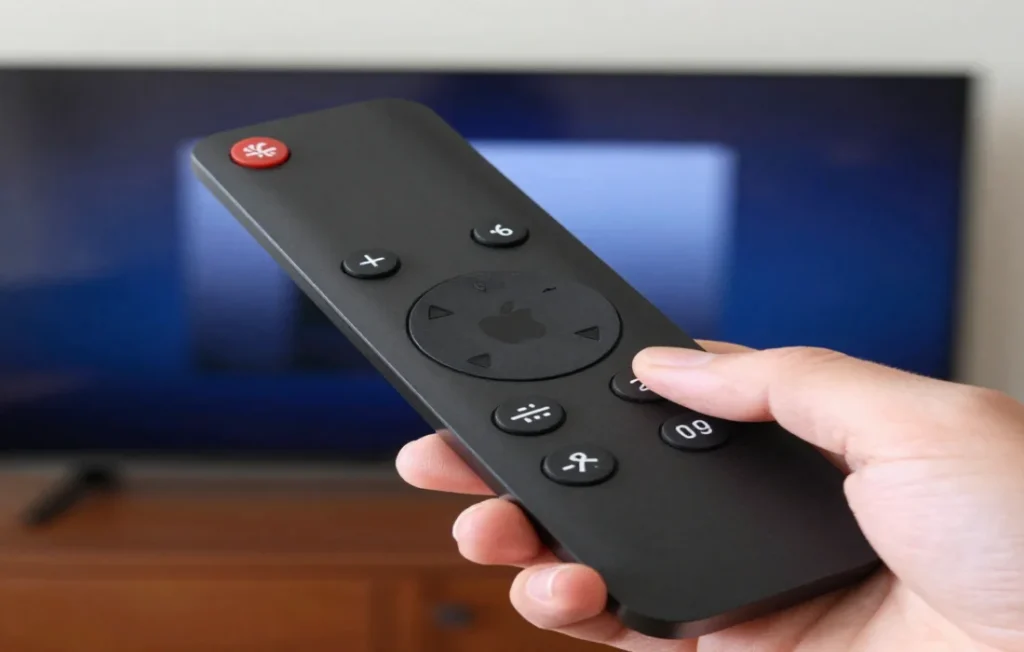
The most common fix is to simply restart your remote. This is not a factory reset. It will not erase any of your settings. This process is very effective for fixing temporary glitches and connectivity issues. It works for the Siri Remote (all generations) and the Apple TV Remote.
Follow these simple steps:
- Press and hold the TV/Control Center button and the Volume Down button at the same time.
- Continue holding both buttons for about 5 to 10 seconds.
- Watch the status light on your Apple TV box. It will turn off and then back on again.
- Release the buttons.
- A “Remote Disconnected” notification will appear on your TV screen.
- Wait a few more seconds. A “Remote Connected” notification will appear next.
Once you see the “Connected” message your remote has successfully restarted. Try using it again. Press any button to confirm it is working. This simple procedure resolves most common remote issues. If it is still not working you may need to try pairing it again.
Pairing Your Remote with Your Apple TV
If a restart doesn’t work the next step is to repair the remote. Pairing creates a secure Bluetooth connection between your remote and the Apple TV. This process is straightforward and can solve more persistent connection problems.
Steps for Pairing a Siri Remote or Apple TV Remote
These instructions apply to the newer silver and black remotes that come with Apple TV HD and Apple TV 4K models.
- Point your remote directly at the front of your Apple TV. Keep it about three inches away.
- Press and hold the Back button (it might show an arrow icon) and the Volume Up button.
- Hold both buttons for five seconds.
- A notification should appear on your screen confirming the pairing is complete.
- In some cases tvOS might prompt you to place the remote on top of the Apple TV to finalize the pairing.
If the pairing fails make sure there is a clear line of sight. Unplug your Apple TV from power, wait for 10 seconds and plug it back in. Then try the pairing process again.
What About the Older Aluminum or White Remotes?
If you have an older Apple TV (2nd or 3rd generation) you might have an aluminum or white remote. These remotes use IR (infrared) instead of Bluetooth. They don’t require pairing in the same way. However you can link them to a specific Apple TV to prevent interference from other remotes.
To link an older remote:
- Navigate to Settings > General > Remotes on your Apple TV.
- Select Link Remote.
- Press and hold the Menu and Next/FastForward buttons for about six seconds until an icon of two linked chains appears on the screen.
To unlink it follow the same steps but hold the Menu and Previous/Rewind buttons instead.
Troubleshooting Common Remote Problems
Sometimes a reset or repair is not enough. Specific issues might require different solutions. Let’s look at some common problems and how to fix them.
Volume Buttons Not Working
One of the most frequent complaints is that the volume buttons stop working. This often happens after a tvOS update or a change in your audio setup.
Here’s what to do:
- Restart the Remote: First try the restart method described earlier (holding TV/Control Center and Volume Down).
- Check Volume Control Settings: If that doesn’t work you may need to adjust a setting in tvOS.
- Go to Settings > Remotes and Devices.
- Select Volume Control.
- The default is “Auto.” Try changing this to “TV via IR.”
- Test the volume buttons again.
Your TV or sound system might not be compatible with the “Auto” setting. Forcing it to use IR often resolves the issue. This is especially true if you use a soundbar connected via an optical cable.
The Remote is Slow or Laggy
A laggy remote can make navigating menus a chore. This is usually caused by a weak Bluetooth signal or interference.
To fix this:
- Check the Battery: A low battery can cause poor performance. Charge your Siri Remote for at least 30 minutes using a Lightning or USB cable.
- Reduce Interference: Bluetooth operates on a 2.4 GHz frequency which is shared by many other devices like microwaves, cordless phones and WiFi routers. Move these devices away from your Apple TV.
- Improve Line of Sight: Ensure there are no physical objects blocking the path between your remote and the Apple TV box. Even a cabinet door can weaken the signal.
What is a Factory Reset and Do I Need It?
A “factory reset” for an Apple TV remote is not really a feature. The restart and repairing processes are the main reset functions available. You cannot perform a factory reset on the remote itself.
However you can perform a factory reset on the Apple TV box. This erases all data and settings returning the device to its original state. This is a drastic step and should only be used as a last resort. If you perform a factory reset on your Apple TV you will need to set it up again from scratch and repair your remote during the setup process.
To factory reset your Apple TV:
- Go to Settings > System > Reset.
- Choose Reset to restore factory settings while connected to the internet.
- Choose Reset and Update to install the latest tvOS version at the same time.
Frequently Asked Questions
Here are answers to some common questions people have about their Apple TV remote.
Q1: How do I know which Apple TV remote I have?
The most recent model is the Siri Remote (2nd generation or later) which is silver with a black clickpad and a dedicated Siri button on the side. The 1st generation Siri Remote is black. Older models are either small aluminum or white plastic remotes.
Q2: Why won’t my Apple TV remote hold a charge?
The rechargeable battery in a Siri Remote can degrade over time. If it no longer holds a charge the remote may need to be replaced. Before concluding this try a different charging cable and wall adapter to rule out a faulty charger.
Q3: Can I use my iPhone as an Apple TV remote?
Yes. You can use the Apple TV Remote feature in the Control Center on your iPhone or iPad. This is a great temporary solution if your physical remote is lost charging or not working. To access it swipe down from the top right corner of your screen and tap the remote icon.
Q4: Is there a reset button on the Apple TV remote?
No, there is no physical reset button on any Apple TV remote. The reset process is performed by pressing a combination of other buttons as detailed in this guide.
Conclusion:
Knowing how to reset an Apple TV remote is a valuable skill for any user. In most cases a simple restart by holding the TV/Control Center and Volume Down buttons will resolve any issues. If that fails, repairing the remote by holding the Back and Volume Up buttons should restore the connection.
Make sure your remote is charged and your tv OS is up to date. A solid connection will also be easier to keep if you can see your Apple TV clearly and there isn’t much wireless interference. You can quickly fix most remote difficulties and go back to enjoying your entertainment by following these instructions.

Sid is a skilled content writer with over 9 years of experience, creating clear and helpful articles on a wide range of topics. Sid is also well-known for her knowledge of remote controls, codes, and setup guides, helping thousands of people with simple and reliable solutions. Her goal is to combine expert content writing with practical knowledge, making information easy to understand and useful for everyone. In her free time, she enjoys exploring new technology and sharing helpful tips with the community.
