

Learn how to reset a universal remote in easy steps. This simple guide helps you fix remote issues and reconnect it to your TV or device quickly.
Turn on your TV. Restarting your universal remote control can help it work again if it isn’t responding or controlling your devices properly. You can start over and reprogram the remote control for your TV, DVD player, or other devices by performing a reset, which will remove all previously programmed settings. Common problems like unresponsive buttons or incorrect commands can be fixed with this easy method.
How to Reset a Universal Remote
Resetting a universal remote can fix issues like unresponsive buttons or incorrect functions. Follow these basic steps:
- Turn on your TV manually.
- Remove the batteries from the remote.
- Press and hold the Power button for 10–15 seconds to drain leftover power.
- Reinsert the batteries properly.
- Factory reset (if available): Some remotes require holding a key combination such as Setup + Power.
- Reprogram the remote using device codes or the auto search method.
How to Reset a GE Universal Remote
If your GE universal remote is not responding or working incorrectly, try this reset method:
- Turn on your TV.
- Remove the batteries from the remote.
- Press and hold the Setup button for about 10 seconds until the indicator light stays on or blinks.
- On some models, press and hold Mute + 0 (Zero) together for a few seconds.
- Reinstall the batteries.
- Test the remote. If needed, reprogram it using device codes.
If the remote still doesn’t work, check the GE remote manual for model specific reset instructions.
How to Program a GE Universal Remote Without a Code
You can use the auto code search method if you don’t know the device code:
- Turn on the device (TV, DVD, etc.).
- Press and hold Setup until the indicator light turns on.
- Press the device button (TV, DVD, AUX).
- Press and release the Power button repeatedly until the device turns off.
- Press Enter or OK to save the code.
- Test the remote functions.
Repeat the steps if the remote does not work correctly.
Use a Virtual Universal TV Remote
If you don’t have a physical remote, you can use a virtual remote app on your smartphone:
- Download apps like Universal Remote Control, Android TV Remote, or Roku Remote.
- Connect your phone and TV to the same Wi-Fi network.
- Follow the on screen setup instructions.
These apps offer features like voice control, touch navigation, and keyboards.
Can You Reprogram a Universal Remote to a Different TV?
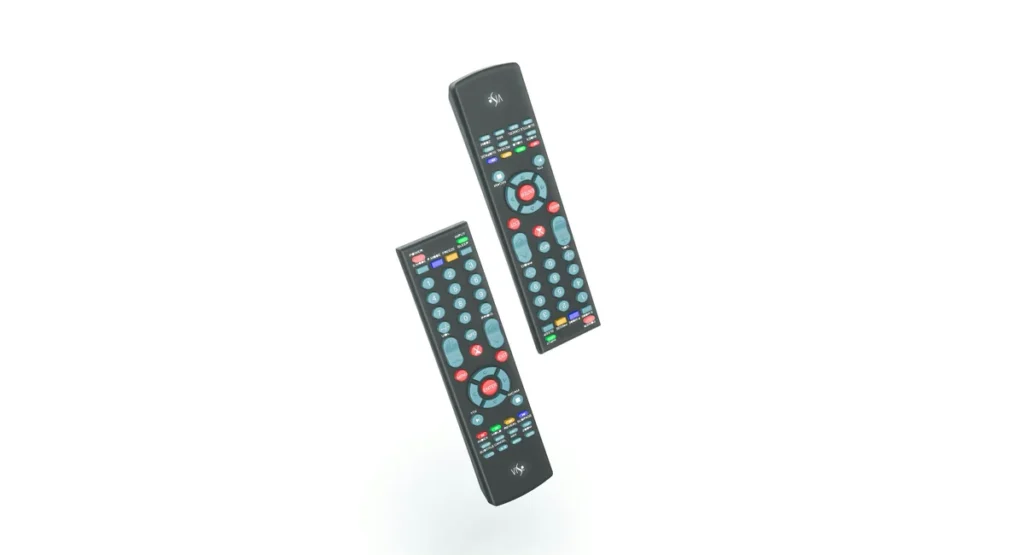
Yes, a universal remote can be reprogrammed for another TV:
- Reset the remote (remove batteries or hold Setup).
- Turn on the new TV.
- Program the remote using a device code or auto search method.
- Test all buttons to confirm functionality.
What to Do After Resetting a Universal Remote
After resetting:
- Insert new batteries.
- Turn on the TV or device.
- Press and hold Setup until the indicator light stays on.
- Enter the correct device code or use auto search.
- Test power, volume, and channel buttons.
- Try a different code if needed.
Resetting clears old settings, but reprogramming is always required afterward. Using fresh batteries and the correct method ensures the best results.
Frequently Ask Questions
Q.1:How do you reset a universal remote?
Ans: The majority of universal remote controls can be reset by first taking the batteries out, then holding down the Power or Setup button while putting the batteries back in. This is explained in your remote’s manual or online help resources. Many remotes then require a specific set of button presses, usually including the Setup and a device specific button, or a number code.
Q.2:How to reprogram after resetting Windows 10?
Ans: After Windows 10 has been reset, configure your user account, language, and region. Install updates by connecting to Wi-Fi and selecting Settings > Update & Security. Look for missing drivers in Device Manager and, if necessary, restore files from a backup. Adjust system settings after reinstalling necessary apps like browsers and antivirus software. Lastly, to apply the changes, restart your computer.
Q.3:How to reset one For All remote?
Ans: Depending on the model and chip version, factory resetting a One For All remote usually entails holding particular keys and inputting a code until the LED blinks in a particular manner. Below is a summary of popular techniques.
Q.4:How does universal remote work?
Ans: A universal remote controls a variety of devices by transmitting radio or infrared (IR) signals. To match the right signal, it is programmed with device codes or an auto search feature.
Q.5: How do you turn on the TV with a universal remote?
Ans: Using a universal remote, find and press the TV button (or the button that relates to your device) to turn on your TV. The TV can then be turned on by pressing the Power/On button, which is typically a dedicated button or one with a similar label.

Sid is a skilled content writer with over 9 years of experience, creating clear and helpful articles on a wide range of topics. Sid is also well-known for her knowledge of remote controls, codes, and setup guides, helping thousands of people with simple and reliable solutions. Her goal is to combine expert content writing with practical knowledge, making information easy to understand and useful for everyone. In her free time, she enjoys exploring new technology and sharing helpful tips with the community.
