
Learn how to set up and program a Hisense TV remote find working remote codes fix common issues and connect universal remotes with this easy step-by-step guide.
Your Hisense TV offers a world of entertainment. However that experience is controlled by one small device the Hisense TV remote. If you’ve just unboxed your new television or are having trouble with your current remote you’ve come to the right place. This guide explains everything you need to know. We will cover setup troubleshooting common problems and even how to use your TV without a physical remote. Let’s make sure you can get back to your favorite shows and movies without any hassle.
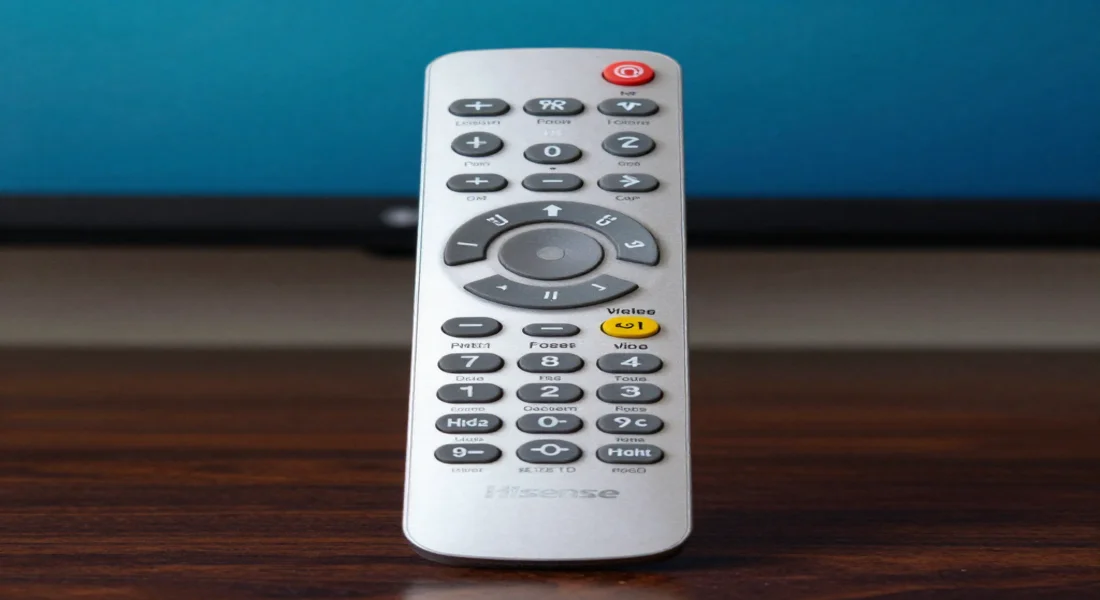
Understanding Your Remote’s Layout
Before diving into advanced functions let’s get familiar with the basic buttons. While designs vary slightly between models most Hisense remotes share a common layout.
- Power Button: Turns the TV on and off.
- Input/Source: Switches between different connected devices. These include HDMI ports USB drives, and AV inputs.
- Number Pad (0-9): Allows you to directly enter channel numbers.
- Volume Up/Down: Adjusts the sound level.
- Channel Up/Down: Navigates through channels.
- Mute: Instantly silences the audio.
- Home Button: Opens the smart TV’s main dashboard. This is where you access apps and settings.
- Navigation Arrows (D-Pad): Used to move up down left and right within menus.
- OK/Enter: Confirms a selection within a menu.
- Back Button: Returns you to the previous screen or menu.
- App Shortcut Buttons: Many remotes have dedicated buttons for popular apps like Netflix YouTube or Prime Video.
Take a moment to look at your remote. Identifying these key buttons will make navigating your TV much easier. For example when you want to switch from watching cable to playing a video game, you simply press the “Input” button and use the navigation arrows to select the correct HDMI port.
How to Pair Your Hisense TV Remote
Some Hisense models, especially those with voice control use a Bluetooth remote. This type of remote needs to be paired with your TV to work correctly. If your remote isn’t responding, pairing might be the solution.
Step-by-Step Pairing Guide
Pairing is usually a quick process. If your TV didn’t automatically guide you through this during initial setup follow these simple steps.
- Turn On Your TV: Use the power button on the television itself if the remote isn’t working yet.
- Stand Close to the TV: For the initial pairing ensure you are within about 10 feet of the television.
- Press and Hold the Pairing Button: On most Hisense remotes you need to press and hold two buttons simultaneously. This is often the Home button and the Menu button (it might look like a square or have three horizontal lines).
- Hold for a Few Seconds: Keep holding the buttons down for about 3-5 seconds.
- Look for a Confirmation: A message should appear on your TV screen confirming that the remote has been successfully paired. Some remotes also have a small LED light that will flash during pairing and then turn solid or go off once connected.
If the pairing fails try replacing the batteries and repeating the steps. Make sure no other Bluetooth devices are interfering with the signal.
Troubleshooting Common Remote Control Issues
Is your Hisense TV remote not working? This is a common frustration but the fix is often simple. Before you consider buying a replacement try these troubleshooting steps.
1. Check the Batteries
The most frequent cause of a non responsive remote is dead batteries.
- Open the battery compartment on the back of the remote.
- Remove the old batteries.
- Insert a fresh pair of batteries making sure the positive (+) and negative (-) ends align correctly.
- Close the compartment and test the remote.
Sometimes, the battery contacts can become dirty. Use a dry cloth to gently wipe them before inserting the new batteries.
2. Power Cycle Your TV and Remote
A simple reset can often resolve electronic glitches. This process clears temporary memory and re establishes the connection.
- Unplug the TV: Disconnect your Hisense TV from the wall power outlet.
- Remove Remote Batteries: Take the batteries out of your remote control.
- Press the Remote’s Power Button: With the batteries out, press and hold the power button on the remote for about 15 seconds. This helps drain any residual power.
- Wait: Leave both the TV unplugged and the remote without batteries for at least 60 seconds.
- Reconnect Everything: Put the batteries back in the remote. Plug your TV back into the wall outlet.
- Test It: Turn on the TV and see if the remote is now working.
3. Check for Obstructions
Infrared (IR) remotes, the most common type require a clear line of sight to the TV’s sensor.
- Make sure nothing is blocking the path between your remote and the television. Soundbars decorations and even protective plastic film on the TV can interfere.
- Locate the IR sensor on your TV. It is usually a small, dark plastic panel on the bottom bezel of the TV.
- Wipe the sensor on the TV and the emitter on the front of the remote with a soft dry cloth to remove dust or smudges.
4. Re Pair the Remote
If you have a Bluetooth or voice remote it may have lost its connection. Follow the pairing instructions mentioned earlier in this guide to re establish the link with your TV.
Frequently Asked Questions
Here are answers to some of the most common questions about Hisense TV remotes.
Can I control my Hisense TV with my phone?
Yes, you absolutely can. Hisense offers an official app called Remote NOW. You can download it for free from the Google Play Store for Android devices or the Apple App Store for iPhones. To use it your phone and your Hisense Smart TV must be connected to the same Wi-Fi network. Once connected the app provides a full virtual remote on your phone screen including a keyboard for easier typing and quick access to apps.
Can a Hisense TV remote be replaced?
Yes, a lost or broken Hisense TV remote can be replaced. You have several options. You can order an official replacement directly from the Hisense website or authorized retailers. Alternatively, you can purchase a universal remote. When buying a universal remote make sure it lists Hisense as a compatible brand. These often require you to enter a specific code to sync with your TV model.
How do I connect my Hisense TV to Wi-Fi without a remote?
Connecting to Wi-Fi without a remote can be tricky, but it’s possible. The easiest method is to use the Remote NOW app on your smartphone but that requires the TV to already be on a network. If it’s not, you can try connecting a USB keyboard or mouse to the TV’s USB port. This should allow you to navigate the TV’s onscreen menus, go to Settings > Network > Network Configuration, and enter your Wi-Fi password using the keyboard.
What to do if your Hisense TV remote is not working?
First replace the batteries. If that doesn’t work perform a power cycle by unplugging the TV and removing the remote’s batteries for one minute. Check for any physical obstructions between the remote and the TV’s sensor. Finally if you have a Bluetooth remote, try re pairing it by holding the specified buttons.
How to restart the Hisense remote?
To “restart” or reset a Hisense remote you perform a power cycle. Remove the batteries from the remote. Press and hold the power button on the remote for 15-20 seconds to discharge any remaining power. Then re insert the batteries. For Bluetooth remotes, restarting also involves unpairing and then re pairing it with the television.
Conclusion
Your Hisense TV remote is the key to unlocking a great viewing experience. While it can be frustrating when it doesn’t work as expected the solution is usually simple. By understanding how to check batteries, clear obstructions, and perform a quick power cycle you can solve most common issues yourself. Knowing how to pair your remote and use your smartphone as a backup ensures you are never locked out of your TV’s features. We hope this guide has empowered you to manage your remote with confidence and get the most out of your Hisense television.

Sid is a skilled content writer with over 9 years of experience, creating clear and helpful articles on a wide range of topics. Sid is also well-known for her knowledge of remote controls, codes, and setup guides, helping thousands of people with simple and reliable solutions. Her goal is to combine expert content writing with practical knowledge, making information easy to understand and useful for everyone. In her free time, she enjoys exploring new technology and sharing helpful tips with the community.
