
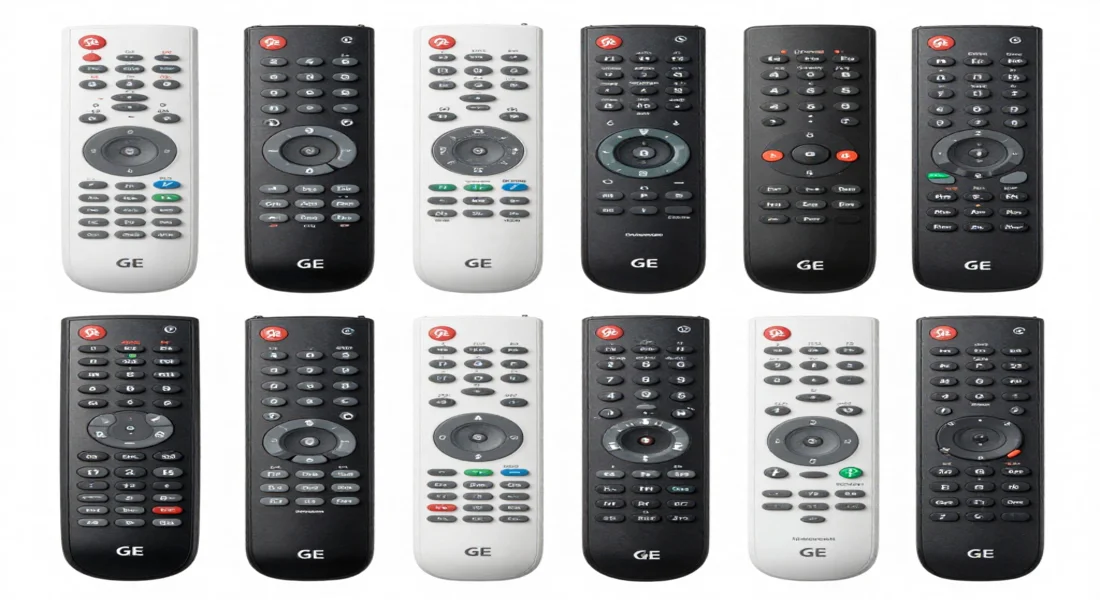
Find all GE universal remote control codes and learn how to program your remote. Our simple guide has step by step instructions and TV codes.
A GE universal remote can make setting up your home entertainment system easier by combining several controllers into one. But you need the right GE universal remote control codes to make it work. It can be hard to find and enter these codes at times. This guide tells you everything you need to know, from how to find the right code list for your GE universal remote control to how to program it correctly. We will show you how to do each step, so you know what to do.
Understanding GE Universal Remote Control Codes
Before we get into how to program your remote, let’s talk about what these codes are. Every electronic device, such as your soundbar, TV, or DVD player, reacts to certain infrared (IR) signals. A universal remote comes with a huge library of these signals already set up. The GE remote control codes are short, usually four digit numbers that tell your remote which set of signals to use for a specific brand and type of device. By entering the correct code, you are essentially teaching your universal remote how to “speak” to your equipment.
Where to Find Your Remote’s Code List Version
The first step is to identify your remote’s model and code list version. This is crucial because different remote models use different code lists (e.g., CL3, CL4, CL5, CL6).
- Open the battery compartment on the back of your GE remote.
- Look for a small sticker. It’s usually located under the batteries or on the inside of the battery cover.
- Note the version number (e.g., CL4 or CL5). This tells you which code list for a GE universal remote control to use.
Knowing your specific version ensures you are looking at the correct set of GE universal remote control codes for TV and other devices.
How to Program a GE Universal Remote Control
There are two primary methods to program your GE remote: Direct Code Entry and the Auto Code Search. The direct entry method is faster if you have the correct code, while the search method is a great alternative if codes don’t work or you can’t find one for your device.
Method 1: Direct Code Entry (Recommended)
This is the most straightforward way to set up your universal remote. You will need the GE universal remote control code list that corresponds to your remote’s version.
Here’s a step-by-step guide on how to set up your universal remote using this method:
- Turn on the device you want to program (e.g., your Samsung TV).
- Find the code. Refer to your remote’s manual or the manufacturer’s website for the correct GE universal remote control codes for Samsung TV (or whichever brand you are programming).
- Press and hold the SETUP button on your remote until the red indicator light turns on and stays on.
- Press the device button for the equipment you are programming (e.g., TV, DVD, CBL/SAT). The red light will blink once and then remain on.
- Enter the 4-digit code using the number pad. The red light will turn off if the code is entered correctly.
- Test the remote. Point it at your device and press the POWER button. If the device turns off, you have successfully programmed it. Try other functions like volume and channel control to ensure full functionality.
If the first code doesn’t work, repeat the process with the next code on the list for your brand. Some devices have multiple codes, and one might offer more functions than another. This process works for various models, including a GE 4 device universal remote control or a GE 8 device universal remote control.
Method 2: Auto Code Search
If you cannot find a code for your device or the listed codes fail, the GE universal remote control code search function is your best friend. This method automatically cycles through all the codes stored in the remote until it finds the one that works for your device.
Here’s how to program GE universal remote control codes using the auto search:
- Turn on your device.
- Press and hold the SETUP button until the red indicator light stays on.
- Press the device button you wish to program (e.g., TV). The light will blink once.
- Press the POWER button on the remote. The red light will turn on and off as the remote sends out test codes.
- Wait for your device to turn off. As soon as it does, immediately press the POWER button again to lock in the code.
- Test functionality. Turn the device back on and check if the volume, channel, and other buttons work correctly. If they do, you have found the right code.
This method can take a few minutes, but it is an effective way to program devices without a known code.
GE Universal Remote Codes for Popular TV Brands
To get you started, here is a reference for common universal remote TV codes. Remember to check your remote’s specific manual for the most accurate and complete GE universal remote control programming codes.
- Samsung: Many GE remotes, including the GE 4 device universal Samsung replacement remote control codes, often use codes like 586, 045, 477, or 505.
- Sharp: For a Sharp TV, you might use codes such as 018, 023, 107, or 108. Look for the specific GE universal remote control codes for Sharp TV in your list.
- LG: Common codes include 1423, 0178, and 0017.
- Sony: Try codes like 10000, 00810, or 01189.
- Vizio: Popular codes are 11758, 10864, and 10178.
These are just examples. Always refer to the official GE universal TV remote control codes for your specific model, whether it’s a GE 3 device universal remote control, a GE 6-device universal remote control, or another version like the GE 8-device universal remote control backlit black 41567.
Troubleshooting Common Issues
Sometimes, programming doesn’t go as smoothly as planned. Here are solutions to common problems.
The Remote Isn’t Responding or the Red Light Isn’t Working Correctly
The most common cause is the batteries. Even new batteries can be faulty.
- Solution: Replace the batteries with a fresh, brand name pair. Make sure they are inserted correctly. This simple fix often resolves issues where the remote seems unresponsive during setup.
The Remote Controls Some Functions but Not Others
This issue, known as partial code functionality, happens when the code you entered only controls basic functions like power and volume.
- Solution: Your device manufacturer may have several codes. Try the next code on the list for your brand by repeating the Direct Code Entry process. Alternatively, use the Auto Code Search method to find a more compatible code.
I Can’t Find a Code for My Device
This is common with newer or less common brands.
- Solution: The Auto Code Search feature is designed for this exact situation. Follow the steps for the automatic search to let the remote find a working code for you. It’s a reliable backup when the GE remote control universal codes list falls short.
How Do I Reset My GE Universal Remote?
If you want to start over, you can reset the remote to its factory settings. This will erase all programmed codes.
- Press and hold the SETUP button until the red light stays on.
- Press and release the MUTE button.
- Press and release the number 0.
- The red light will blink twice, indicating the remote has been reset.
Frequently Asked Questions (FAQs)
Here are answers to some frequently asked questions about GE universal remote control codes.
How do I program my GE remote without a code?
If you don’t have the code, your best option is the Auto Code Search method. This feature allows the remote to scan through its internal library of codes until it finds one that operates your device. Just press and hold ‘Setup’, select the device, and then press the ‘Power’ button to start the scan. When your device powers off, you’ve found a working code.
What is the GE universal remote code for a Samsung TV?
There is no single code; it depends on your TV model and the remote version. Common codes for Samsung TVs include 586, 045, and 505. For a specific model like a GE 4-device universal remote control 33709, you would consult its dedicated code list. Always check the GE universal remote control codes samsung tv section in your manual.
How do I find the code for my TV?
You can find the GE universal remote control codes list in the manual that came with your remote. If you lost the manual, Jasco (the manufacturer of GE remotes) provides code lists online. You’ll need to know your remote’s version number (CL3, CL4, etc.), which is found in the battery compartment.
Why won’t my GE universal remote program to my TV?
This could be due to several reasons:
- You are using the wrong code for your TV model.
- The batteries in the remote are low.
- You are not following the programming steps correctly.
- Your TV may not be compatible with the remote (this is rare).
Double-check the code, replace the batteries, and carefully follow the step-by-step instructions. If direct entry fails, try the auto code search.
Conclusion
Setting up your GE universal remote is an achievable task that brings great convenience to your media experience. By understanding how GE universal remote control codes work and following the simple methods of Direct Code Entry or Auto Code Search, you can consolidate your controllers and declutter your living space.
Remember to identify your remote’s version number, use the correct code list, and test functions thoroughly. If you run into trouble, the troubleshooting tips and FAQs in this guide should help you resolve most issues. Now you have all the information you need on how to program a ge universal remote control, so you can get back to enjoying your favorite shows and movies with a single, powerful remote.

Sid is a skilled content writer with over 9 years of experience, creating clear and helpful articles on a wide range of topics. Sid is also well-known for her knowledge of remote controls, codes, and setup guides, helping thousands of people with simple and reliable solutions. Her goal is to combine expert content writing with practical knowledge, making information easy to understand and useful for everyone. In her free time, she enjoys exploring new technology and sharing helpful tips with the community.
