

Is your Apple TV remote not working? Learn easy fixes for volume issues, battery problems, and connection errors. Restore your remote quickly with this guide.
You’re not alone if your Apple TV remote isn’t functioning properly. Problems such as unresponsive buttons, volume control issues, battery problems, or connection drops are common among users. There are a few easy ways to quickly resolve the issue, regardless of whether you use the Apple TV Remote App, Siri Remote, or the remote that came with older Apple TV models.
We’ll also look at why my Apple TV remote volume isn’t working, how to fix it, and options for users who want to restart their Apple TV remotely or carry out operations like changing the battery or learning how to safely open an Apple TV remote.
Why Is My Apple TV Remote Not Working

An Apple TV remote may stop responding due to several reasons. Identifying the source of the issue helps you choose the correct fix.
Common causes include:
• Low battery or a dead battery
• Remote not paired with the Apple TV
• Physical damage or liquid exposure
• Software glitches in Apple TV
• Problems with volume control or HDMI-CEC
• Obstructions blocking the remote’s signal
• Issues with the Apple TV Remote App
Each of these can affect performance differently, especially when the volume control on remote not working or certain buttons fail to respond.
How to Fix Apple TV Remote Not Working
The following troubleshooting steps cover all major Apple TV remote models.
Restart Apple TV From Remote
Sometimes the quickest solution is restarting the Apple TV directly from the remote.
• Press and hold the Back button and the TV button together
• Hold until the Apple TV status light begins to flash
• Release both buttons to complete the restart
This simple restart can solve temporary freezing, lagging, and connectivity issues.
Repair the Remote With Apple TV
If the remote becomes disconnected, pairing it again usually restores functionality.
Steps to repair:
• Bring the remote close to the Apple TV
• Press and hold the Back and Volume Up buttons for at least five seconds
• Follow on screen instructions if prompted
Check for Software Updates
Outdated tvOS software can also cause problems.
• Go to Settings
• Choose System
• Select Software Updates
• Install any available updates
Restart your Apple TV after the update for best performance.
Fixing Apple TV Remote Volume Issues
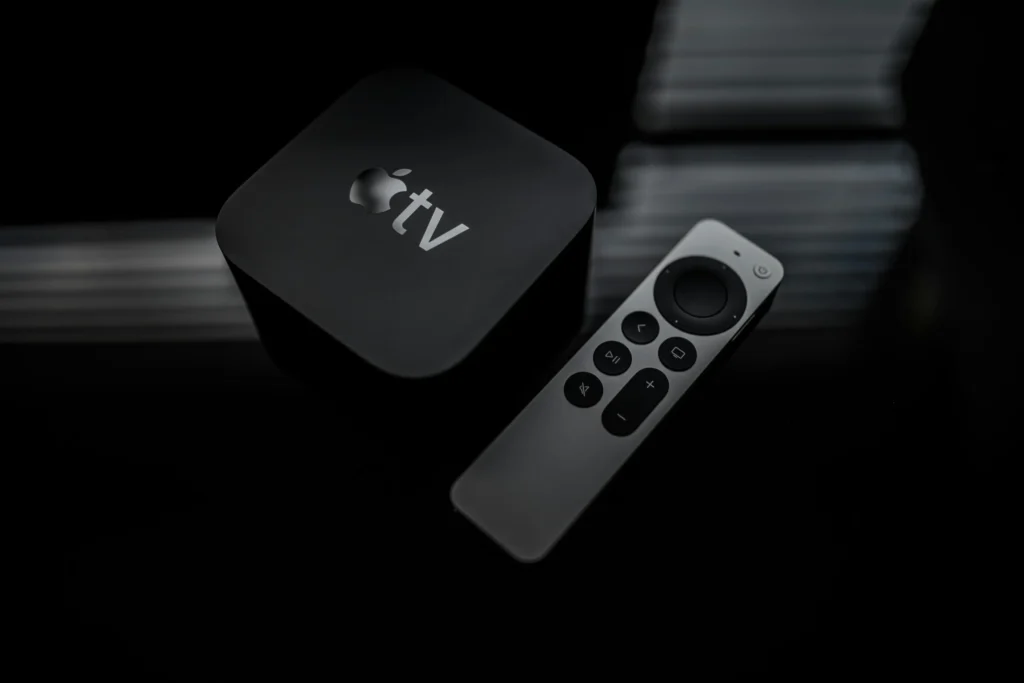
One of the most common problems is when the volume control on the remote is not working. Many users ask why my Apple TV remote volume does not work, and the solution usually involves adjusting TV settings or HDMI controls.
Enable HDMI-CEC on Your TV
Your TV must support HDMI-CEC for the Apple TV remote volume to work.
• Open TV Settings
• Find the HDMI-CEC option
• Make sure it is turned on
Reset Volume Control Settings
• Go to Apple TV Settings
• Choose Remotes and Devices
• Select Volume Control
• Test the available options
How to Fix Apple TV Remote Volume Not Working
• Ensure the remote is fully charged
• Check that your TV supports CEC
• Test a different HDMI cable
• Restart the TV and Apple TV
• Repair the remote
Changing the Battery on Apple TV Remote
If your remote uses a replaceable battery, you might need to install a new one. Users often search for changing the battery on Apple TV remote when the remote becomes unresponsive or slow.
How to Open an Apple TV Remote
Different Apple TV remotes have different designs, but older aluminum remotes require opening the battery compartment.
General steps:
• Look for the round battery compartment at the back
• Use a coin to twist the cover counterclockwise
• Remove the old battery and insert a new CR2032 battery
• Close the compartment by twisting clockwise
For Siri Remote models with built in batteries, charge the remote using a Lightning cable or USB-C cable depending on the generation.
Using the Apple TV Remote App
If the physical remote doesn’t work at all, the Apple TV Remote App on iPhone can save you.
The app allows you to:
• Control menus
• Adjust volume
• Enter text
• Restart Apple TV
• Play, pause, fast forward, and rewind
Turn Off Apple TV Remote on iPhone
If you want to disable the app temporarily:
• Open Control Center
• Tap the remote icon
• Close the control using the Home swipe gesture
This removes the remote interface from active use but doesn’t uninstall the feature.
When to Contact Apple Support
After attempting every fix, it might be time to contact official support if your remote is still not working. Many consumers hunt for the customer care number of Apple or the Apple support phone number when hardware damage is suspected.
Frequently Asked Questions
Why Is My Apple TV Remote Not Working?
Common reasons include a dead battery, pairing issues, signal blockage, or software glitches.
Why Is My Apple TV Remote Volume Not Working?
Volume control often stops working due to HDMI-CEC issues or TV settings that need adjustment.
How to Fix Apple TV Remote Volume Not Working?
Enable HDMI-CEC, update your Apple TV, repair the remote, and check cables.
How to Fix Apple TV Remote Not Working?
Restart Apple TV, charge or replace the battery, re-pair the remote, remove obstructions, and update software.
Can I Use the Apple TV Remote App?
Yes, the Apple TV Remote App on iPhone can control all Apple TV functions.
Conclusion
Your streaming experience may be interfered with by an Apple TV remote that isn’t working, but most problems have easy fixes. The repairs are typically simple to do at home, whether you need to change volume settings, reset your Apple TV from the remote, or figure out how to open an Apple TV remote to replace the battery.
If your remote’s volume control isn’t working, it usually indicates a pairing problem or an HDMI-CEC configuration. The best advice in situations when hardware damage is suspected can be obtained by calling the Apple support number or going to apple.com.

Sid is a skilled content writer with over 9 years of experience, creating clear and helpful articles on a wide range of topics. Sid is also well-known for her knowledge of remote controls, codes, and setup guides, helping thousands of people with simple and reliable solutions. Her goal is to combine expert content writing with practical knowledge, making information easy to understand and useful for everyone. In her free time, she enjoys exploring new technology and sharing helpful tips with the community.
